
Tasks – Stops with multiple shipments: walkthrough
Group loading and unloading actions for shipments at the same stop. Set Stops with multiple shipments in Tasks, then see how grouped stops show in the driver mobile app and the carrier portal.
This article explains how to make a loading or unloading action complete once for all shipments at the same stop. It also shows how drivers and contract carriers see grouped stops.
Introduction
The Stops with multiple shipments setting covers four loading and unloading actions. It is in the Show on stops card of each action under Configuration > Tasks > Loads. Contract carriers see shipments at the same location grouped in their portal.
Terminology
| Term | Meaning |
|---|---|
| Stop activity group | Consecutive stops at the same location with the same activity, treated as one stop. |
| Grouped action | A loading or unloading action that is done once for the whole stop activity group. |
| Shipment card | The card for one shipment inside a stop in the driver mobile app. |
Prerequisites
- Permission: Super Admin.
- Default: Separate action per shipment on the stop. Nothing changes until an action is switched.
- Driver mobile app: The latest version. Older versions still show one action per shipment.
Use case
- An admin wants drivers to confirm loading once when several shipments leave the same terminal.
- A driver makes several drops at one delivery point and should not repeat the unloading action for each one.
- A contract carrier with several shipments at one location wants one stop in the portal, not one per shipment.
Group a loading or unloading action
Stops with multiple shipments options
| Option | Effect |
|---|---|
| 1 action for the stop activity group, completing all shipments | The action is done once for the whole stop group. |
| Separate action per shipment on the stop | Each shipment keeps its own action. This is the default. |
Set the option in Tasks
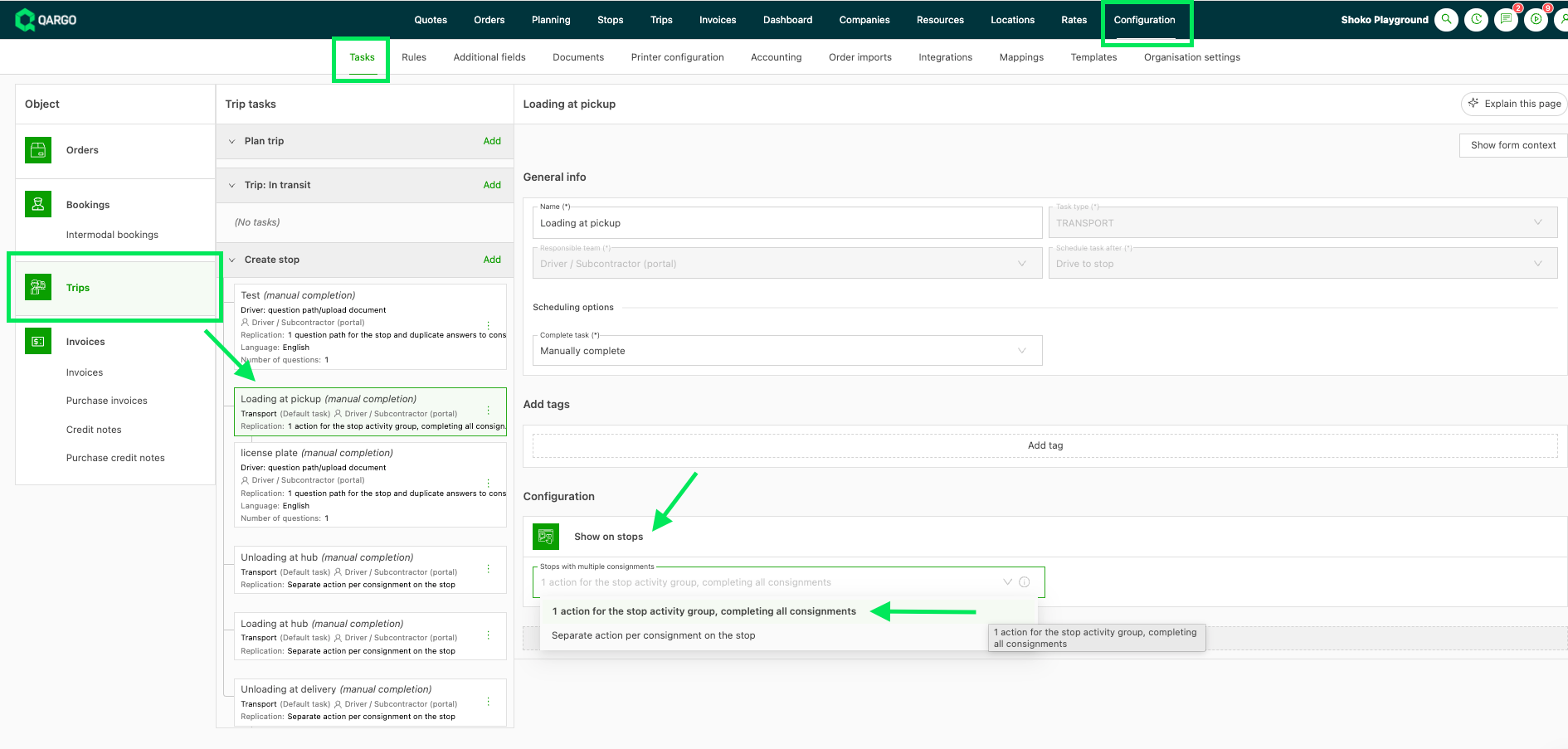
- Go to Configuration > Tasks and select Loads.
- Open the action under Create stop, for example Loading at pickup.
- Find the Show on stops card.
- Select 1 action for the stop activity group, completing all shipments in Stops with multiple shipments.
- Click Save. The task card now shows the chosen option on the Replication line.
- Repeat steps 2 to 5 for each action to group. Each action has its own setting.
How grouping works
- Stop group: Consecutive stops at the same location with the same activity form one group. A pickup and a delivery at one location stay separate. A stop elsewhere in between splits the group.
- Four actions: The field exists on Loading at pickup, Unloading at delivery, Loading at hub and Unloading at hub. Drive to stop and other generic actions do not have it.
- Per action: There is no tenant-wide switch. Each action is set on its own.
- All or nothing: A grouped action completes every shipment in the group. There is no select-all and no exception per shipment.
- Per shipment: Upload document tasks stay per shipment. Question tasks that only some shipments carry also stay per shipment.
- Different addresses: Drops at different addresses on one site do not group, unless set up as one location.
- Follow-up tasks: A task scheduled after another stays locked until the earlier task is completed.
Review a grouped stop in the carrier portal
The portal groups stops regardless of the setting on the action. It applies to every organization, with nothing to configure.
-
Open the carrier portal and select the load.
-
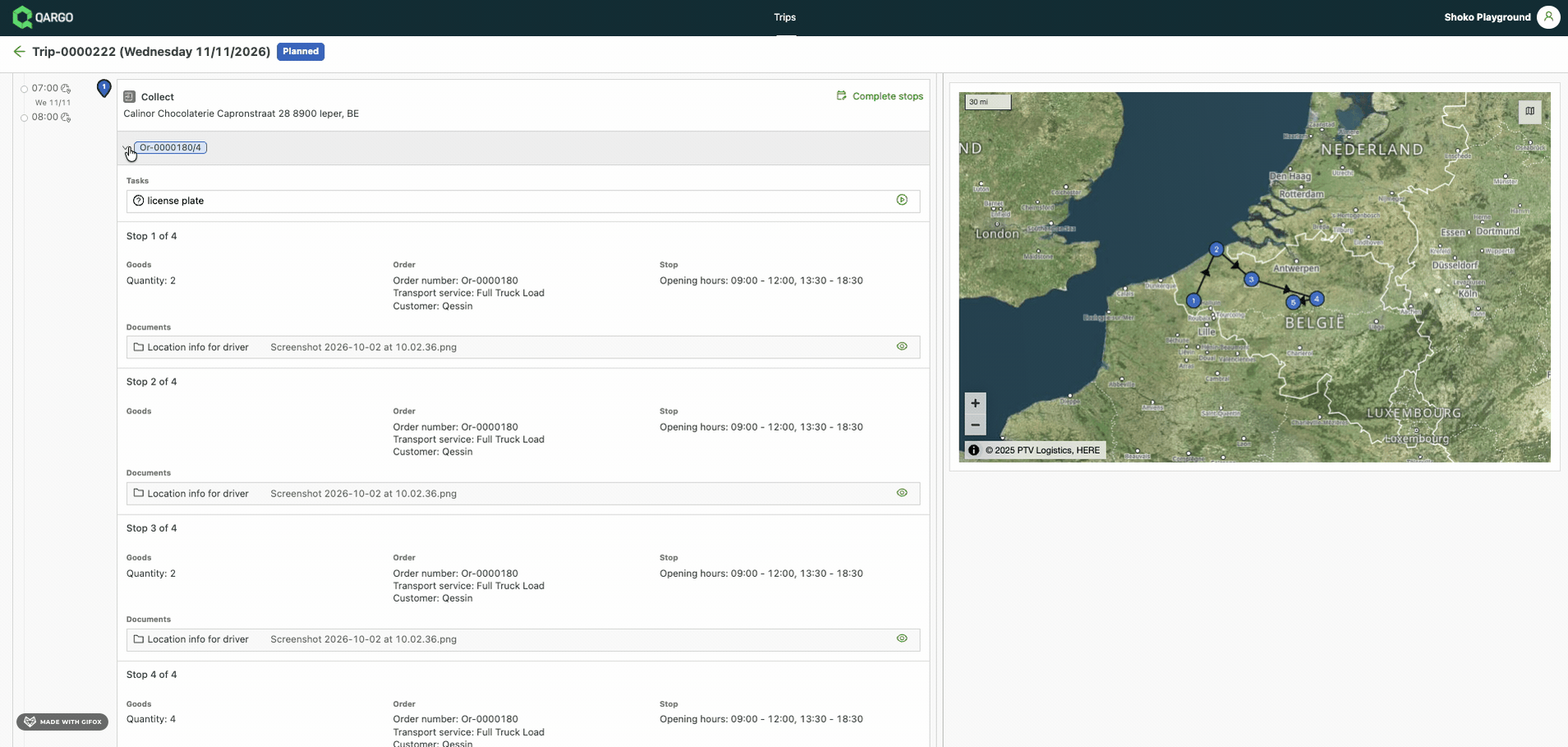
Check the stop block. Shipments at the same location with the same activity show as one block. Each order gets one section inside it.
-
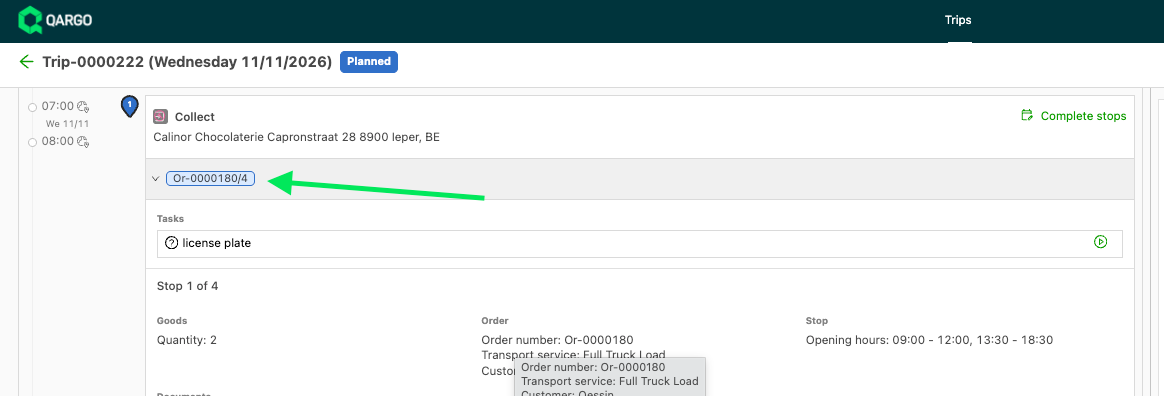
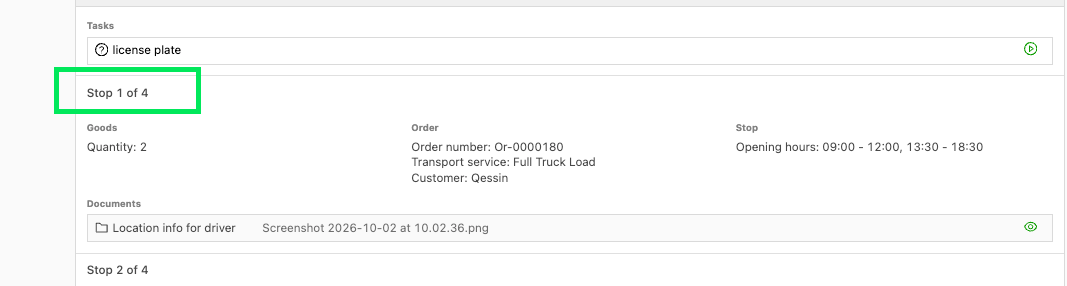
Check the order tag. An order with several stops shows Stop 1 of 4, Stop 2 of 4 and so on. The order tag shows the count, for example Or-0000180/4.
-
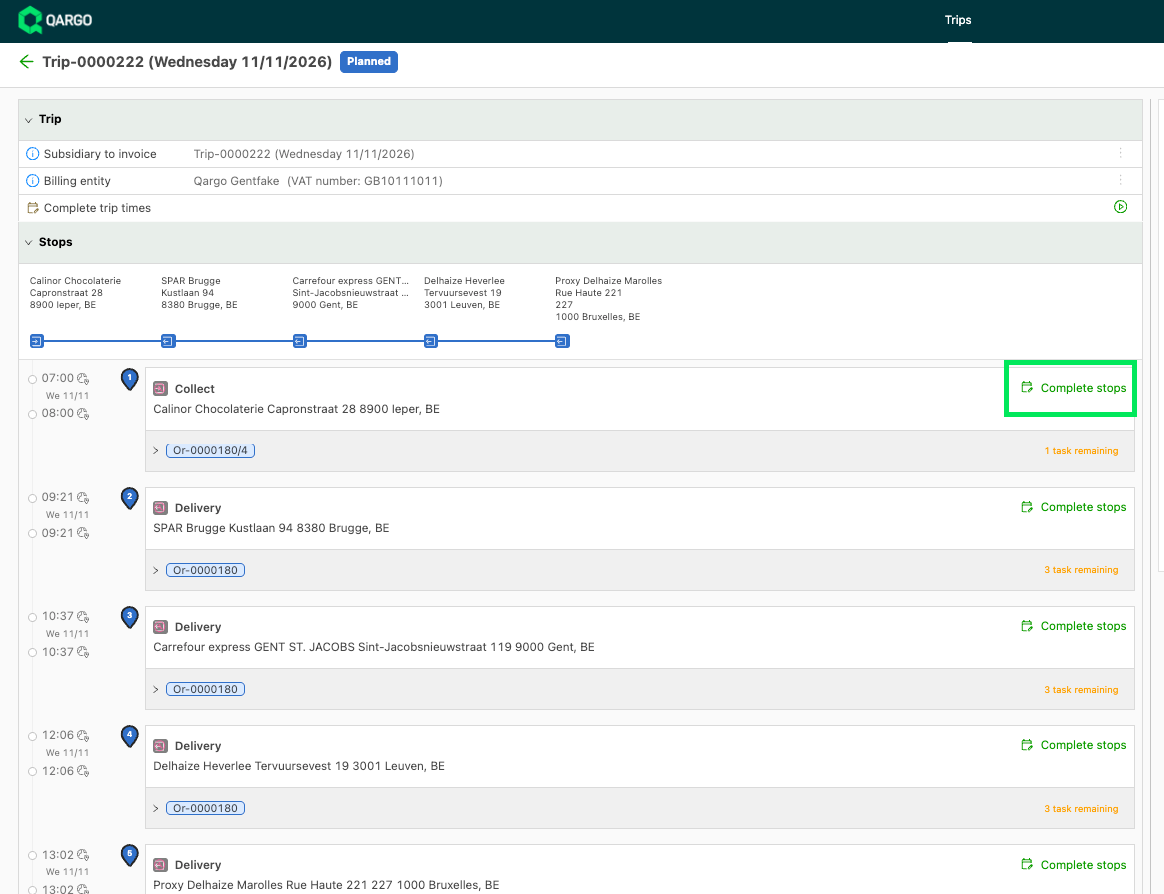
Click Complete stops in the block header. The button replaces Complete stop times and sets times for the whole group.
-
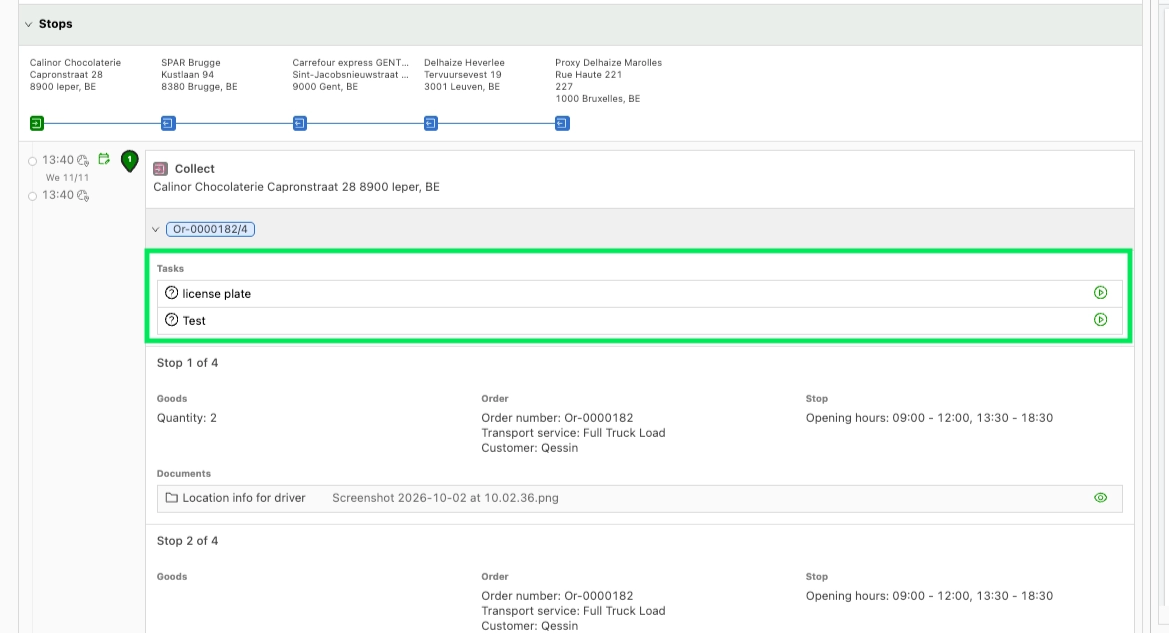
Answer the question tasks at the top of the stop. Tasks set to 1 question path for the stop and duplicate answers to shipments show once.
-
Check the collapsed sections. A section without tasks starts collapsed. A section with tasks starts open. A collapsed section shows how many tasks remain.
-
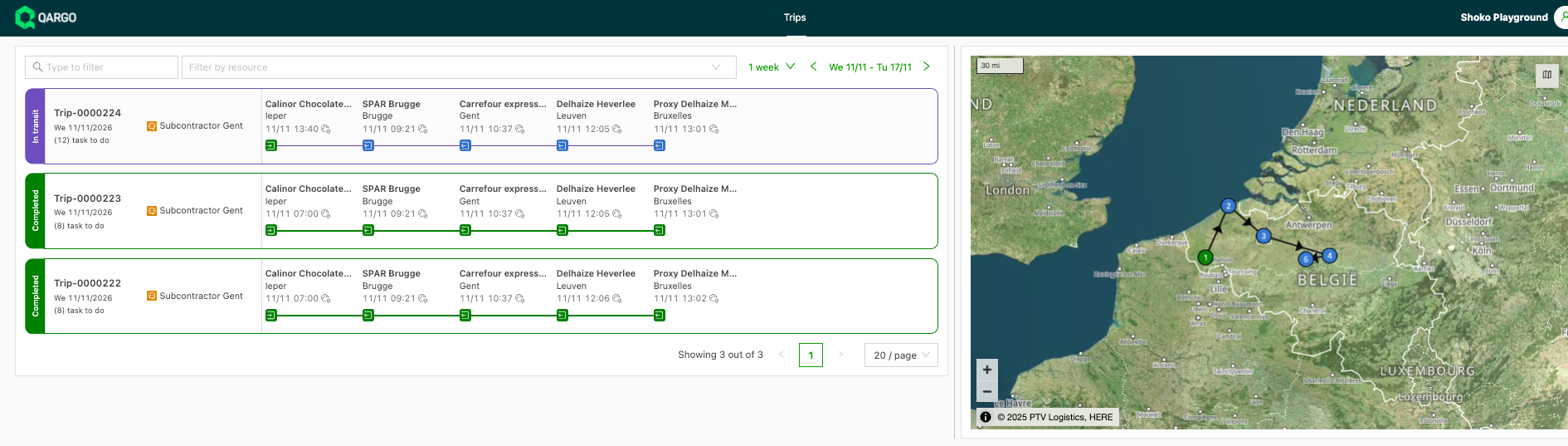
Check the map and the load list. The map shows one numbered marker per stop group. On load list cards, consecutive stops at the same location show as one timeline point.
Complete a grouped stop in the driver mobile app
Each shipment at a stop has its own numbered card. The stop opens with the cards that still have tasks.
-
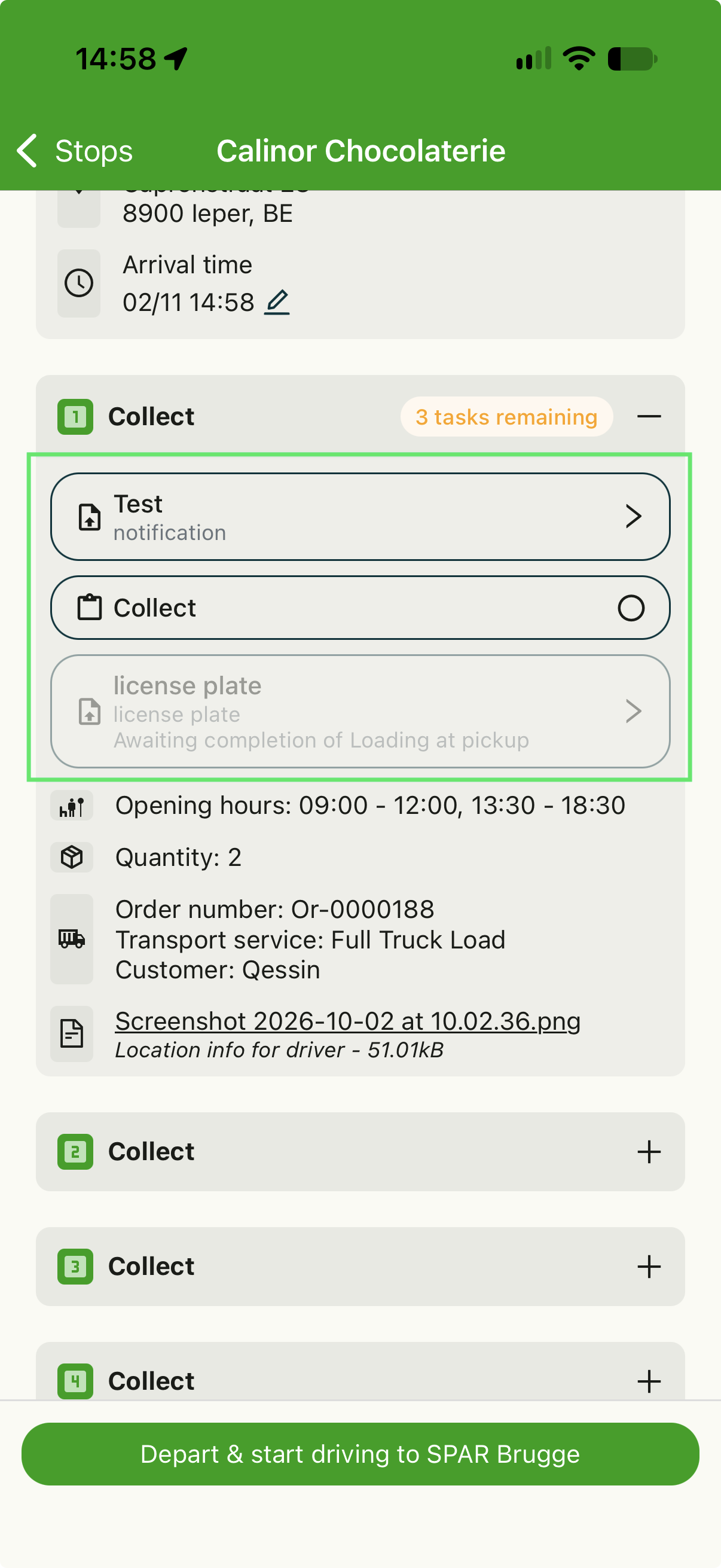
Answer the question tasks on the first card. Tasks set to 1 question path for the stop and duplicate answers to shipments show once. One answer completes the task for every shipment.
-
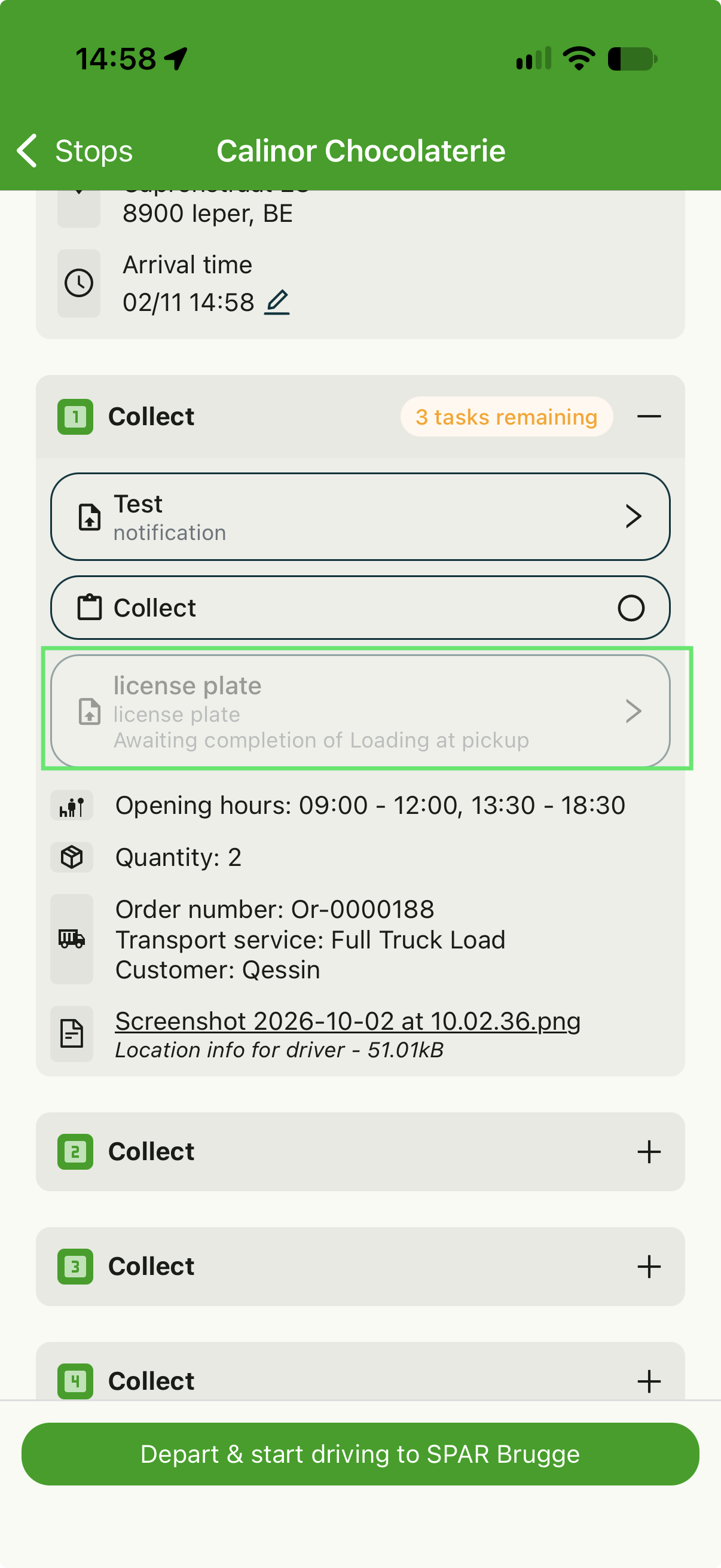
Check the waiting tasks. A task that follows another stays grayed out and shows Awaiting completion of and the name of that task until the earlier task is done (e.g. license plate).
-
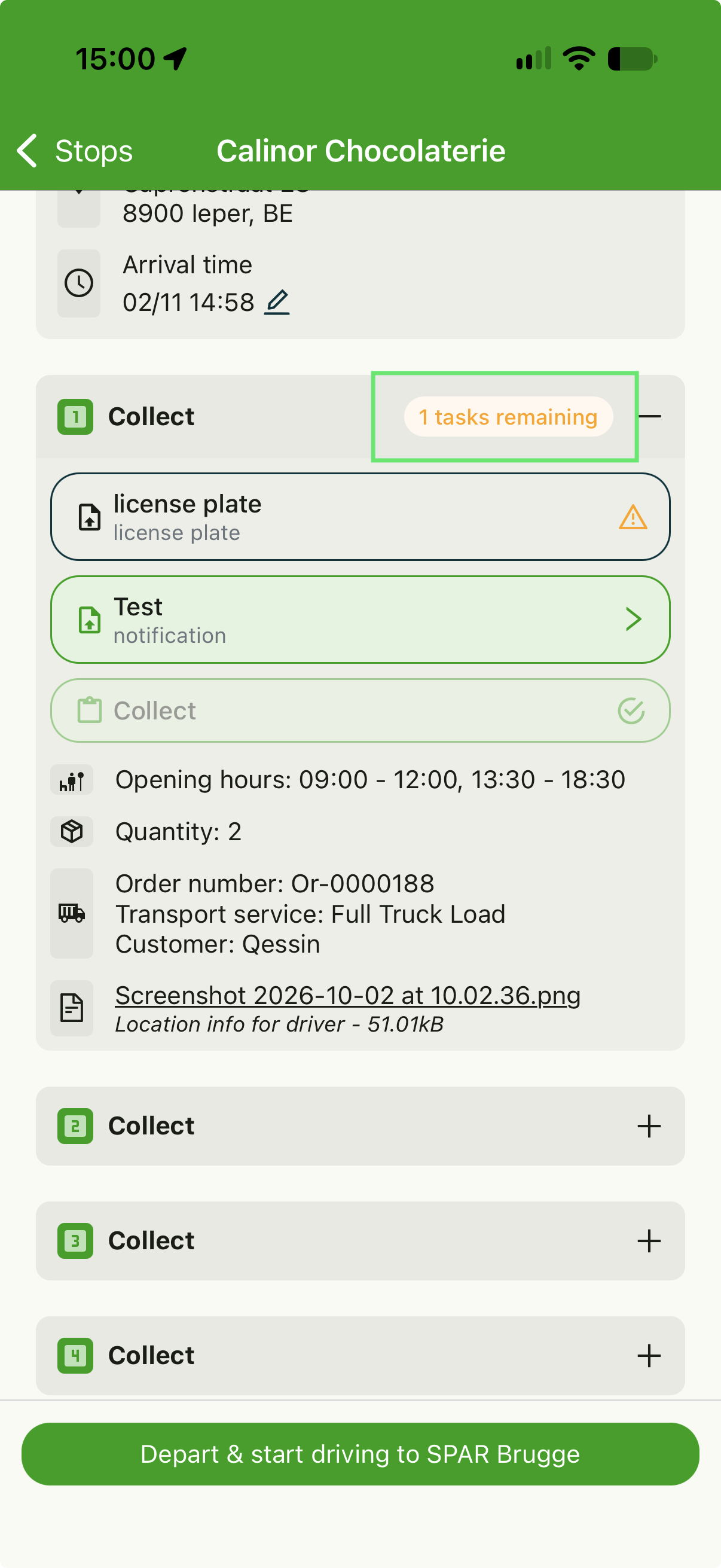
Check the remaining tasks. Each card shows a tag with the number of tasks remaining. A card shows a green check mark when all its tasks are done.
-
Complete the grouped action. With the grouped option, the driver completes the action once. Every shipment in the group completes with it.
-
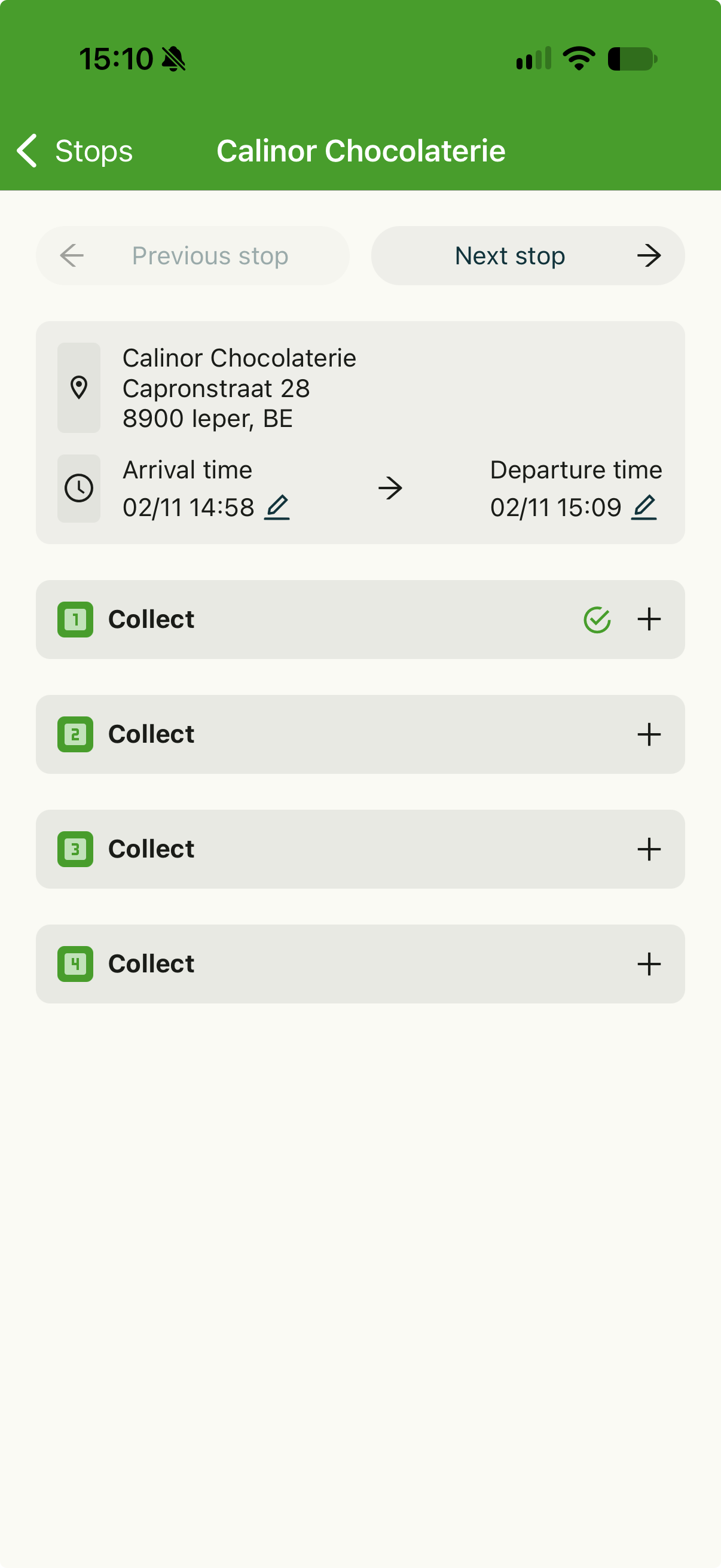
Check the collapsed cards. A card with nothing left to do starts collapsed. Goods, references and order info stay inside it.
Troubleshooting
| Issue | Resolution |
|---|---|
| The Stops with multiple shipments field is missing on an action. | Only the four loading and unloading actions have it. Drive to stop and other generic actions do not. |
| Drops at different addresses on one site do not group. | Set the site up as one location. Stops group only at the same location. |
| A pickup and a delivery at one location show as two stops. | This is expected. Stops group only when the location and the activity match. |
| Upload document tasks still repeat for each shipment. | These tasks stay per shipment by design. Complete each one. |
| A task is grayed out in the driver mobile app. | The task waits for an earlier task. It shows Awaiting completion of and the name of that task. |
| The driver mobile app still shows one action (Pickup) per shipment. | Update the driver mobile app to the latest version. Check that the action is saved with the grouped option. |