
FAQ – How does Qargo handle stop management?
Offering a flexible framework for managing stops within logistics routes and automating certain processes, such as delivery date calculations. When a driver arrives at a stop and it is in progress, the Edit stop times modal offers two complete options.
Table of contents
For stops that are in progress, the Edit stop times modal presents two options instead of one:
- Set actual arrival & planned departure time: Record the real arrival and adjust the planned departure. The stop stays open; the driver keeps the task flow and can still upload documents (CMRs, etc.).
- Set actual arrival & actual departure time: Record both actual timestamps and complete the stop immediately, as before.
Stops that have not yet started keep the existing single-edit flow.
Why
Once a driver arrived and a stop was in progress, planners previously could not extend the stop’s duration without setting a departure time. Setting it auto-completed the stop and removed the driver’s task flow on the board computer.
Use cases
- On-site delays: A customer site calls and says unloading will only start at 8:00 PM. The planner extends the stop’s planned departure without completing it, so the driver can still upload the CMR when unloading finishes.
- Operations visibility: Planners can reflect real-world delays on the planning board as they happen, without orphaning the driver’s task flow.
Terminology
| Term | Definition |
|---|---|
| In progress | A stop whose driver has already arrived and confirmed arrival on the mobile app or onboard computer |
| Task flow | The sequence of tasks (e.g., upload CMR, confirm time windows) a driver sees on the board computer for a stop |
| Planned departure | The expected time the driver will depart from the stop; editable until departure is confirmed |
| Actual departure | The real time the driver leaves the stop; once set, the stop is complete and the task flow ends |
How
- Open an in-progress stop and click Edit stop times.
- Choose one of the two options in the modal that appears.
- Fill in the times for the chosen option and click Save.
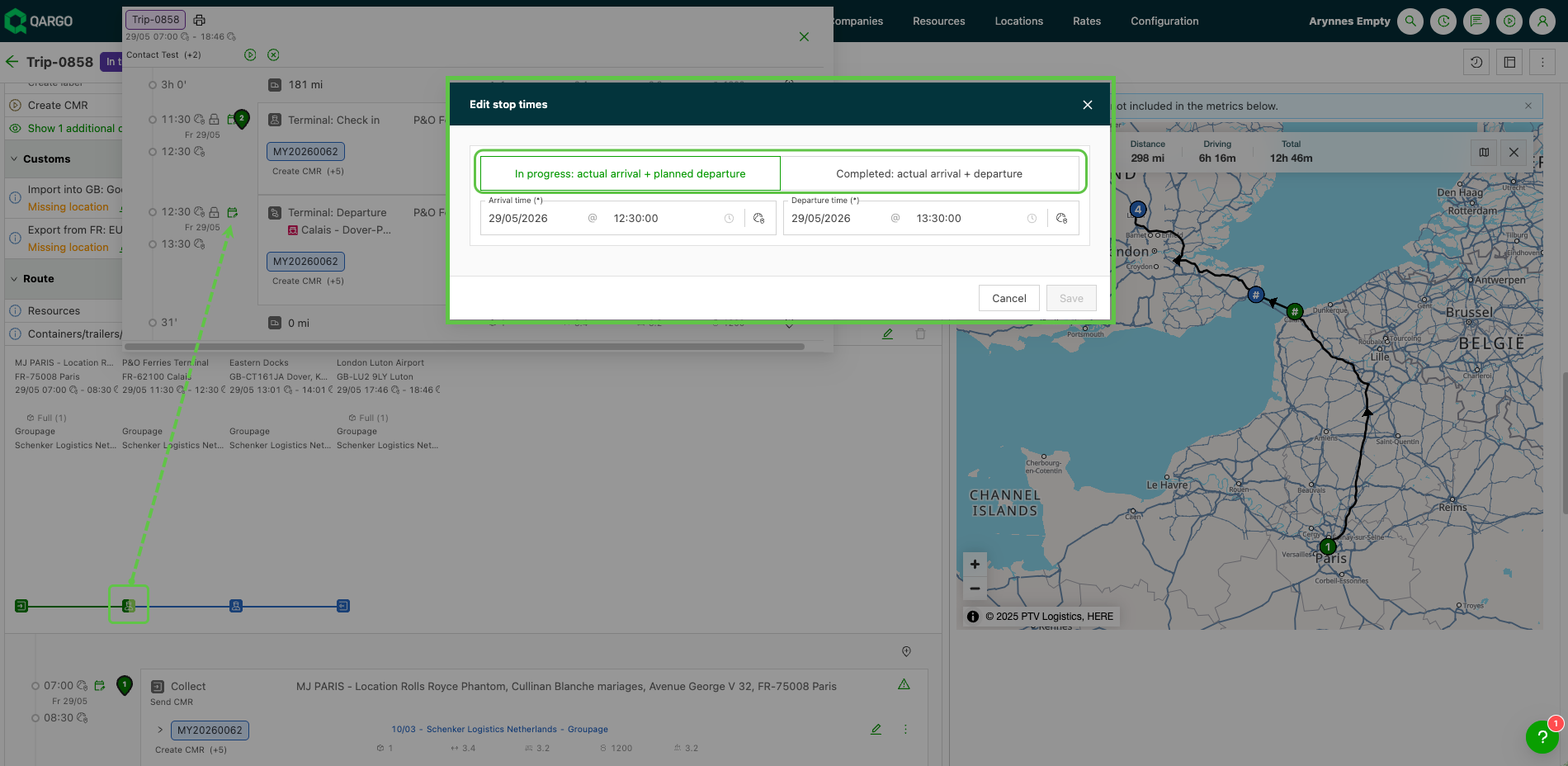
The planning board updates immediately with the new times, and the dispatch team sees the delay reflected visually.
Edit an in-progress stop without completing it
-
Open the in-progress stop from the planning board (Timeline, Blocks, or Table view) or the load stop detail.
-
Click Edit stop times.
-
A modal appears with two options:
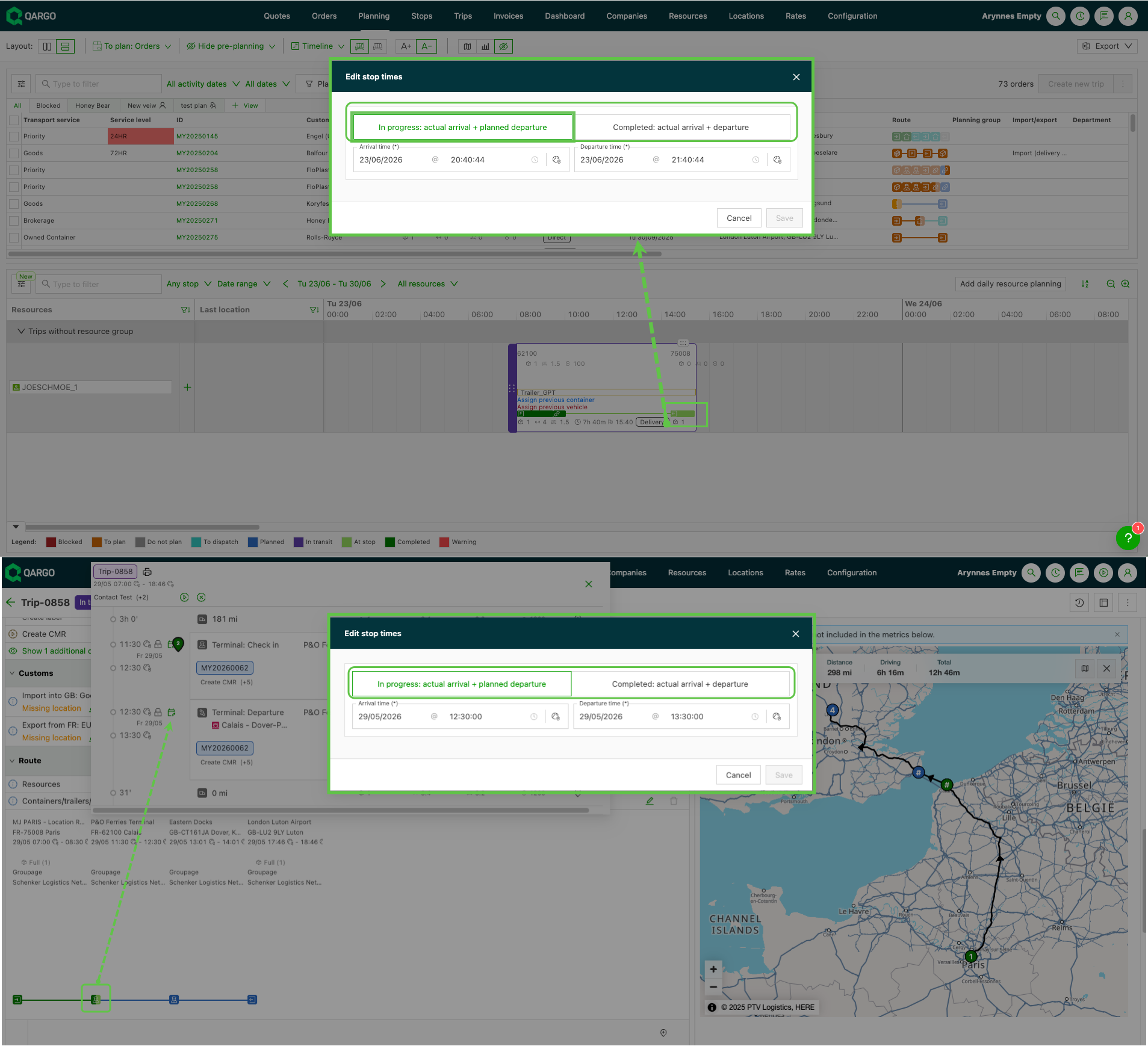
- In progress: actual arrival + planned departure (Keeps stop open)
- Completed: actual arrival + departure (Closes stop)
-
Select ‘In progress: actual arrival & planned departure time’.
-
Enter the actual arrival time and the new planned departure time.
-
Click Save. The stop stays open; the driver retains the task flow.
Complete an in-progress stop (existing flow)
- Open the in-progress stop.
- Click Edit stop times.
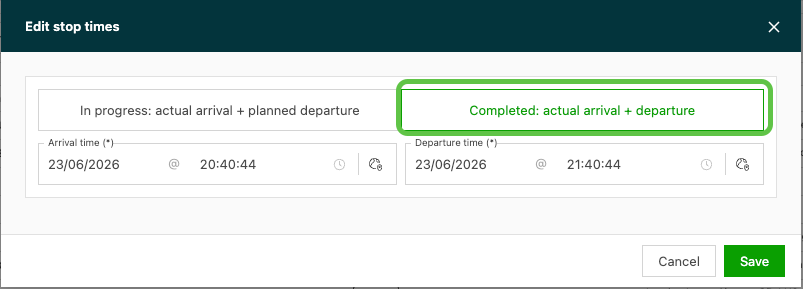
- In the modal, select Set actual arrival & actual departure time.
- Enter both the actual arrival and actual departure times.
- Click Save. The stop is completed immediately.
Troubleshooting
| Issue | Solution |
|---|---|
| Modal only shows one option | The stop must be in progress (driver has confirmed arrival). Stops that have not yet started show the single-edit flow. |
| Stop still shows as in progress after saving | Option 1 (Set actual arrival & planned departure time) may have been chosen. This is correct; the stop remains open. To complete it, use Option 2. |
| Driver’s task flow disappeared | If Option 2 was selected by accident and the stop was completed, it can be reopened via the load details and set back to in-progress status (contact support if needed). |
Automating stop handling
Qargo does not currently support the automatic addition of a customs stop based on delivery location. However, this functionality can be achieved using these methods:
-
Manually add a customs stop:
- Navigate to
Locations > Internal stop actionsin the header. - Click Add stop action in the left sidebar.
- Create a custom action, such as “Customs” or “Inspection.”
- Open the order and go to the Operations section.
- Click the stop icon in the Route to add a stop.
- Choose Other (not Pickup/Delivery).
- Select the custom stop action created earlier.
- Navigate to
-
Utilize order templates: - Set up an order template that includes a predefined “customs” stop. - When future orders are created from this template, the customs stop will be added automatically.
Automating unloading dates
To streamline order creation, Qargo can automatically set an unloading (delivery) date to the day after the loading date. This works as follows:
- Configure a service level with a one-day lead time, also known as a “next day” service level.
- When this service level is selected while creating an order, Qargo calculates the delivery date automatically for the next calendar day. - The delivery (unloading) date will be automatically calculated as the next day after the loading date.
Qargo simplifies the management of stops and dates but may require specific configurations or workflows to address particular needs, such as adding customs stops or automating delivery dates. With manual additions, templates, or service-level settings, the platform can be tailored effectively to streamline logistics.