Invoices: process carrier invoice via Peppol
Configure and manage the Peppol integration in Qargo, including setup, receiving incoming e-invoices, processing transport and non-transport invoices, and resolving common errors.
Table of contents
Introduction
This article explains how to configure and use the Peppol integration in Qargo, from initial module setup and profile configuration to receiving, processing and troubleshooting incoming e-invoices. It is intended for Qargo Admin and Super Admin users. It provides step-by-step guidance to make sure invoices are correctly synced, classified and handled for both transport and non-transport related charges.
Module configuration (Qargo Admin only)
Enable the integration under Configuration > Integrations.
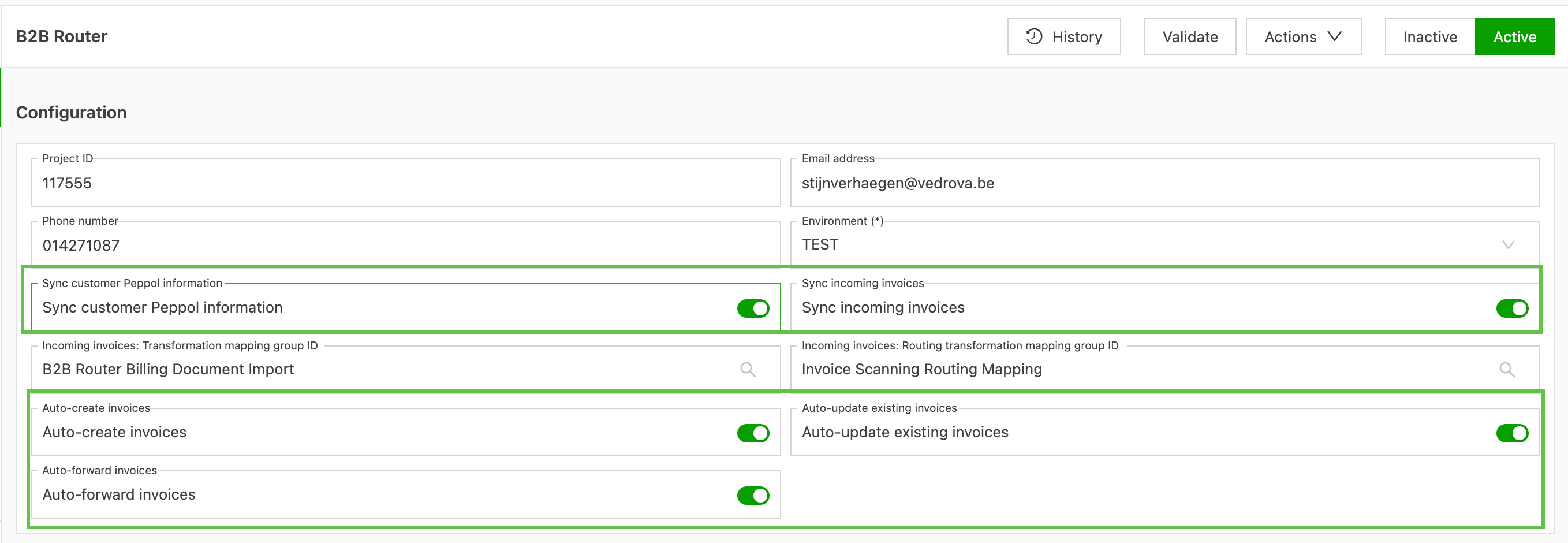
- Toggle on the option ‘sync incoming invoices’
- Toggle on the option ‘sync customer peppol information’. Qargo then automatically scans the Peppol database and updates the fields in the profile.
- B2BRouter: enable or disable the automatic creation and updating of invoices, and automatic forwarding. If disabled, the user still has to approve the invoice, even if the routing mapping gave an outcome other than “manual review”. This setting is recommended by default until the configuration of the integration is validated.
-
Once enabled, new fields display in the company and contract carrier profiles
- Peppol identifier override (number)
- Peppol Identifier found (toggle)
- Receive Peppol (drop-down)
- Send Peppol (drop-down)
-
If the new fields do not show immediately, navigate to Configuration > Additional fields and enable the Peppol settings from the Customer/contract carrier options.
Configure a company profile to receive incoming invoices
-
Once the integration is active, Qargo automatically scans the Peppol database and updates these data fields:
-
Peppol Identifier found (toggle)
-
Peppol settings = Allowed
- Allowed - The company can send and receive documents over the Peppol integration. The system uses the Peppol ID and routes invoices and credit memos via the Peppol network. A valid Peppol Receiver ID is required.
- Not allowed - The company is not considered ‘Peppol-enabled’. The system blocks Peppol delivery and reverts to the standard method (email, portal or another e-invoicing format). Prevents sending via Peppol even if an ID is present
-
-
Once the main sync is complete, any new companies are updated during the next daily sync with the Peppol database.
-
To process invoices immediately, users can update the fields manually.
- Peppol Identifier found - set the toggle to on.
- ‘Send Peppol’ settings = Allowed
- Peppol identifier (number): this field is an override field and should be left blank unless the company uses an alternate identifier, for example a DUNS number. Qargo automatically scans the Peppol database for the associated identifier.
- Peppol Identifier found (toggle): toggle on to make sure invoices are received. Qargo sets this automatically on sync.
- Send Peppol settings (drop-down): set to Allowed. This authorizes the company to send invoices into Qargo. Qargo sets this automatically on sync.
- Receive Peppol settings (drop-down): not required, but can be set to Allowed if this company will receive sales invoices sent via Qargo. Qargo sets this automatically on sync.
Viewing incoming e-invoices
- Navigate to Invoices > Incoming e-invoices
- The page shows a list view of received invoices (carrier invoices), including both transport and non-transport related charges.
List view overview
-
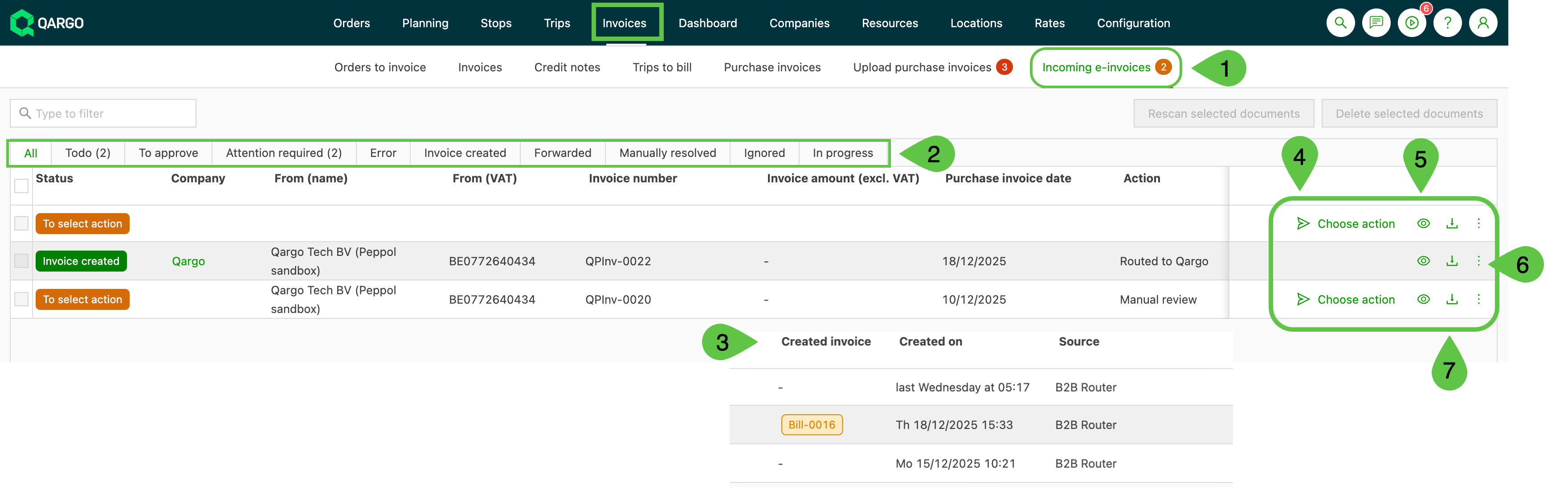
The sub-menu header ‘Incoming e-invoices’ includes a highlighted number for any invoices that still require action (orange / red to indicate action)
-
Tab headers make it simple to find invoices based on their current status. Options include:
-
All - all invoices received, regardless of status
-
To do - lists all invoices that have not been processed yet, including records from ‘To approve’, ‘Attention required’ and ‘Error’ in one view
-
To approve - lists invoices ready to be created or updated in Qargo, or ready to be forwarded externally
-
Attention required - invoices that require manual user intervention, such as choosing an action or manually matching the contract carrier
-
Error - invoices that have been received but contain errors
-
Invoice created - list of invoices that have been processed and for which a carrier invoice is created in Qargo

-
Forwarded - sent to a third party for processing
-
Manually resolved - resolved manually without using Qargo routing
-
Ignored - nothing further to process on the invoice
-
In progress - all invoices currently being processed by Qargo (real time)
-
-
Column headers. The Company column also has an option to filter by name. Use drag and drop to move columns into the position that best suits the user.
-
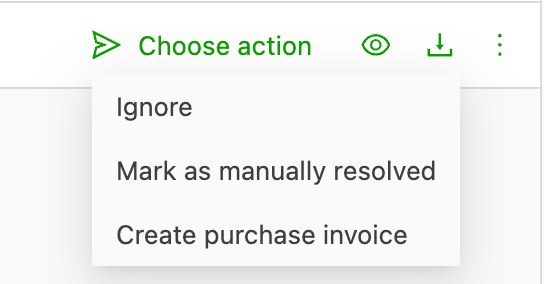
Choose action menu. Click to open the drop-down and select the appropriate action for the invoice.
-
Preview. This shows a preview of the file data in a human-readable format, but it is not a true representation of the actual invoice. It also shows any attachments included with the invoice. For example, a carrier invoice from a contract carrier is previewed in the same format as a non-transport related invoice for pencils. The preview lets the user review and validate the data.
-
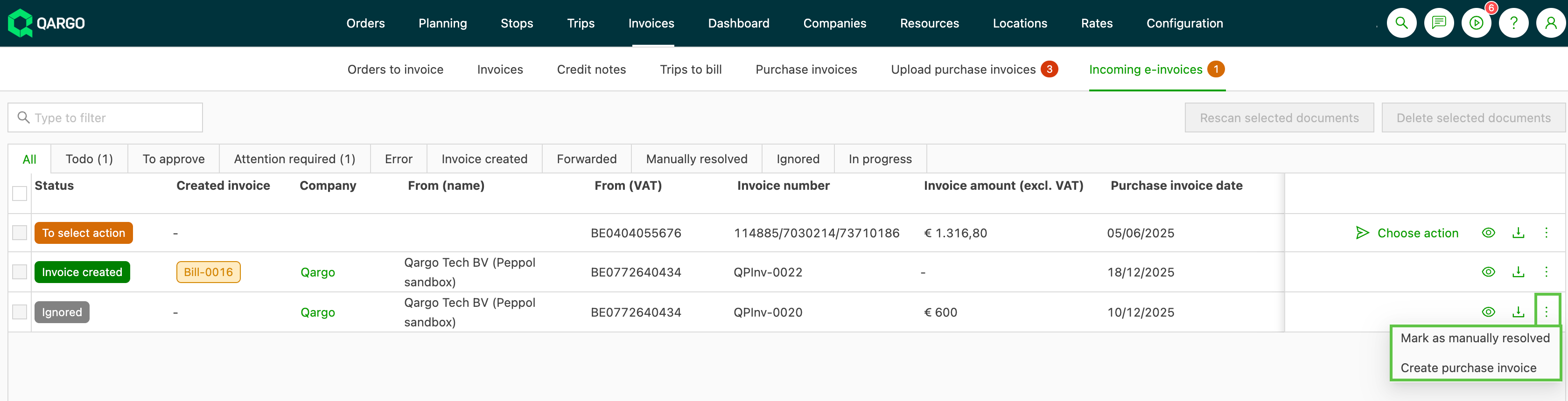
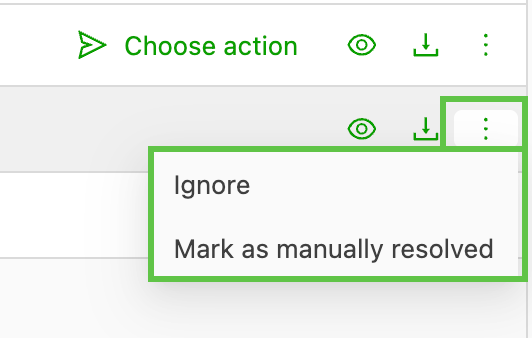
‘More’ menu. Used when the user wants to redirect an invoice to a different outcome after the previous action is completed.
-
Download. This downloads the raw data file, so it does not download as a rendered invoice. The file can be imported into third-party software (accounting, etc.).
Receiving invoices via Peppol
Once the integration is enabled, all invoices are received into Qargo. Invoices can be classified as:
- Non-transport related: not related to an order or load in Qargo. This can include invoices for goods or services used in everyday business operations, for example office supplies.
- Transport related: directly related to an order or load in Qargo. This could be a carrier invoice for contract carrier services, or for associated services such as cleaning, where costs should be allocated to a load.
Process a non-transport invoice
-
Navigate to Invoices > Incoming e-invoices
-
Pending invoices show in the ‘To do’ tab with the action status label (orange) ‘To select action’ / ‘To match company’
-
Download the raw file from Qargo
- Note: this downloads as a raw data file
- Import the raw file into the accounting software and process the invoice as required
-
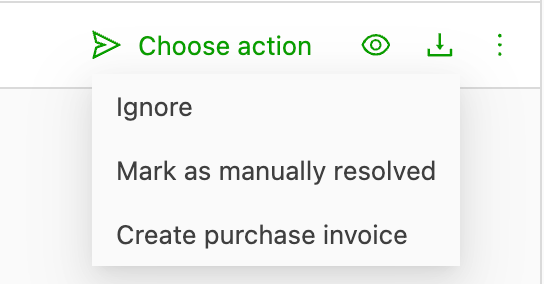
In Qargo, select the appropriate action for the invoice
-
Ignore - use this for a non-transport related invoice when nothing further will be done in Qargo.
-
Create carrier invoice - use this for a transport related invoice when a carrier invoice is required in Qargo.
-
Mark as manually resolved - use this for a non-transport related invoice that has been imported and processed in the accounting software.
-
Process a transport related invoice
-
Navigate to Invoices > Incoming e-invoices
-
Pending invoices show in the ‘To do’ tab with the action status label (orange) ‘To select action’ / ‘To match company’ (if the contract carrier is not matched automatically)
-
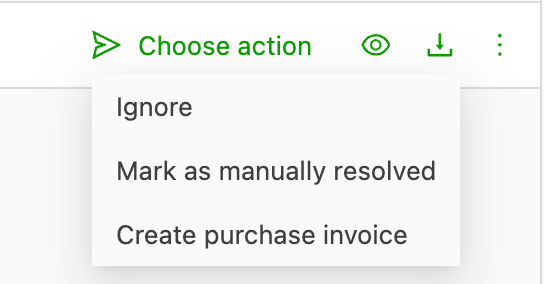
In Qargo, select the appropriate action for the invoice
-
Ignore - use this for a non-transport related invoice when nothing further will be done in Qargo.
-
Create carrier invoice - use this for a transport related invoice when a carrier invoice is required in Qargo.
-
Mark as manually resolved - use this for a non-transport related invoice that has been imported and processed in the accounting software.
-
- ‘Create carrier invoice’ creates a carrier invoice in line with the existing carrier invoice functionality.
- With the scanning feature, any loads that match the carrier invoice data are associated with the invoice.
- From the bill details page in Qargo, users can validate and process any further tasks required.
Click the button below👇 to learn more about uploading and using carrier invoices in Qargo.
Error handling
There are 2 types of errors users can expect to see:
- Operational error - indicated by an orange label. Requires user input to resolve, for example a failure to match the contract carrier.
- System error - indicated in errors by a red label. A configuration or system issue caused a failure. Follow the troubleshooting guide below to resolve the error. If additional assistance is required, contact Qargo Support.
- “The recipient does not accept Peppol invoices” - caused by the recipient’s Peppol participant configuration not being set up to accept a certain type of invoice, or their reception settings not being activated. Suggested action: recipients must contact their provider or access point to enable Peppol invoice reception.

- Correct the error based on the message and complete the action / retrigger the task.
Troubleshooting
Additional troubleshooting scenarios
“The recipient does not accept Peppol invoices.”
- Cause: The recipient’s Peppol participant configuration is not set up to accept a specific type of invoice, or their reception settings are not activated.
- Resolution: Contact the recipient’s provider or access point to activate Peppol invoice reception; this process typically involves their access point, B2B router or provider.
“Invoices aren’t going to Peppol because the customer is set to ‘Peppol receiving – not allowed.’”
- Cause: The recipient’s Peppol allowance setting is disabled in their account, which blocks delivery.
- Resolution: Verify that the recipient’s ‘Peppol receiving’ configuration is enabled. Retry sending the invoice after confirming the allowance.
“The recipient says they cannot see Peppol invoice attachments.”
- Cause: Attachments are included in Peppol invoices as part of the XML data, which must be rendered with service-specific tools.
- Resolution: Advise the recipient to use their provider’s tools or to consult their Peppol provider on how to view attachments in XML-based invoices.
General first step for all troubleshooting:
Check that all the correct Peppol fields are enabled on the company profile:
- Peppol Identifier found - toggle is on
- Send/Receive Peppol settings - set to Allowed
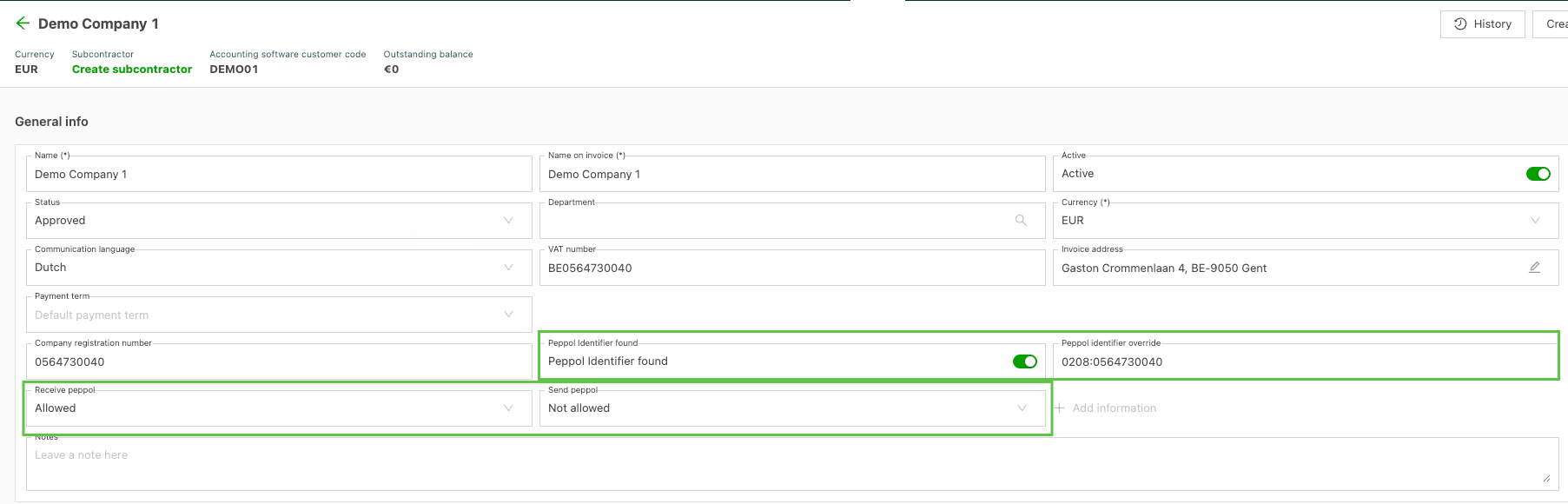
Customer doesn’t receive invoices. The company or contract carrier profile isn’t enabled for Peppol, and/or the Peppol settings are not updated or are set to Not allowed. Error: Invoices aren’t going to Peppol because the customer is set to ‘Peppol receiving – not allowed.’ Make sure Peppol receiving is enabled in the customer’s account settings.
Resolution: Check the company and/or contract carrier profile. Under the general information, make sure the Peppol settings are set to Allowed and that Peppol Identifier found is toggled on.
Peppol ID incorrect. Check the contract carrier / company profile and make sure a correct Peppol ID is present. Peppol ID numbers have a specific format: 4digits:9digits, and could include the company tax number. In some cases, the company may use an alternate number as an identifier. This should be saved in the ‘Peppol Identifier override field’.
Resolution: Verify the correct Peppol ID for the location and, if necessary, update the Peppol Identifier override field in the profile and save the profile. Retrigger the event to resolve the error message. If the recipient mentions attachment visibility issues, check whether their Peppol tools support rendering XML-based attachments and advise them to consult their provider.
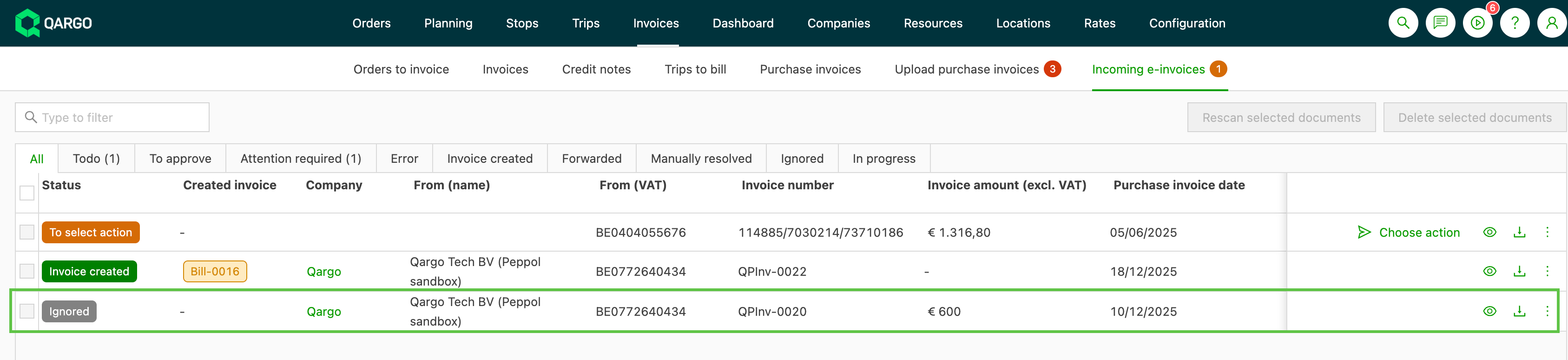
Carrier invoice missing after creation. If a carrier invoice is created but a later action is taken to ‘ignore’ the invoice, the carrier invoice in Qargo is removed and the status updates to ‘Ignored’.
Resolution: Navigate to ‘Incoming e-invoices’. From the All tab, search for the invoice number to verify that it shows in the list. Check the status label. If the label shows Ignored, the Qargo carrier invoice is removed. Use the ‘More’ menu to update further if additional action is required.