
FAQ: Location prefills are not pulling through
Location prefills (notes, duration, extras) may not apply automatically. Update them manually or in bulk with “Update stop activities.” Contact Qargo Support if the issue is not resolved.
Table of contents
Summary
Location prefills (e.g., notes, duration, or extras) do not appear when an order is created or updated. When orders are created in the UI or through import/EDI and the location is changed to another one that should have prefilled data, the system does not automatically reapply the default extras or prefills.
Symptoms
- Location-based extras or default values (notes, duration, etc.) are missing after order creation.
- Expected prefilled data is not automatically applied when a location changes.
- Extras appear to be configured but do not show on stops.
- Changes to the location configuration do not affect previously created orders.
Root cause
The system does not currently reapply location default prefills when:
- An order is created or updated through the UI, order import, or EDI, and the location changes after initial creation.
- Extras are configured incorrectly in the exception list of the location settings.
- Extras are added to the location after the order was created (changes only apply to new orders).
Troubleshooting steps
1. Check that the extra is configured correctly
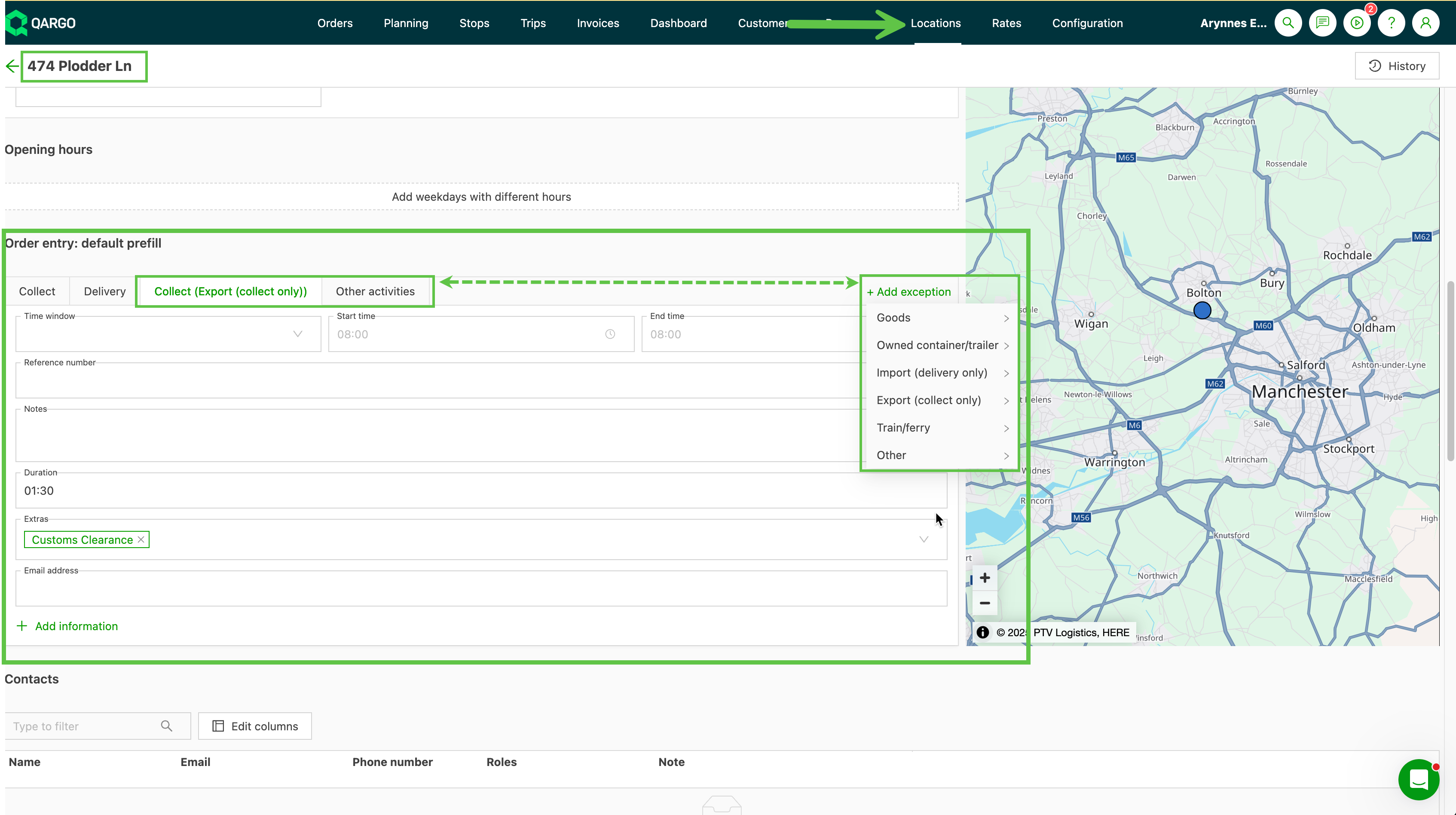
Make sure the extra is assigned to the correct activity type in the location setup.
For example:
- For a container export order, make sure the extra is configured under
“Pickup (Export (pickup only))” in the location’s exception list. - If the extra field is empty for that activity type, the extra is not applied automatically.
2. Check when the extra was added
An extra added after the order was created does not apply retroactively.
- Location default changes only apply to newly created orders.
- Existing orders must be updated manually.
3. Apply a workaround
The missing extras can be applied manually with one of the following methods:
| Method | Description | Notes |
|---|---|---|
| Quick action: “Update stop activities” | Apply extras in bulk across stops. | Available only if the configuration allows updates for all stop types. |
| Manual update | Add the extras individually at each stop. | Best for smaller batches or specific exceptions. |
| Temporary location change | Change the location in the order to another one → Save → switch back to the correct location → Save again. | This may force the system to refresh the prefills. |
Example:
Location configuration exception setup
Resolution
There is currently no automatic fix. Use one of the manual or bulk update options listed above.
Need more help?
If the issue persists after following the steps above, contact Qargo Support with the following details:
- Order reference number(s)
- Screenshots of the location configuration
- Troubleshooting steps already taken