
How to add third-party non-transportation costs to a load
Guide to adding costs for third-party contract carriers to loads and managing non-transportation services like cleaning, heating, and handling.
Table of contents
Users can now assign costs to external third parties, even if they are not the ones executing the load (This includes services like cleaning, customs, heating, handling, etc.).
The system now supports adding third parties (named under Contract carriers) as a secondary resource type at load level, so users can attribute costs to these external parties more accurately.
Step 1: Verify the third-party contract carrier functionality with the Support team
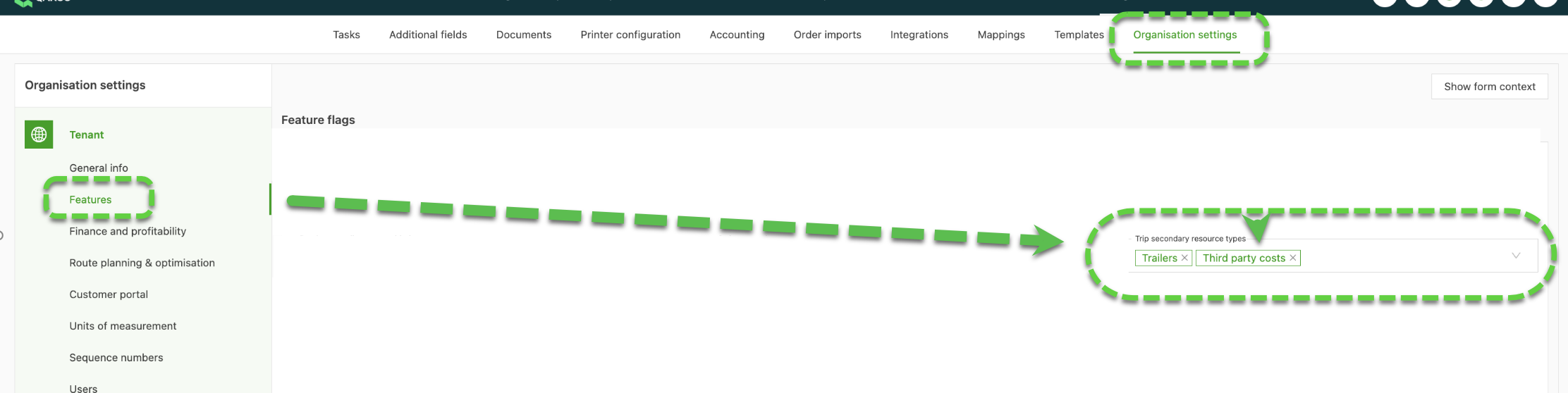
Step 2: Add third-party contract carriers to the resources
Once the functionality is enabled, navigate to the resources section and add the third-party contract carrier to the system as a resource if it has not been added yet.

Step 3: Verify contract carrier price lists
Contract carriers use a default contract carrier price list unless a specific price list has been configured for them. To verify the price list, go to Rates > Cost calculation trip.
Check whether the contract carrier has a dedicated price list. If not, it defaults to the system’s general contract carrier price list.
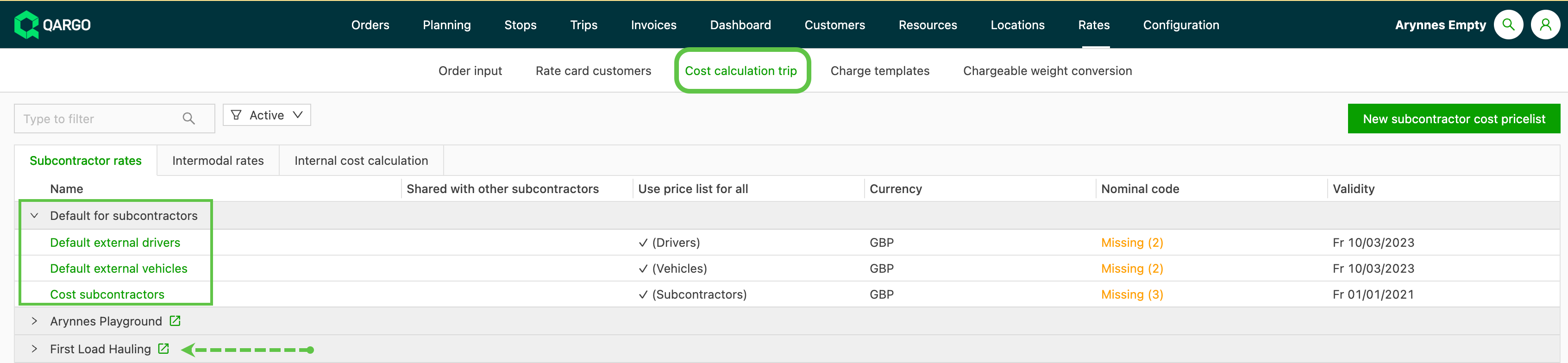
Make sure the necessary costs are available and configured in the contract carrier’s price list.
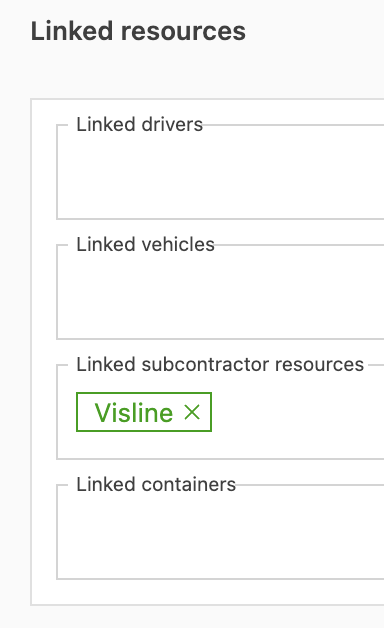
When using a specific price list, check whether the contract carrier has been added as a linked contract carrier resource.
Other contract carrier resources can also be linked if needed.
Step 4: (Optional) Add cost calculations
Surcharge calculations can be configured to apply to the contract carrier’s costs if needed. Be careful with costs that have the option “Always add to order” enabled, as these are automatically applied to the load. If not reviewed carefully, this setting could lead to unintended additional charges being applied to loads. If certain costs, like waiting charges, do not appear in the “Add cost” menu, make sure they have been added to the relevant contract carrier price list. Add them either by selecting an existing charge or by creating a standalone charge. Once added to the price list, these charges become selectable for the load.
Step 5: Add the contract carrier as a third-party contract carrier in the load
When creating or editing a load, add the contract carrier as a resource. Navigate to the load page and select the third-party contract carrier from the “Contract carriers” section to associate it with the load.
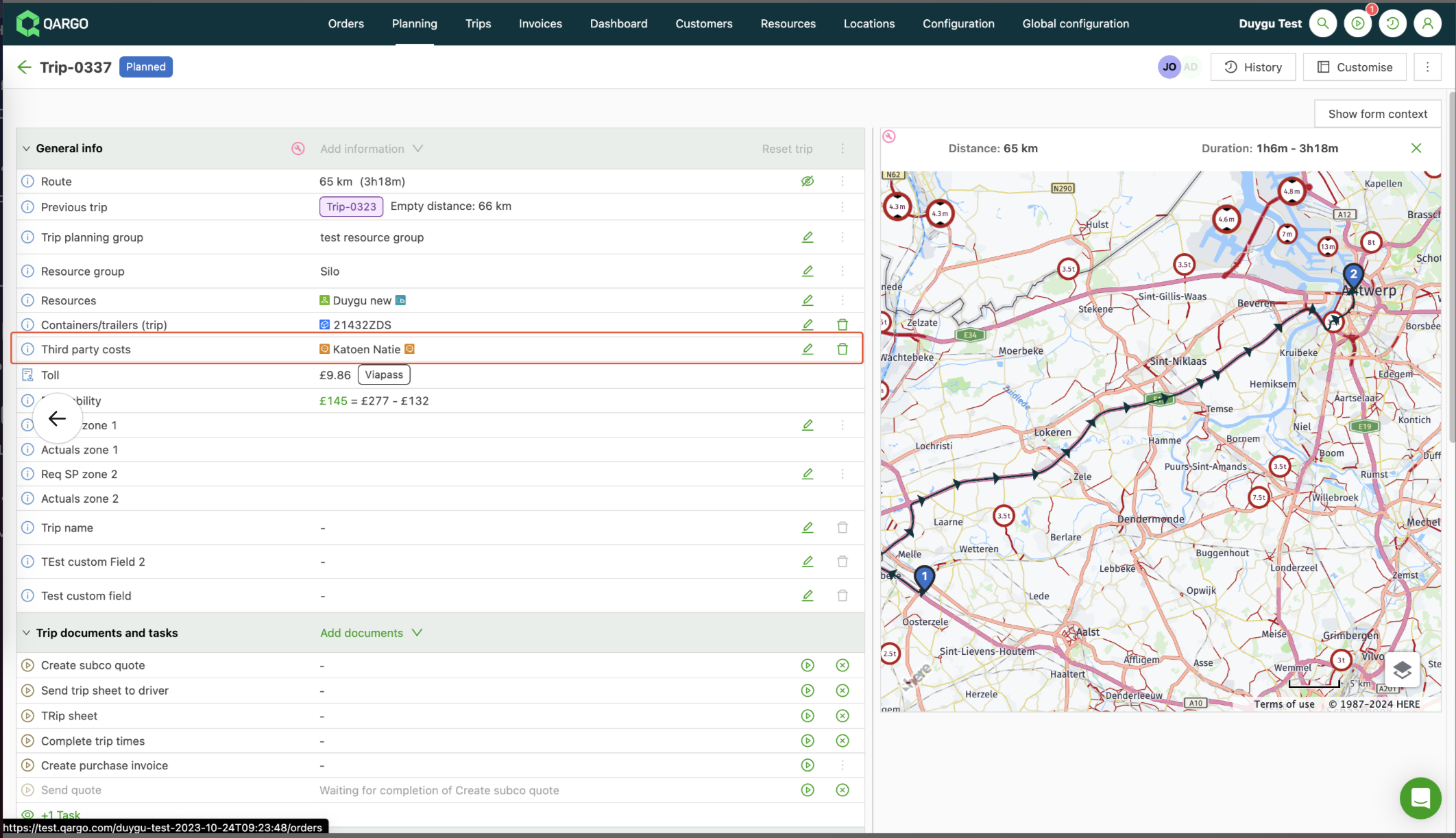
Step 6: Select the contract carrier’s surcharges
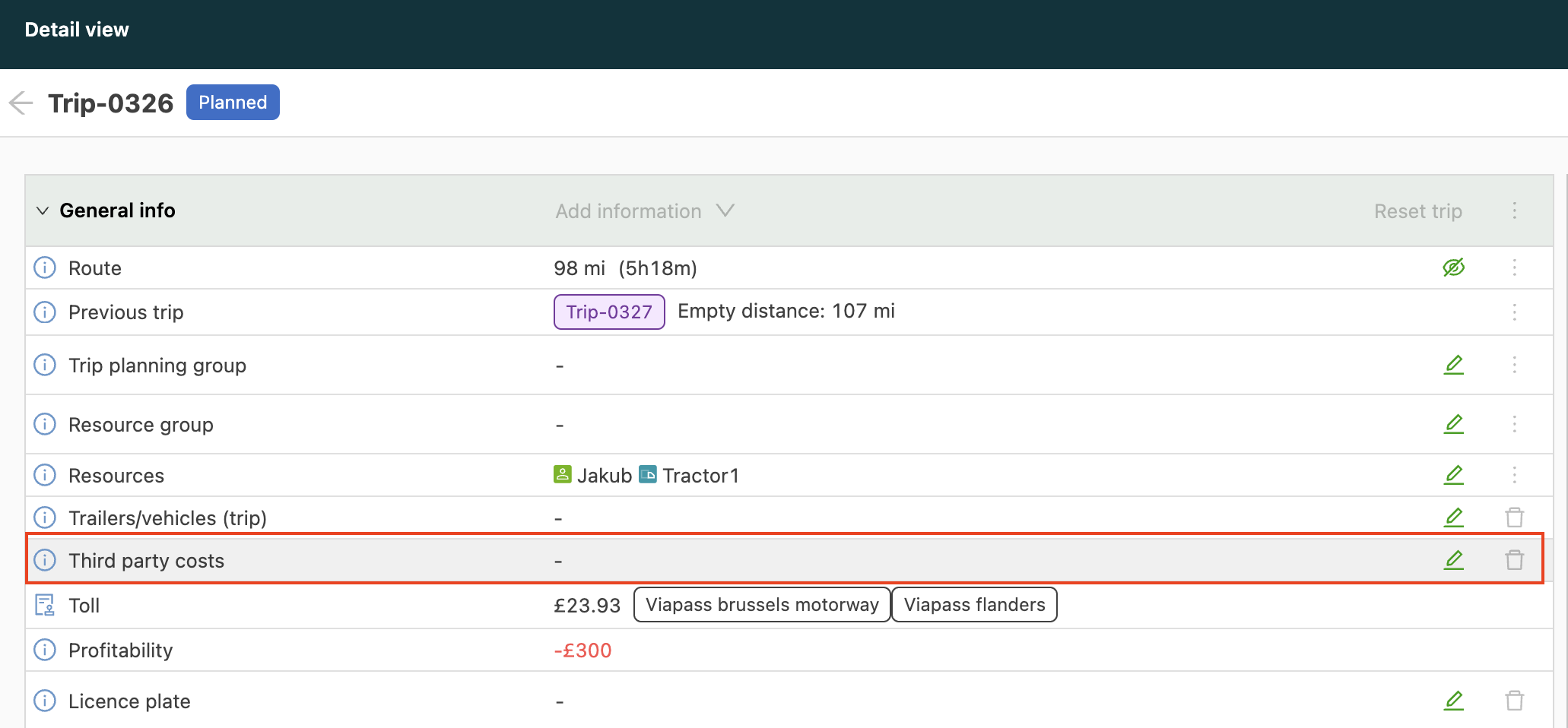
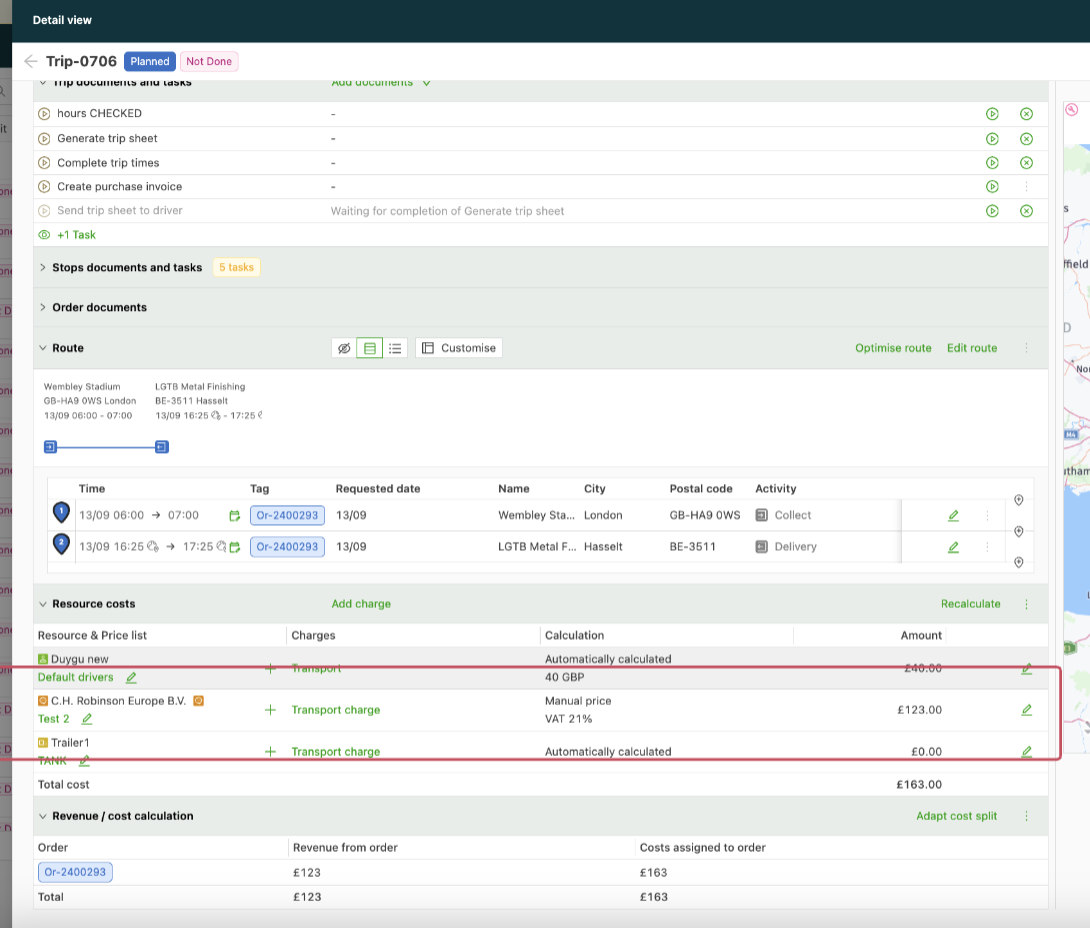
An extra cost line is then available on the load page to assign costs to this third party.
Charges can be added to or adjusted in the relevant charge line for this third-party company:
Load tasks for third-party costs
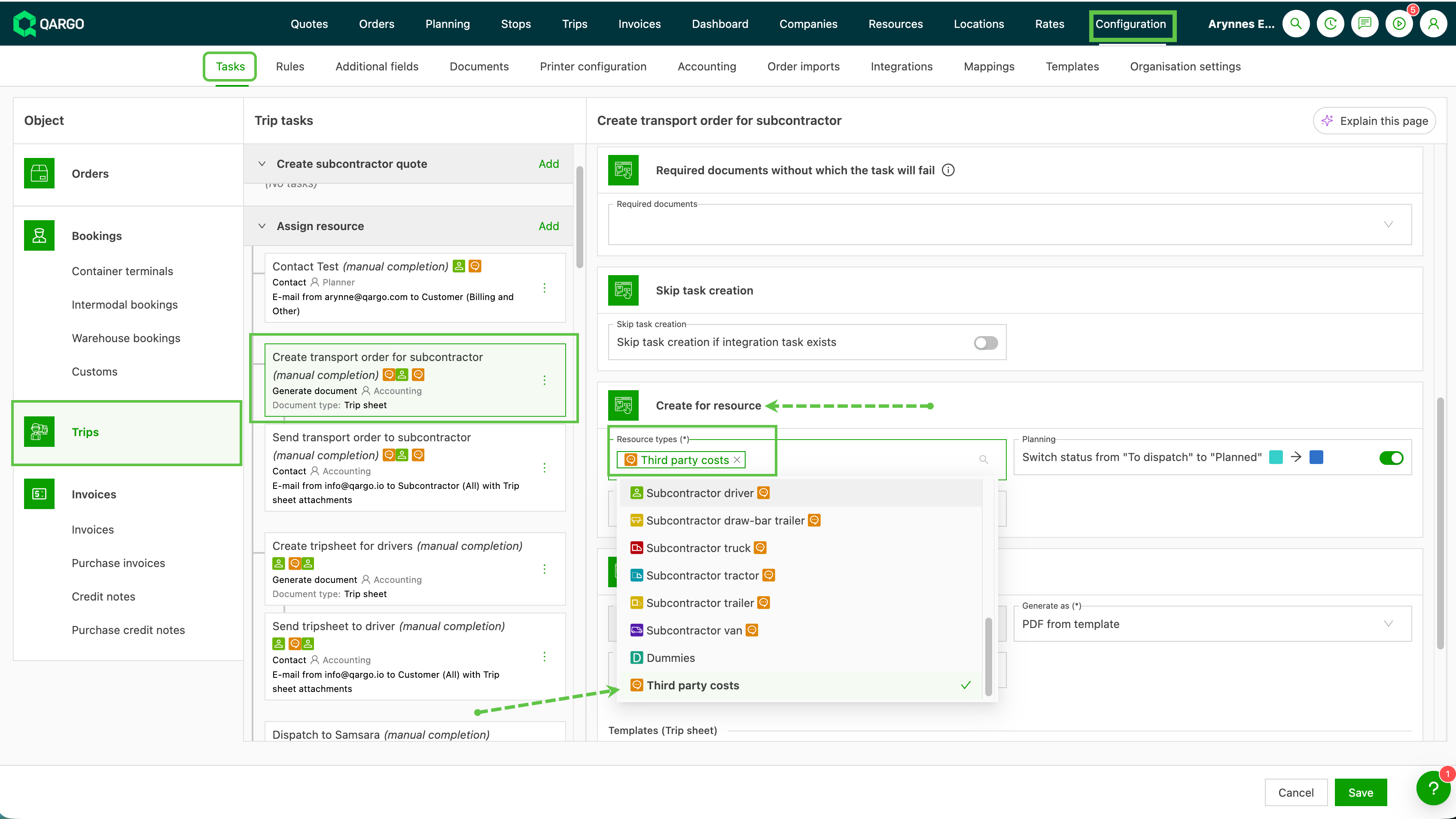
Load tasks can now be configured to automatically create tasks for third-party cost contract carriers. These are external parties added to loads for non-transportation services such as customs handling, cleaning, or port fees.
Why does it exist?
Previously, load tasks could only be configured for primary resource types (drivers, contract carriers, vehicles). Third-party cost contract carriers were excluded from automated task workflows, so follow-up had to happen outside Qargo
- Super Admin: Navigate to Configuration > Tasks and select Third party costs in the resource type multi-select for the relevant load task configurations.
Terminology
| Term | Definition |
|---|---|
| Third-party cost contract carrier | An external party added to a load for a non-transportation service (e.g., customs, cleaning, handling) |
| Load task | An automated task triggered when a resource is added to a load |
How to configure tasks for third-party cost contract carriers
- Navigate to Configuration > Tasks.
- Open the relevant load task configuration.
- Click the resource type multi-select dropdown.
- Select Third party costs from the list.
- Save the configuration.
Once configured, tasks are automatically created when a third-party cost contract carrier is added to a new load.