Sticker/label document for document recognition
Transport companies often receive paperwork from customers that drivers need to sign.
After signing, this paperwork needs to be scanned and sent back to the customer.
However, these documents might lack reference numbers. In that case, the Qargo document scanning system cannot automatically match the scans to the correct orders, which results in a lot of manual work.
🎉 To solve this issue, Qargo now offers a simple solution: a sticker document that can be printed and attached to the customer paperwork.
This helps link the scanned documents accurately to the correct orders.
To set it up (a sticker printer is required for this functionality):
1. Navigate to Configuration > Documents > Available document types
2. Activate the Qargo ID sticker document type in the documents section:
3. Navigate to Templates and add the sticker template:
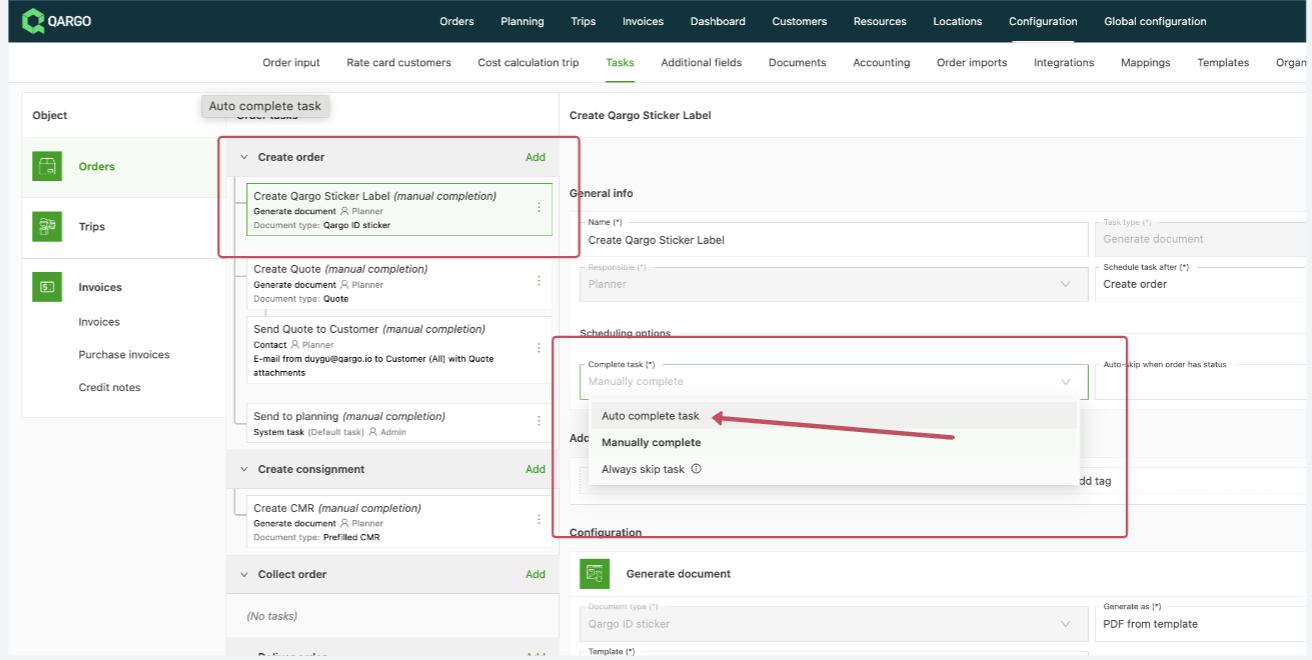
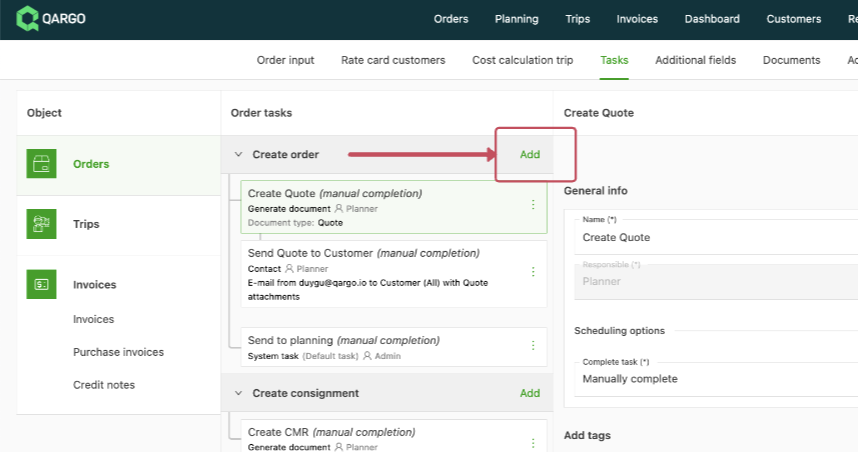
4. Navigate to Configuration > Tasks:
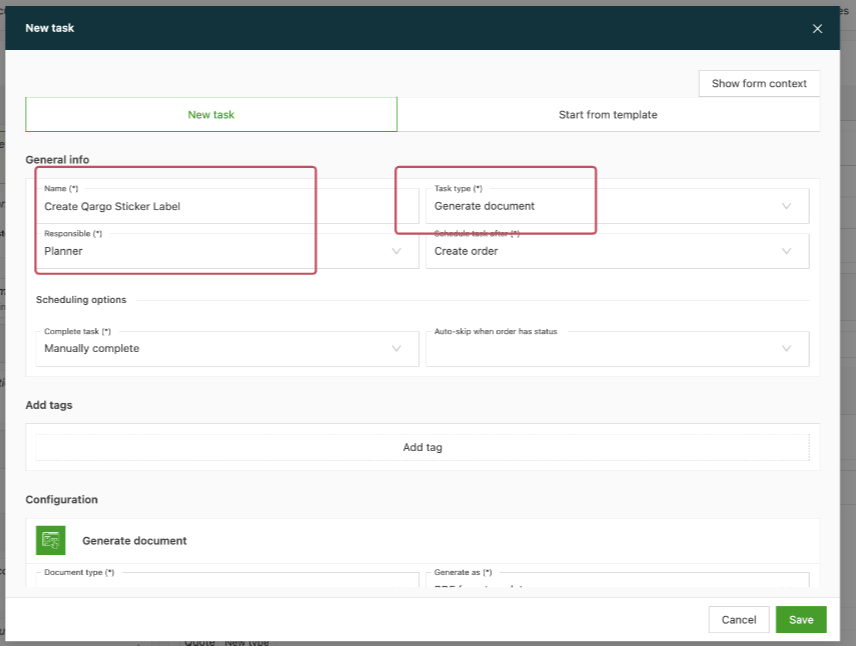
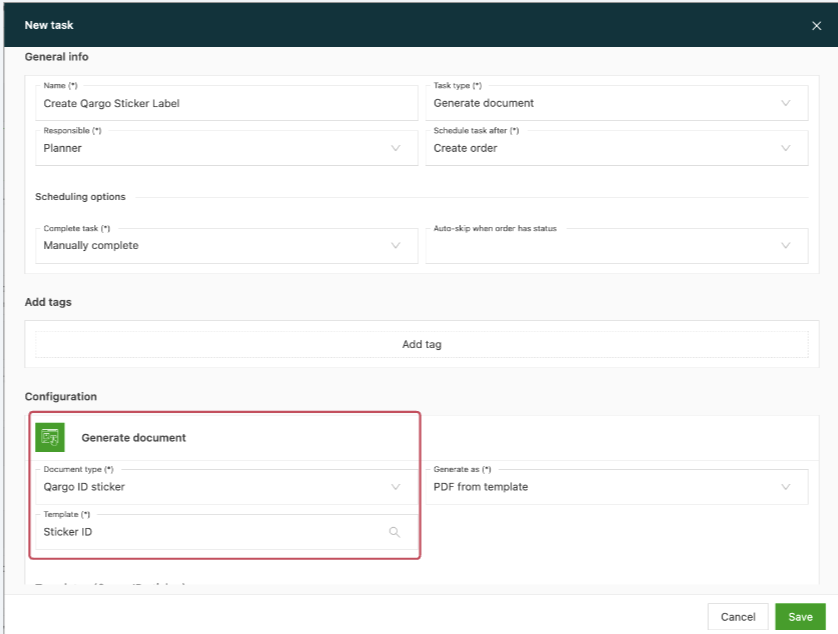
5. Create a “Generate document” task at the order level, under “Create order”, to generate the sticker document:
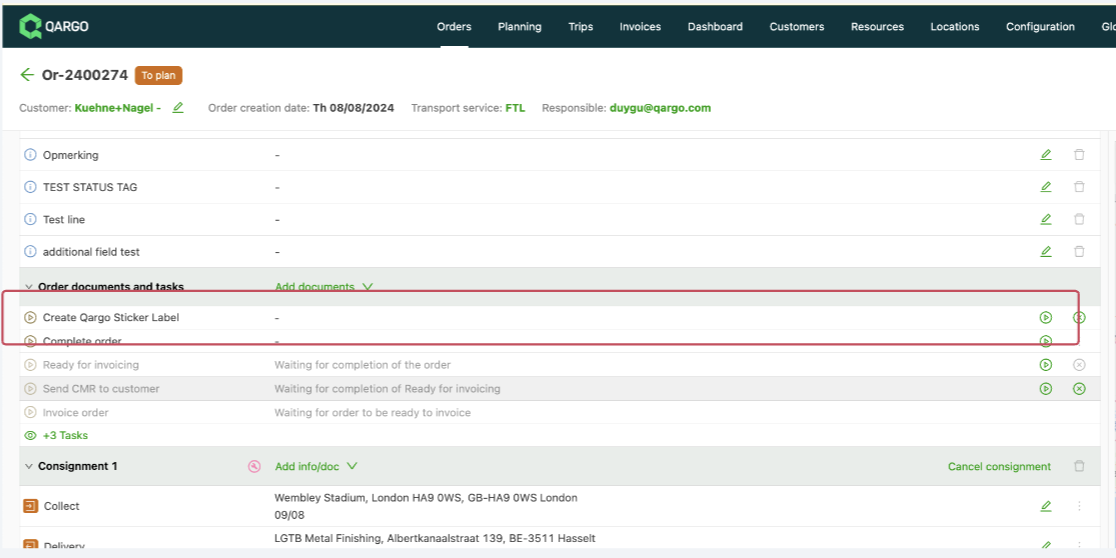
Locate the task on the order view (only valid for orders created after the task was created):
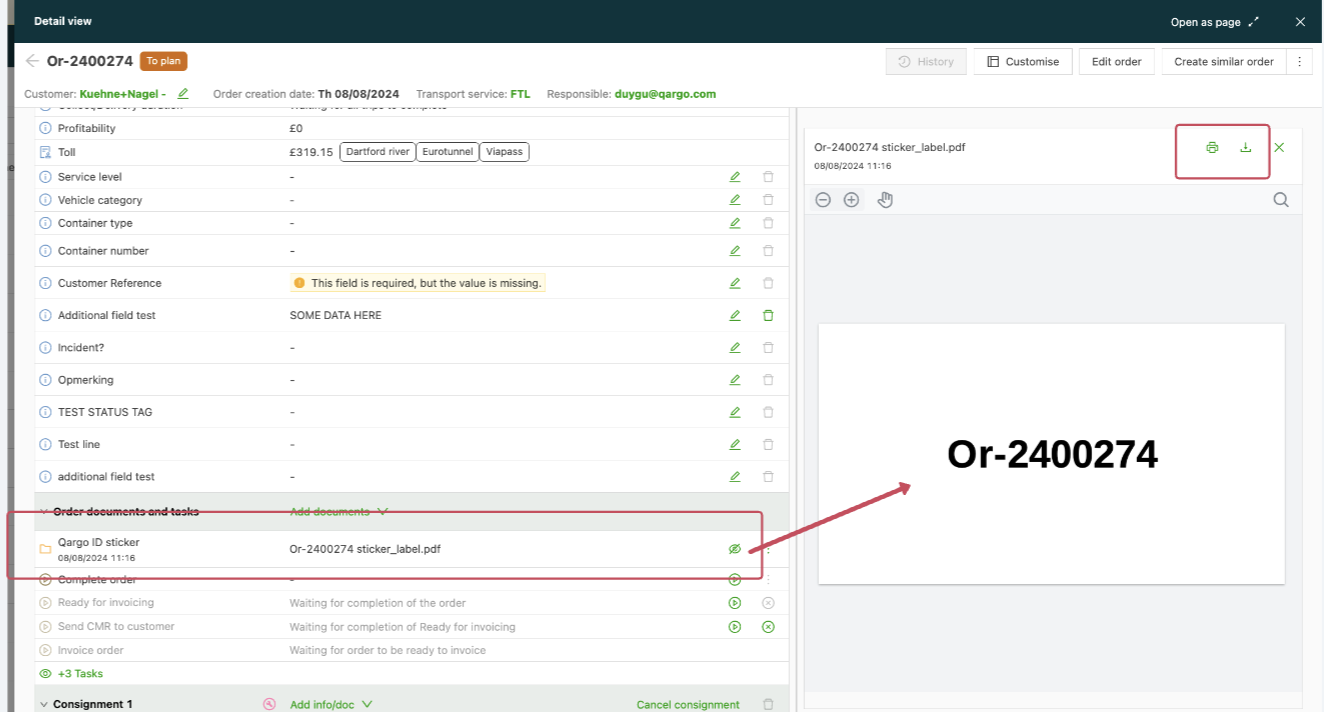
Use the download/print options after the document is generated:
**Note**: The sticker document can only include order information.
_To automate sticker generation for every order, set the task to auto-complete instead of manual completion:_