
FAQ - How can I manage invoices created by mistake in Qargo, including cancellation and number reuse?
Table of contents
Managing Invoices Created by Mistake in Qargo
In Qargo, invoices are central to maintaining accurate financial records, so careful handling of mistakenly created invoices is crucial. Users cannot delete invoices permanently. However, Qargo offers alternatives, such as invoice cancellation and repurposing to maintain traceability and sequence integrity.
Key Points to Know
- Invoices cannot be permanently deleted: To ensure traceability, Qargo does not allow the complete removal of invoices from your records.
- Two main alternatives: Cancel the invoice to preserve traceability or repurpose it to reuse the invoice number while adjusting its details.
Canceling an Invoice
To cancel an invoice:
- Open the specific invoice in question.
- Click on the three-dot (“more”) menu located on the invoice.
- Select the option labeled “Cancel invoice.”
Once canceled, the invoice will no longer be valid for billing purposes but remains in the system for audit and traceability purposes. This ensures that any transactions or activity linked to the invoice can be referenced later if needed.
Linked orders are detached and return to Ready to invoice.
Repurposing an Invoice
If you created an invoice by mistake but need to keep the invoice number in sequence, you can repurpose the invoice instead of canceling it:
- Open the invoice.
- Change the customer associated with the invoice to the correct one.
- Remove any existing charges (e.g., zero-value lines).
- Add or allocate the proper charges for the correct customer.
This approach ensures that the sequence of invoice numbers remains intact while correcting the content of the invoice.
Addressing Zero-Value Invoices
For invoices containing only zero-value lines, repurposing or cancellation depends on your intent:
- Cancel if the invoice is no longer required.
- Repurpose if you need to reuse the number for a valid transaction.
Replacing an invoice that has a wrong number
Use this when the invoice number itself is wrong. A common cause is year-based numbering that was not updated at the year-end cutover.
Before starting
Steps
- Go to INVOICES > Invoices to open the main invoice list.
- Click the relevant invoice to fix the number for.
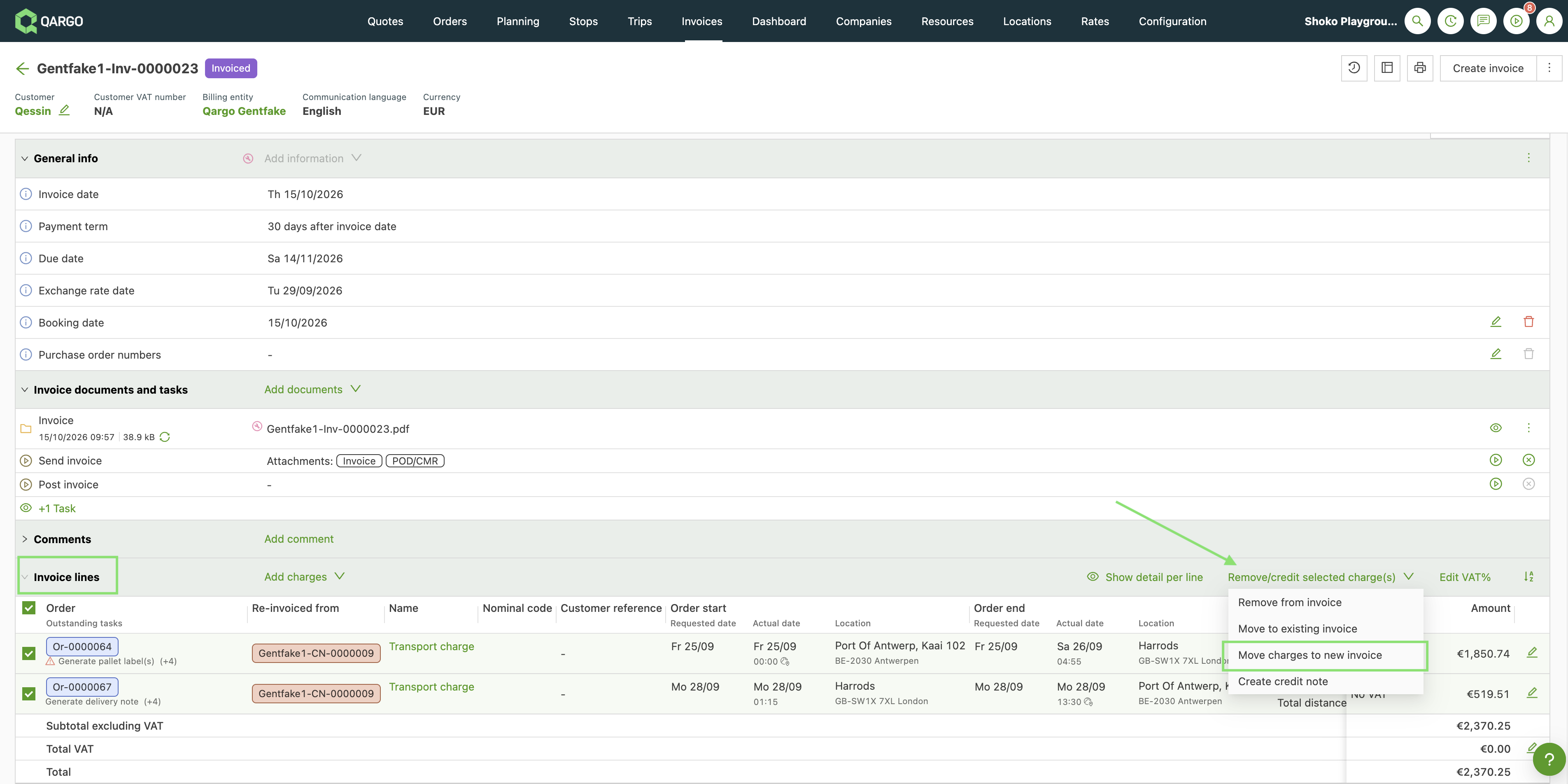
- In the Invoice Lines panel, select the charges to move.
- On the right, open Remove/credit selected charge(s) and choose Move charges to new invoice.
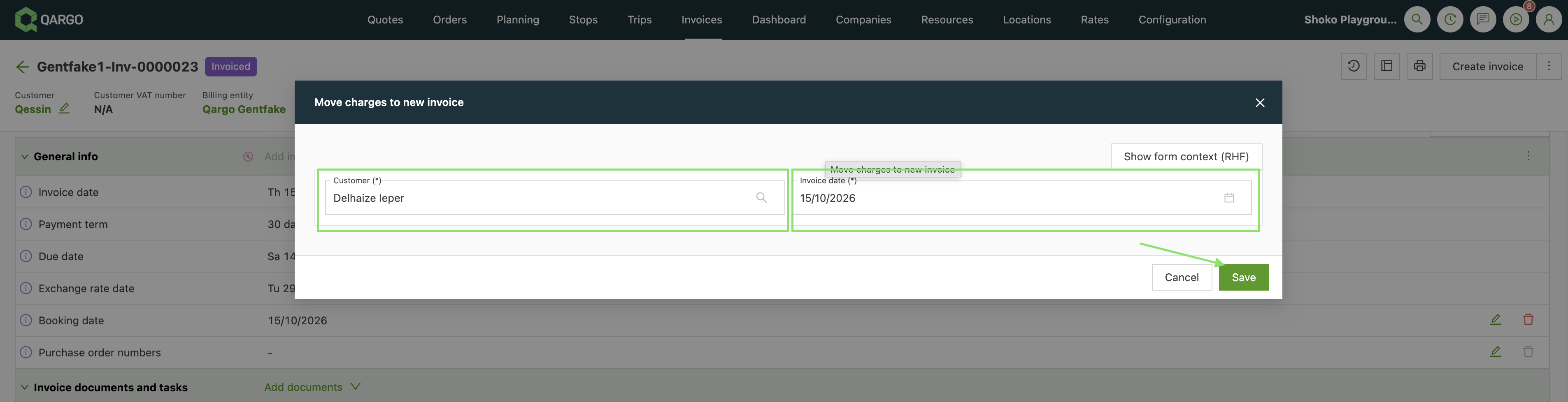
- Select the customer and the invoice date, then click Save.
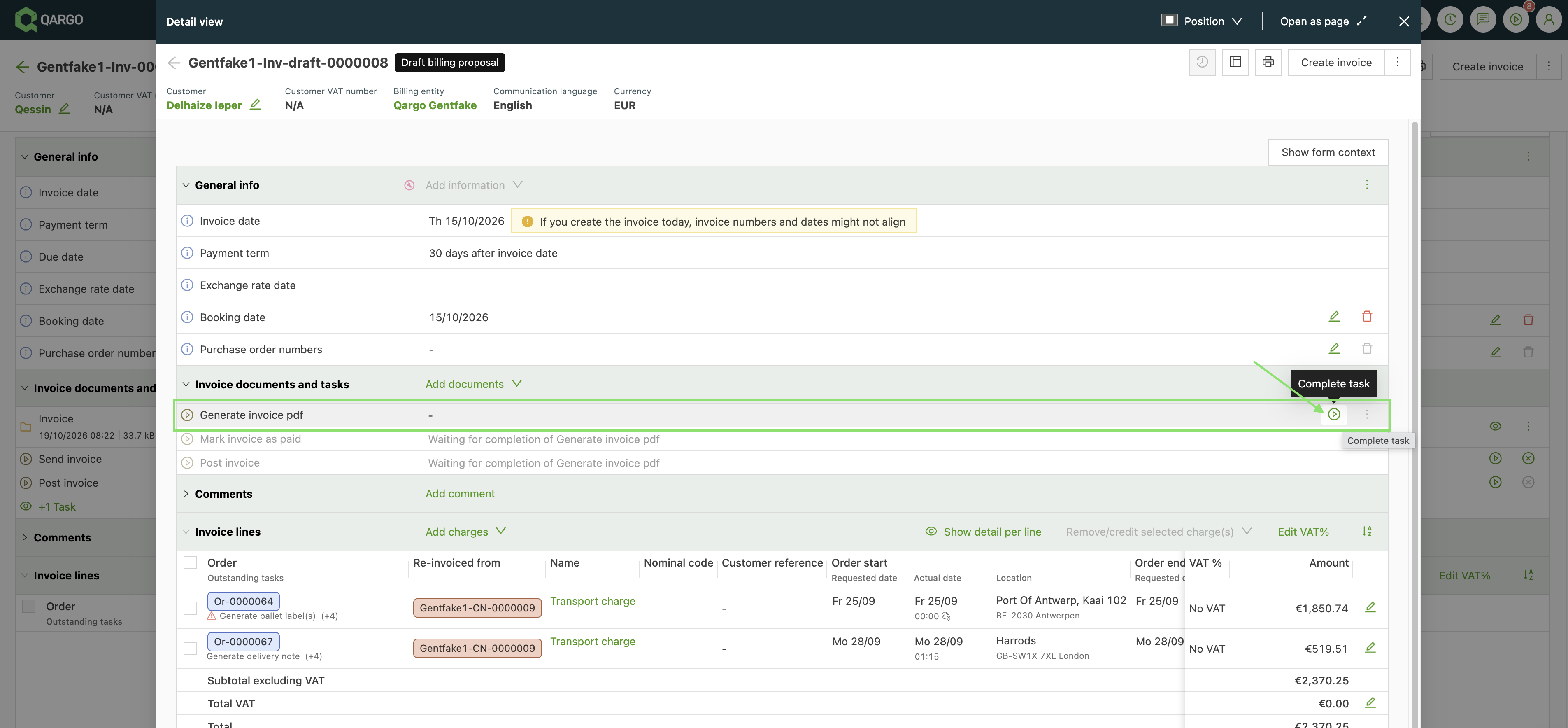
- Check the new invoice, then click Generate Invoice pdf to create it.
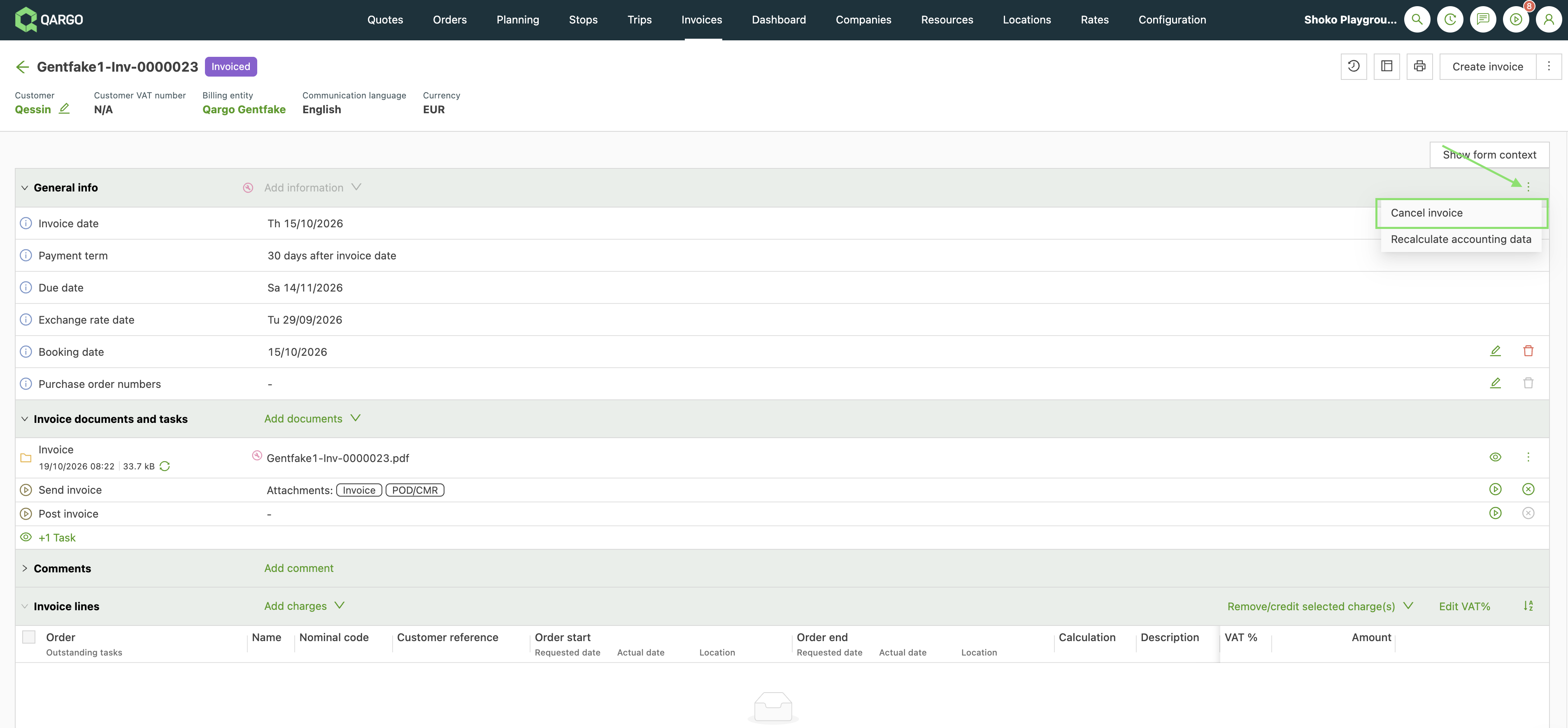
- If the original invoice is not needed, open the three-dot menu (top right) and select Cancel Invoice. Click YES to confirm. The status changes to Cancelled.
- Go to INVOICES > Invoices and open the posted invoice.
- In the Invoice Lines panel, select all charges.
- Open Remove/credit selected charge(s) and choose Create credit note.
- Choose Create Credit Note (or Create Draft Credit Note). If a draft was created, click Generate credit note pdf.
- Open the credit note (INVOICES > Credit notes). In the Credit note lines panel, select the charges.
- Open Remove/invoice selected charges and choose Re-invoice charges.
- In the Create invoice(s) window, check the invoicing preferences, the invoice date, the booking date and the exchange rate date, then click Save. The customer is taken from the charges.
- Open the new invoice, check the details, and click Generate Invoice pdf. The new invoice receives the next number in the corrected sequence.
- Continue with accounting. The credit note and the new invoice are linked: the invoice shows the credit note under Re-invoiced from, and the credit note shows the invoice under Re-invoiced on.
The credit note balances the original invoice. Qargo does not allow invoices with negative totals, so a credit note is how a posted invoice is reversed.
If the customer is wrong, change the bill-to on the order or charges before re-invoicing.
The credit note balances the original invoice. Qargo does not allow invoices with negative totals, so a credit note is the way to reverse an invoice.
Related FAQs
Q: Why Can’t I Permanently Delete an Invoice?
A: Deleting invoices could disrupt financial records and audit trails. To maintain traceable and accurate records, Qargo ensures that all issued invoices are either canceled or corrected and reused rather than removed.
Q: Is Cancellation Final?
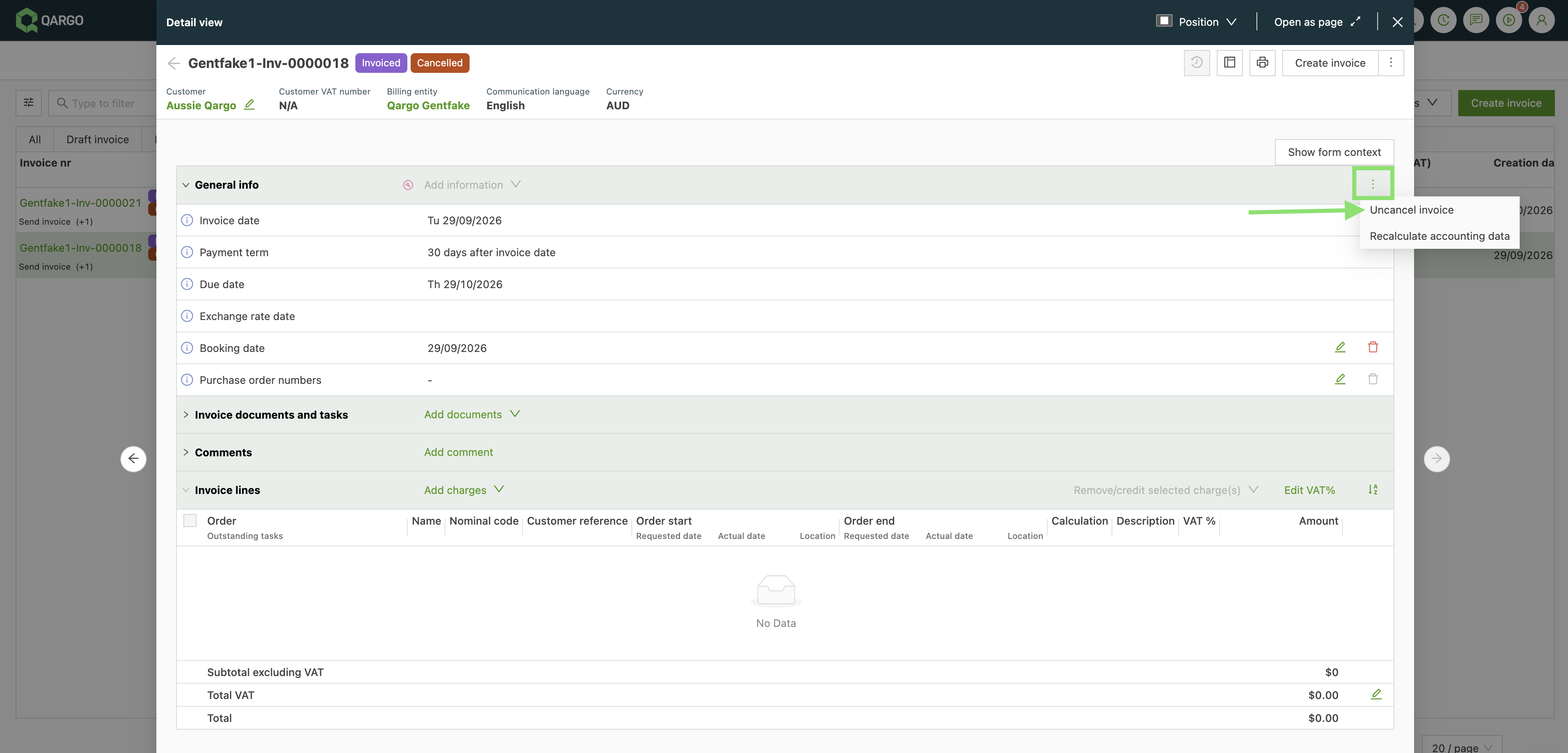
A: No. Canceled invoices remain in the system for traceability. If an invoice is canceled by mistake, it can still be referenced or recovered.
To undo a cancellation, open the invoice under the Cancelled tab and click Uncancel invoice.
Q: Can I Reuse a Canceled Invoice Number?
A: Yes. A cancellation can be undone to bring the number back if the invoice is already cancelled, but the orders that were attached before cancelling are not reattached. They remain at Ready to invoice and need to be added to the invoice again. If invoice number integrity is critical and the invoice is still live, consider repurposing the invoice instead. By following the above steps and guidelines, you can effectively manage invoices created in error, ensuring compliance and accuracy in your financial records.
Q: Can the invoice number of a posted invoice be edited?
**A: No.** Posted invoices are already in the accounting package. The charges can bd credited, then invoiced again. Follow the steps above.