
Invoices - Peppol template for sales invoices and credit memos
Peppol-ready invoice/credit memo templates require proper field mapping (default + custom) to Peppol data fields, with live preview, customization, and verification before sending.
Table of contents
This guide explains how to create a sales invoice or sales credit memo template that meets Peppol field requirements when sending custom data. To process invoices and credit memos, default and custom fields must be mapped correctly to fields supported by the Peppol access point. This mapping is critical. It ensures invoices are transmitted correctly and can be processed with the expected data.
The standard invoice template is already mapped to meet Peppol invoice requirements. If there are no additional requirements, the standard invoice template is used. If data should also appear in the standard invoice template, update the main invoice / credit memo template.
Configure template
There are 2 ways to access the integration templates:
-
Configuration > Tasks
- Select the invoice / credit memo menu
- Open the Send task
- Scroll to the Contact section and click Integration template
-
Configuration > Templates
- Select Integration templates from the side menu
- Open the Send task (sales invoice / credit memo)
- Click and update the integration template
The template configuration screen has 2 panels:
- Configure template strings (left side): select the header or line fields to update and use in the template.
- Visualize data (right side): preview data using live examples to check that the data fields are correct.
-
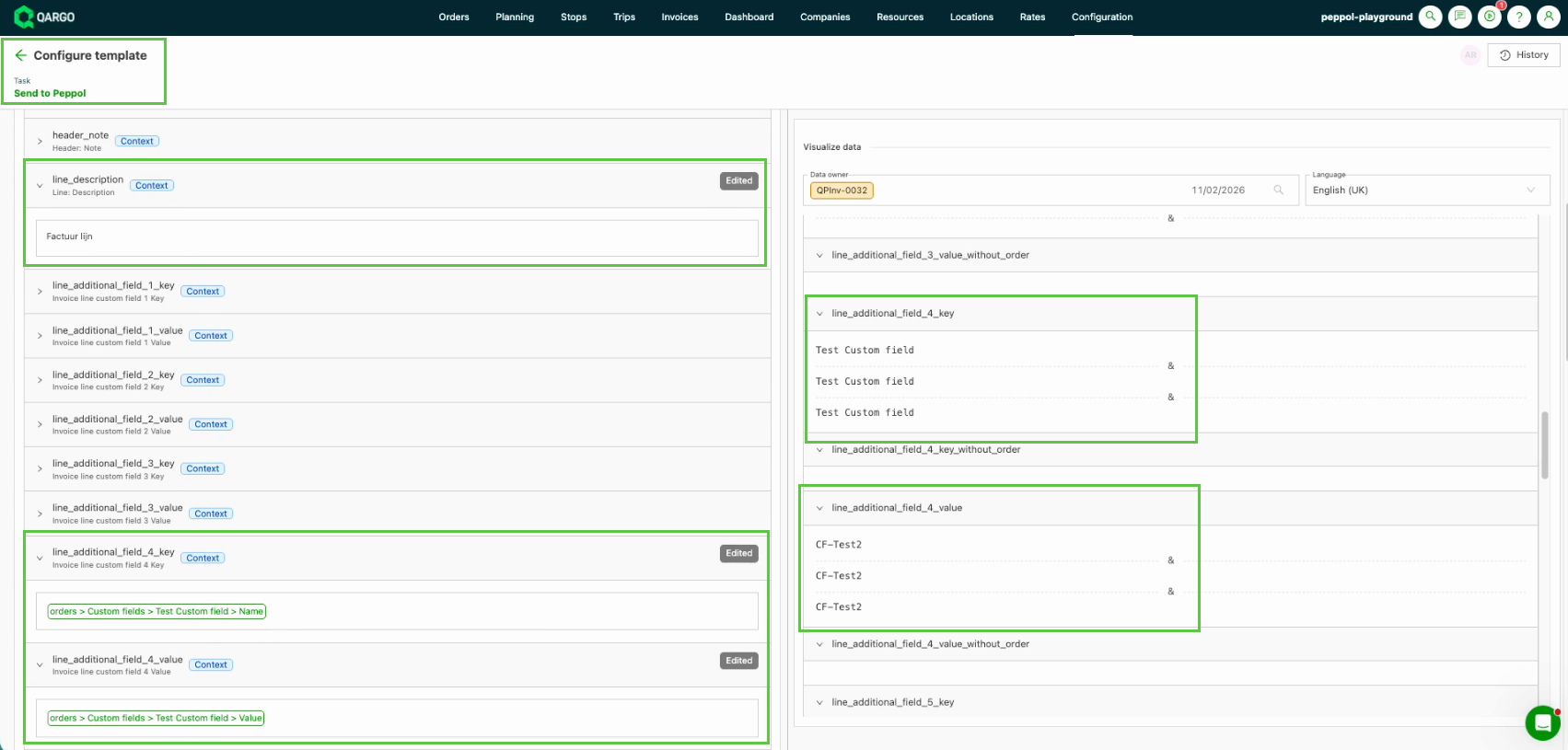
Map additional fields
- Specify additional field keys for custom references or descriptions.
- Customize whether these appear as line items, in headers, or elsewhere.
-
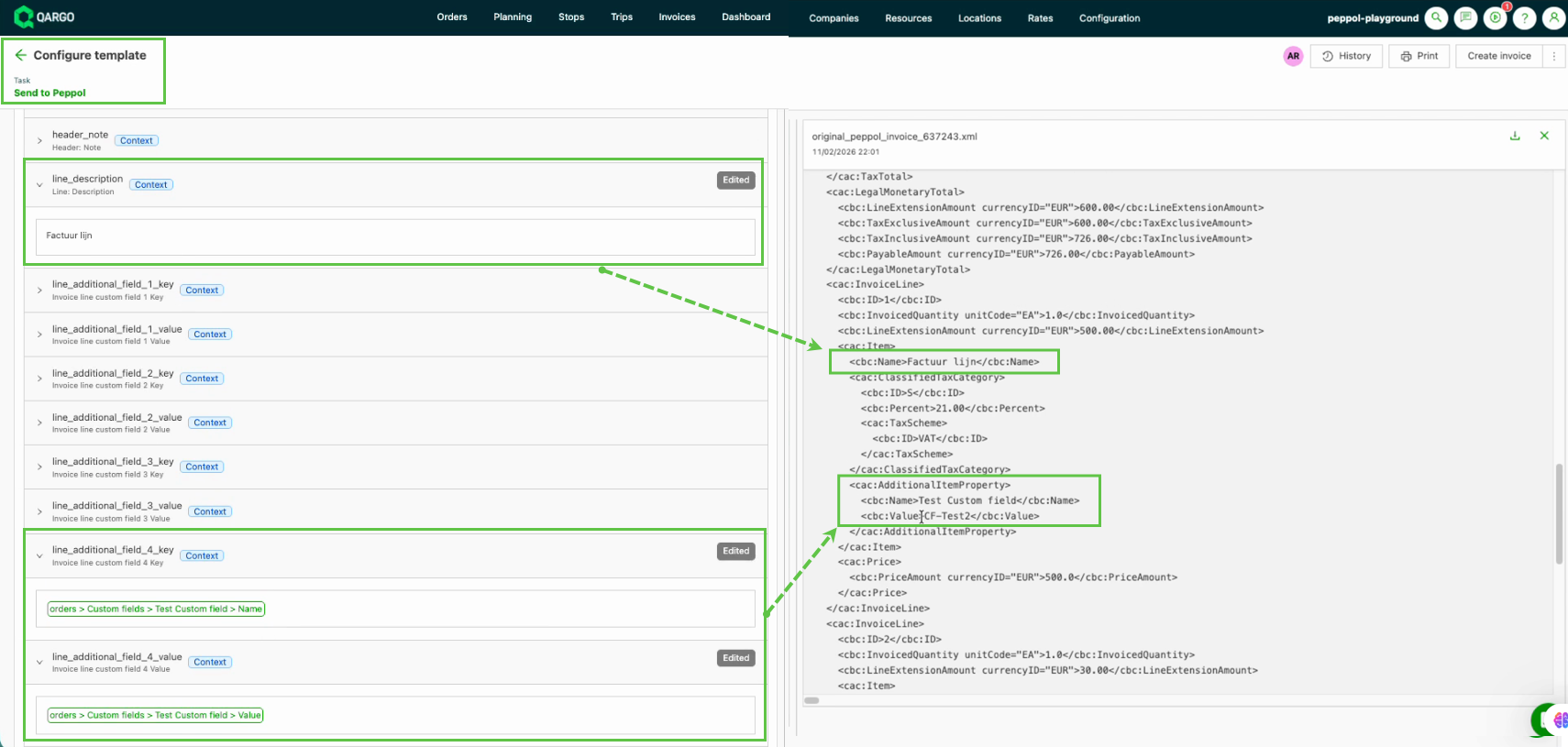
Use a text override or pull data from specific fields
- With a text override, the text appears in the XML file. It is not included in the invoice format unless it is added to the standard invoice template.
- Pull in data from specific fields using the expression builder.
-
Preview the results
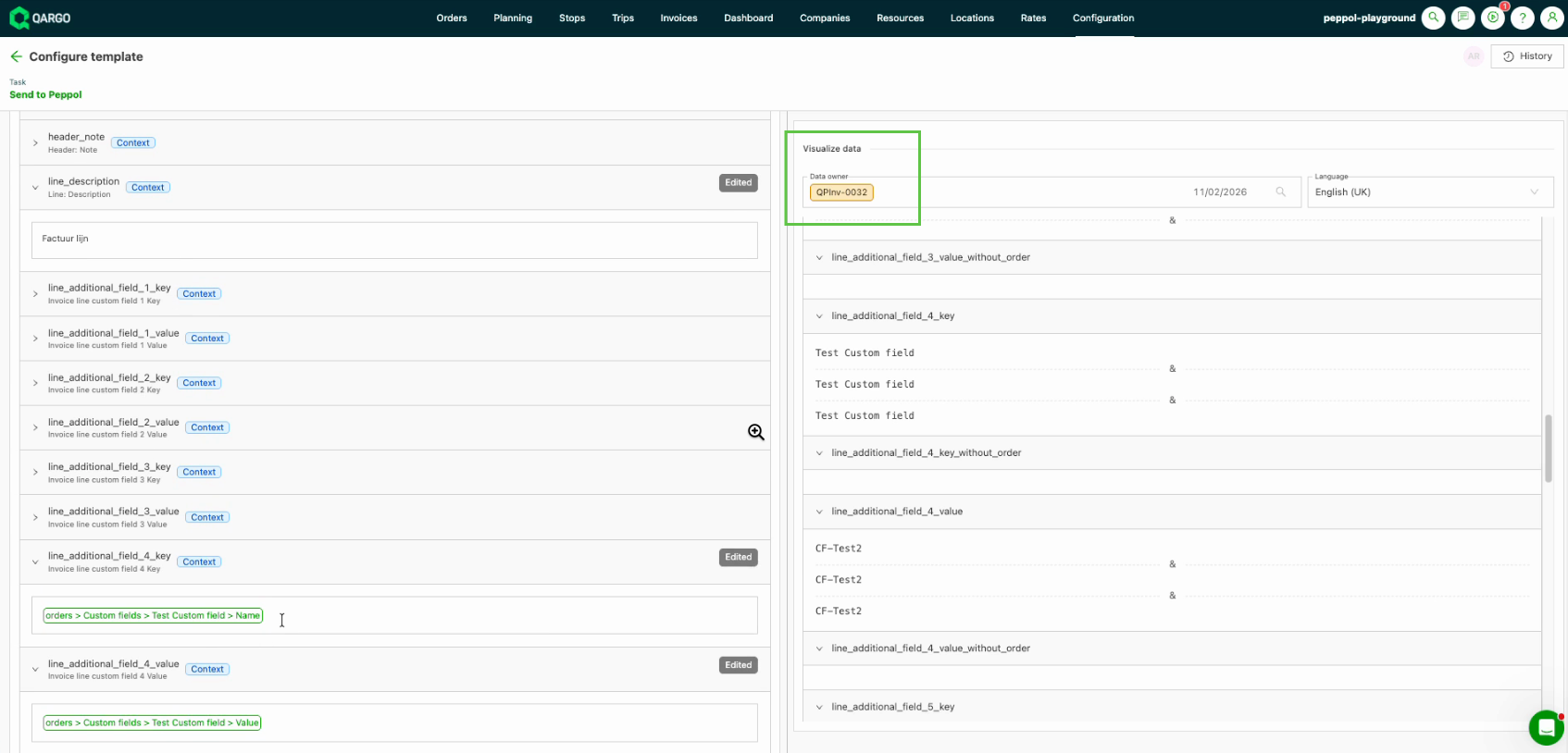
- Generate a preview of the invoice or credit memo using the template visualizer.
- Select an invoice or credit memo to preview
- Confirm that all required data, including custom fields, appears as expected.
-
Send and review the invoice/credit memo
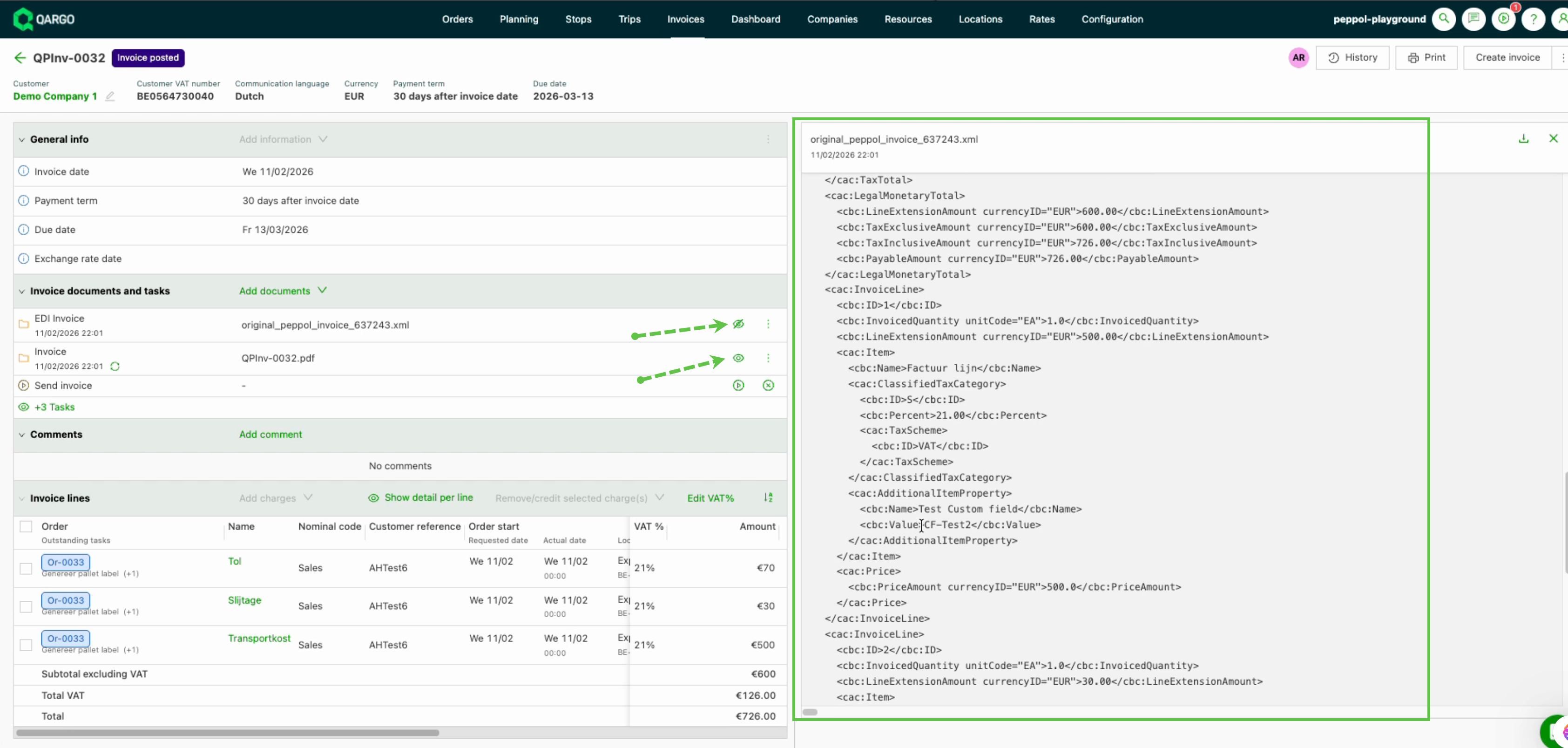
- Run the workflow to send the invoice or credit memo via Peppol.
- Review the sent document and the corresponding XML to check that the data is included accurately.
-
Consult the field mapping as needed - Refer to the Peppol mapping documentation to check that Qargo data fields align correctly with Peppol requirements.
- See the table below for mapping details.
Additional use case examples
- Sending a sales invoice that includes a customer-specified PO number, mapped automatically from the order reference field into Peppol header data.
- Creating a credit memo with a custom field for “reason for credit” that is included as a header or line note in both the PDF and XML.
- Overriding standard line descriptions to give a more detailed narrative for each charge, so the detail is present in both the printable invoice and the Peppol XML sent to the customer.
- Including the Buyer Order Number (BT-10) on Peppol invoices by mapping the Purchase Order reference to the Buyer Order Number field.
This setup provides flexible invoice and credit memo generation to meet partner, regulatory, and operational needs when using Qargo’s Peppol integration. Fields can be sourced dynamically from order data or customized manually in the template. Review the mapping tables regularly to ensure compliance with current Peppol schema requirements.
For the best customization of Peppol invoices, always verify compliance with standards, use the visualizer to preview changes, and apply clear naming conventions for custom fields.
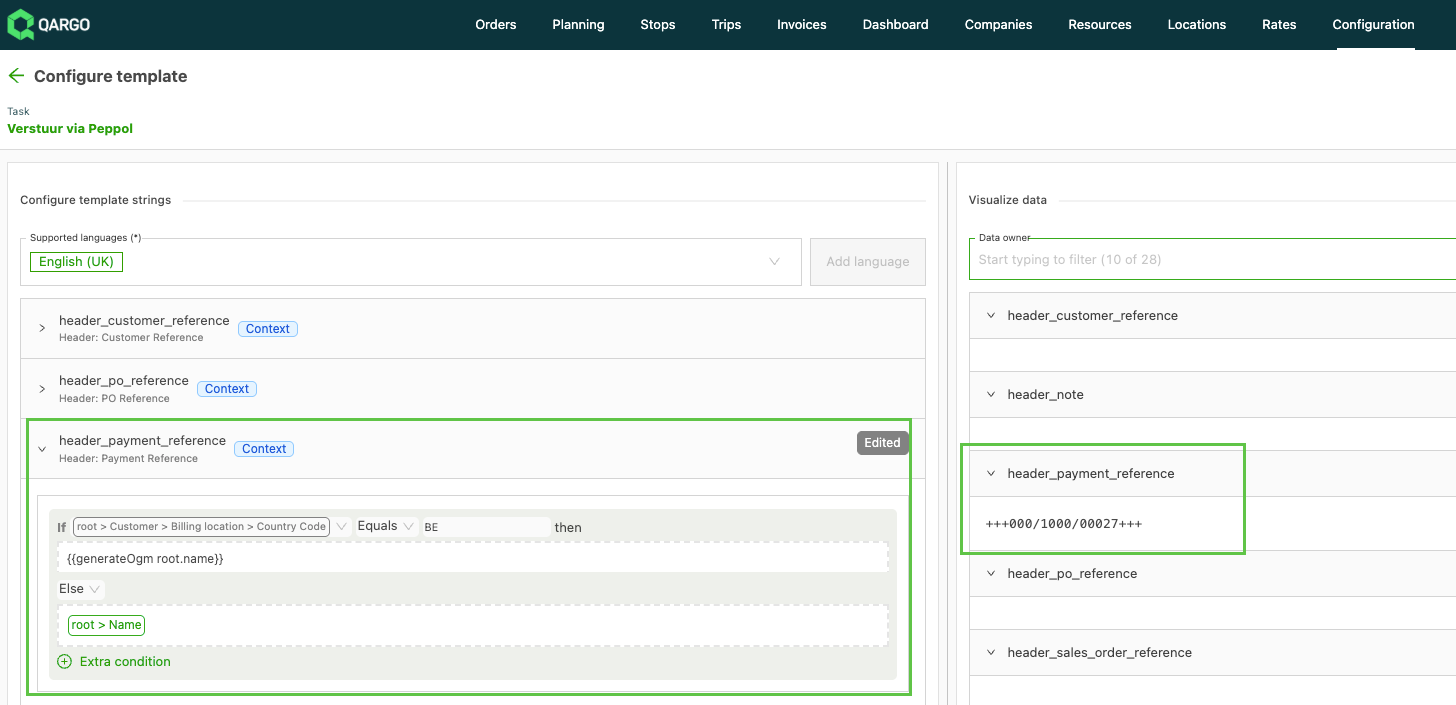
Structured payment reference (OGM) for Belgian customers
Belgian customers typically require a structured payment reference on their invoices, known as an OGM (Overschrijving Met Gestructureerde Mededeling, or gestructureerde mededeling). This is a standardized 12-digit reference formatted as `+++000/3000/00081+++`. Banks and accounting systems use it to match payments to invoices automatically. Qargo can generate this reference automatically and include it in the `header_payment_reference` field of the Peppol invoice, matching the value printed on the PDF.
Configure OGM in the payment reference field
1. Open the Peppol integration template (see Configure template above).
2. Locate the `header_payment_reference` field in the Configure template strings panel.
3. Apply conditional logic so the OGM is generated only for Belgian customers:
4. Preview the result using the Visualize data panel.
- Select a Belgian invoice to confirm that the OGM reference appears (e.g. `+++260/3410/00000+++`), and a non-Belgian invoice to confirm the fallback.
5. Save the template.
Troubleshooting
Q. The customer invoice shows the incorrect data fields after being submitted.
A. Sales invoice and credit memo templates can be modified to include specific data. If the invoice data is received incorrectly, users need to check the XML file and confirm which field the data is sent in. In these cases, the fields need to be mapped to the recognized Peppol fields.
Q. How to resolve invalid data format errors?
A. Double-check the Peppol compliance standards for field types, for example that Buyer Order Numbers contain only numeric data.
Q. The OGM structured reference does not appear in the Peppol invoice for Belgian customers.
A. Confirm that `#{{generateOgm root.name}}` is configured in the `header_payment_reference` field of the integration template, with a condition checking that the billing country code equals `BE`. Review the XML file on a sent invoice to verify that the value is present in the `header_payment_reference` field.
Q. Why do fields from the template not appear in the preview?
A. Make sure the field is mapped correctly in the template and matches the dataset of the example invoice. The table below shows the Qargo field name and the corresponding Peppol reference. The data sent can be validated via the original invoice (XML).
-
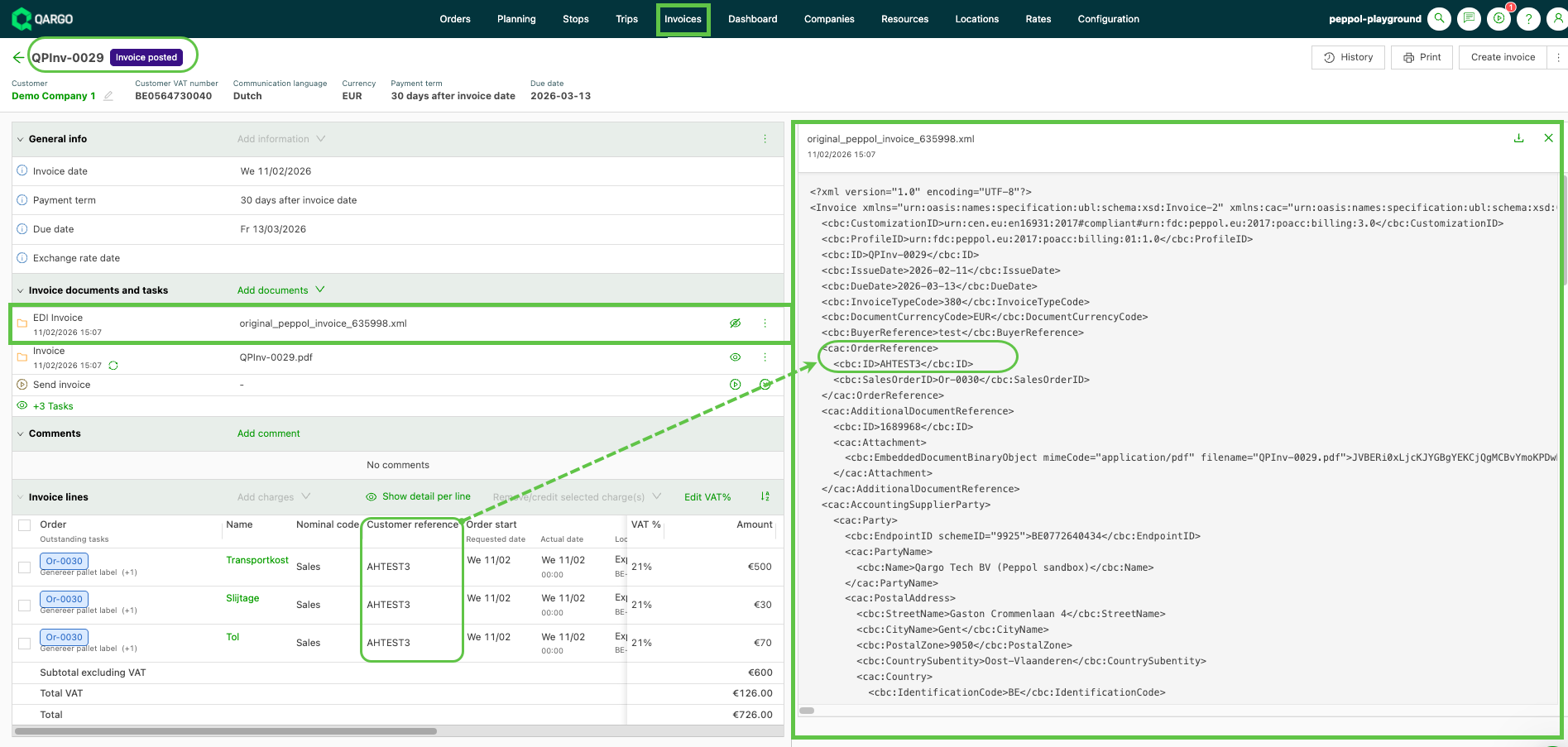
Go to Invoices > Invoices and select the invoice
-
Review the XML file to locate the specific data
-
Check the data label associated with the field that was sent.
- Refer to the table below to confirm which field to update
-
If the field needs to be updated, follow the steps above to configure the integration template on the ‘Send to Peppol’ task.
Mapping template info to B2B format
| Level | Field name | Peppol reference | Path of Peppol XML reference |
|---|---|---|---|
| Header | Header_Customer_Reference | BT-10 | cbc:BuyerReference |
| Header | Header_PO_Reference | BT-13 | cac:OrderReference |
| Header | Header_Payment_Reference | BT-14 | cac:OrderReference > cbc:SalesOrderID |
| Header | Header_Note | BT-22 | cbc:Note |
| Line | Line_Description | BT-153 | cac:InvoiceLine > cac:Item > cbc:Name |
| Line | Line_Additional_Field_<n>_Key | BT-160 | cac:InvoiceLine > cac:Item > cac:AdditionalItemProperty > cbc:Name |
| Line | Line_Additional_Field_<n>_Value | BT-161 | cac:InvoiceLine > cac:Item > cac:AdditionalItemProperty > cbc:Value |
| Line | Line_Additional_Field_<n>_Key_Without_Order | BT-160 | cac:InvoiceLine > cac:Item > cac:AdditionalItemProperty > cbc:Name |
| Line | Line_Additional_Field_<n>_Value_Without_Order | BT-161 | cac:InvoiceLine > cac:Item > cac:AdditionalItemProperty > cbc:Value |
| Line | Line_Description_Without_Order | BT-153 | cac:InvoiceLine > cac:Item > cbc:Name |