
PN - PALL-EX/Fortec - Troubleshooting
Common issues and solutions for the PALL-EX/Fortec integration, including dispatch errors, pickup date problems, label issues, and status sync.
Table of contents
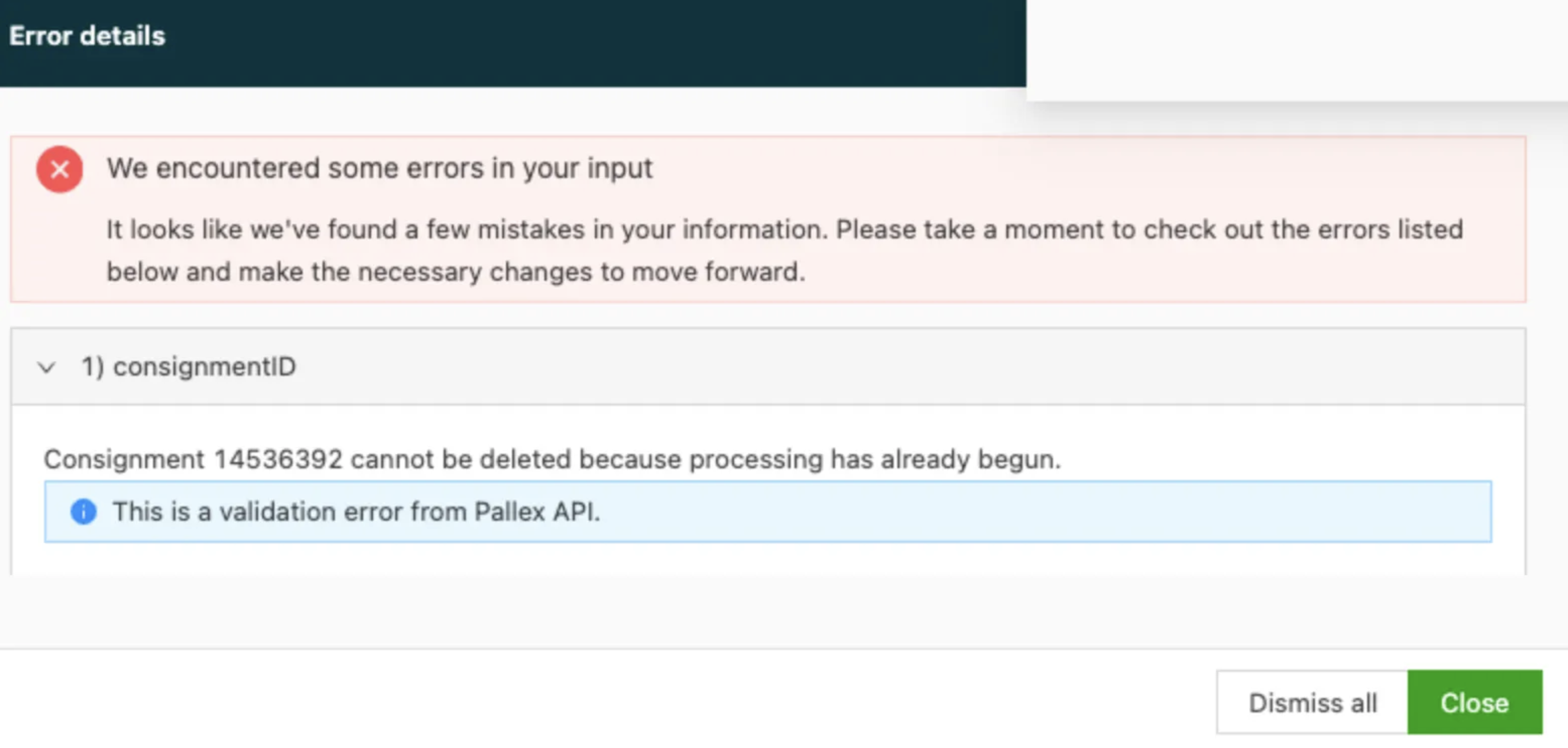
Q: Why can’t the Pallex (export) resource be removed from an already dispatched order in Qargo?
A: There may be several reasons, depending on the shipment status.
-
If the shipment was canceled in Pallex/Nexus, recall or refresh the dispatch in Qargo. Qargo now checks the status and removes the Pallex resource allocation automatically. The order can then be assigned to an in-house driver.
-
If the shipment is still active or already accepted downstream, removal remains blocked. In that case, add the in-house driver and vehicle as an extra resource and dispatch to the driver as a workaround.
Pickup date error: date outside allowed range
Q: When dispatching a shipment, an error is returned: `The date is outside the allowed range for ServiceID (SpecificDay)`. What does this mean and how can it be fixed?
A: The pickup date on the shipment violates one of the following rules:
- The export was submitted after the 12 PM cut-off for the selected pickup date
- The pickup date is more than 6 days in the future
- The pickup date falls on a Saturday (pickups are not accepted on Saturdays)
- The export was submitted over a weekend for a Monday pickup after the cut-off had passed
Resolution:
| Scenario | Action |
|---|---|
| After 12 PM cut-off for same-day | Adjust the pickup date to the next valid business day |
| Saturday pickup requested | Pallex does not accept Saturday pickups. Change the date to the following Monday |
| Pickup date more than 6 days ahead | Move the pickup date to within the 6-day window |
| Weekend submission for Monday before cut-off | Verify that the pickup date is set to Monday; if it still fails, move it to Tuesday |
Status updates not appearing in Qargo
Q: Shipments dispatched to PALL-EX/Fortec are not receiving status updates (e.g. Hub Arrived, Delivery Terminal Scanned In) in Qargo. Why is this happening and how can it be fixed?
A: C&D (Collection and Delivery) routes may not have been created in Nexus for the current day. Status export from Qargo to Nexus requires active C&D routes in Nexus.
Resolution:
1. Log in to the Nexus portal.
2. Navigate to the C&D routes section.
3. Create the C&D routes for today using the auto-create button.
4. Allow a few minutes for the next polling cycle to pick up status updates.
Oversize pallet dimensions not updating
Q: Oversize pallet shipments are being sent to Nexus with fixed dimensions of 510×240×220 cm, even when the packaging type in Qargo has been updated to different dimensions. Why is this happening and how can it be fixed?
A: The Nexus API uses fixed, hardcoded dimensions for the Oversize pallet type (palletTypeID 6). Qargo sends the correct pallet type ID, but Nexus determines the dimensions based on the type, not on the dimensions entered in Qargo.
Resolution:
There is no workaround at the API level: the Nexus API does not accept custom dimensions for the Oversize pallet type. If the shipment physically differs from these dimensions, communicate this directly to the receiving terminal through standard pallet network channels.
Terminal code not recognized or changed
Q: The integration is returning errors or not processing orders after a terminal code change. Previously working terminal codes with a `PGD` prefix have been replaced with a `UK`-prefixed code.
A: PALL-EX periodically issues updated terminal codes to members. Terminals that previously had a `PGD`-prefixed code may have been migrated to a `UK`-prefixed code.
Resolution: Qargo Admin needs to assist with resolving this.
1. Obtain the new terminal code from PALL-EX.
2. Navigate to Configuration > Integrations in Qargo (restricted to Qargo Admin only).
3. Update the terminal code field on the PALL-EX/Fortec integration to the new code.
4. Save and verify that order export resumes correctly.