
Orders – loading calculations
Loading calculations can now be added to automatically calculate loading meters and pallet spaces based on piece dimensions.
Table of contents
Rating orders can be complex. Users often need to complete manual formulas to account for freight loading configurations. A preset calculation for loading meters and/or pallet spaces can simplify this complicated order capture requirement. Automatically calculating loading meters makes the process more efficient and reduces the risk of data errors.
Loading meter calculations help optimize vehicle usage. They calculate pallet space efficiently and reduce the risk of overloading or underusing vehicle capacity.
In some scenarios, manual updates may still be necessary, for example when freight dimensions are adjusted after the initial calculation.
Configuration requirements
Additional fields required
-
For full visibility, make sure the following fields are set to ‘Active’.
-
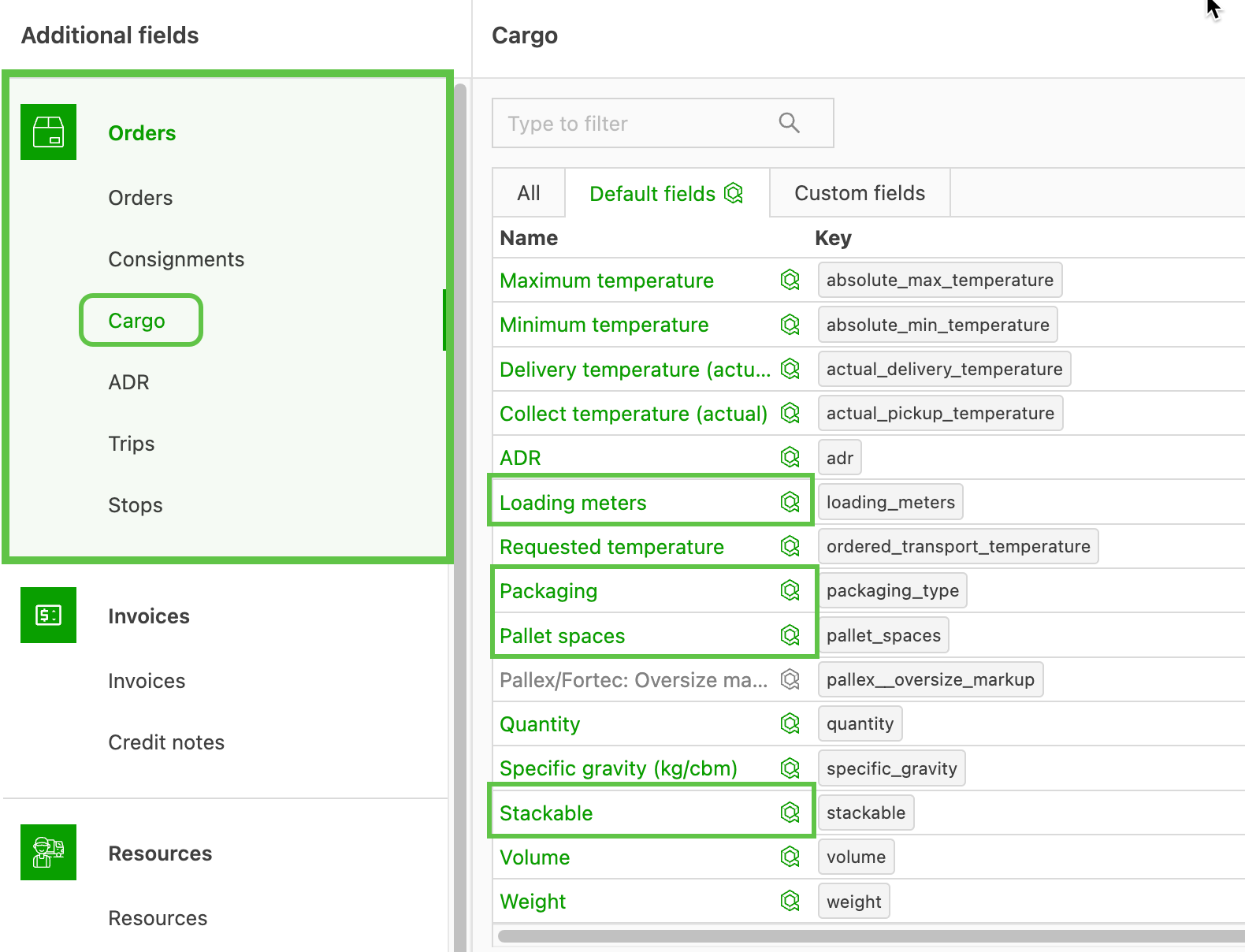
Go to Configuration > Additional fields.
-
In the ‘Orders’ menu panel on the left, select ‘Freight’.
-
Click into each field and enable the relevant transportation services. Make sure the field itself is set to Active.
- Loading meters
- Pallet spaces
- Packaging size
- Stackable
-
Once active, the field shows in green.
-
Stackable toggle
- Turn the toggle on or off to indicate whether the item is stackable.

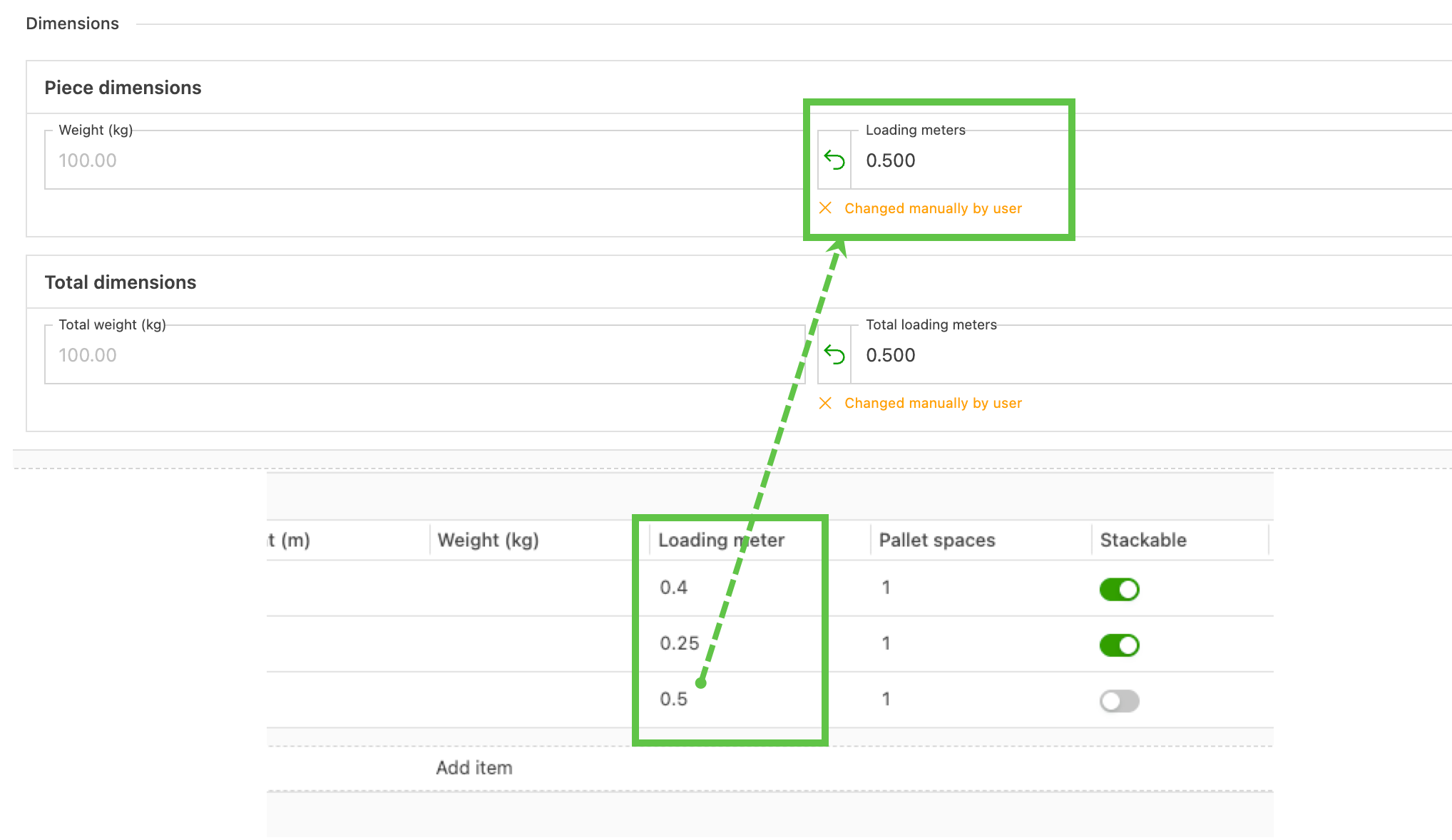
Pro tip: If a prefilled loading meter (LM) value is used in predefined package sizes, the alert ‘changed manually by user’ shows. To remove it, click the ‘revert’ arrow. The prefilled data is removed, and the LM calculation is used instead.
Calculation syntax guide
When entering calculations for loading meters or pallet spaces, it is important to use the correct operators. Use these operators to build formulas:
+Add-Subtract*Multiply/Divide()Group operations to set the order of operations
Creating calculations
Set a loading meter calculation
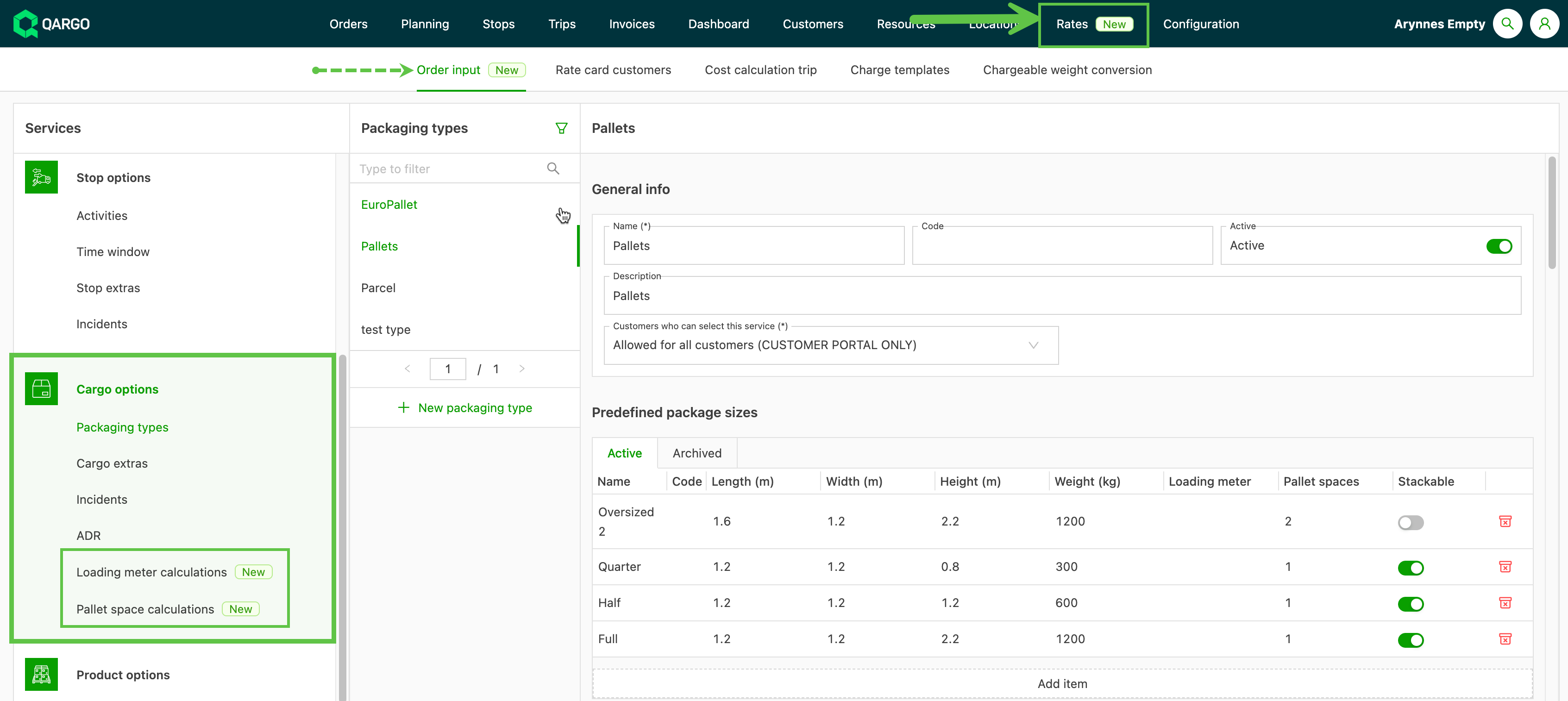
- To create a calculation, go to the Rates > Order input menu.
- In the left menu panel, under ‘Freight options’, select ‘Loading meter calculations’.
- Click ‘Add calculation’.
-
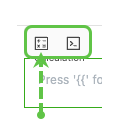
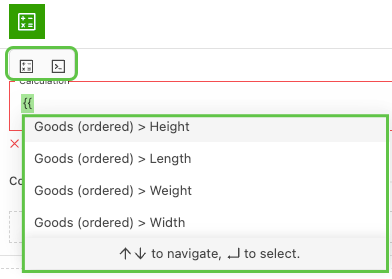
Calculation field: Click in the field to show the metric icons, or type #{{ to show the list.
-
Select the required variables from the list of available options:
- Goods (ordered) > Height
- Goods (ordered) > Length
- Goods (ordered) > Weight
- Goods (ordered) > Width
-
These are the dimensions entered on the order capture page when completing the order details.
-
If required, add conditions so that multiple calculations can be added.
- For example, if both stackable and non-stackable pallets are used, separate calculations can be set up.
-
Click Save once the calculation parameters are entered.
-
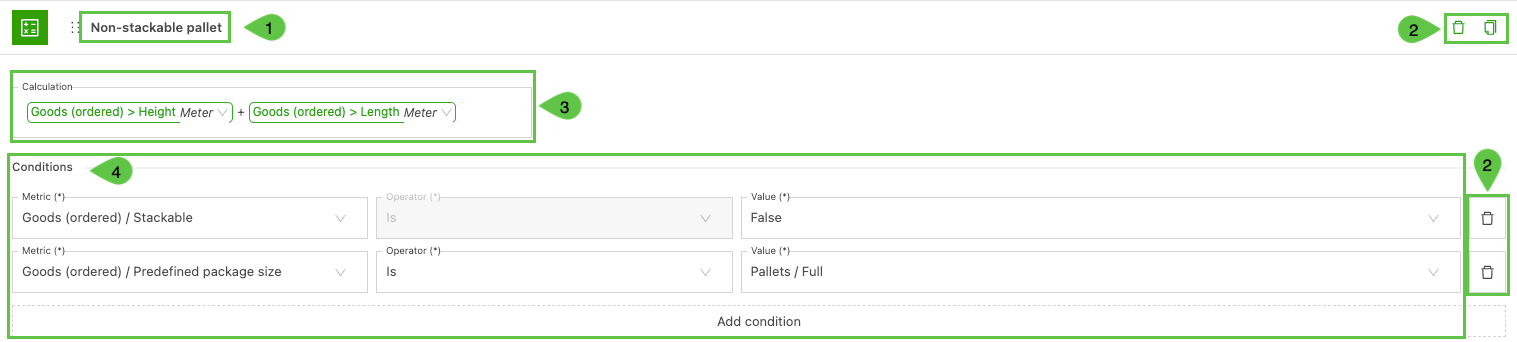
Name the calculation table. This is especially useful if multiple calculations will be used.
-
Copy/delete functions. Delete the whole calculation (top delete) or individual conditions.
- Copy the entire calculation to quickly add multiple tables, then edit them to adjust specific fields.
-
Calculation. Select the variables to include and create the calculation. (See Calculation syntax.)
-
Conditions. Add conditions to define the specific criteria required for the calculation to be used.
Set a pallet space calculation
- To create a calculation, go to the Rates > Order input menu.
- In the left menu panel, under ‘Freight options’, select ‘Pallet space calculations’.
- Click ‘Add calculation’.
-
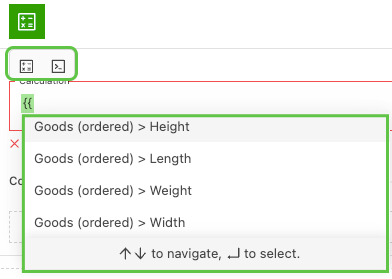
Calculation field: Click in the field to show the metric icons, or type #{{ to show the list.
-
Select the required variables from the list of available options:
- Goods (ordered) > Height
- Goods (ordered) > Length
- Goods (ordered) > Weight
- Goods (ordered) > Width
-
These are the dimensions entered on the order capture page when completing the order details.
-
If required, add conditions so that multiple calculations can be added.
- For example, if both stackable and non-stackable pallets are used, separate calculations can be set up.
-
Click Save once the calculation parameters are entered.
-
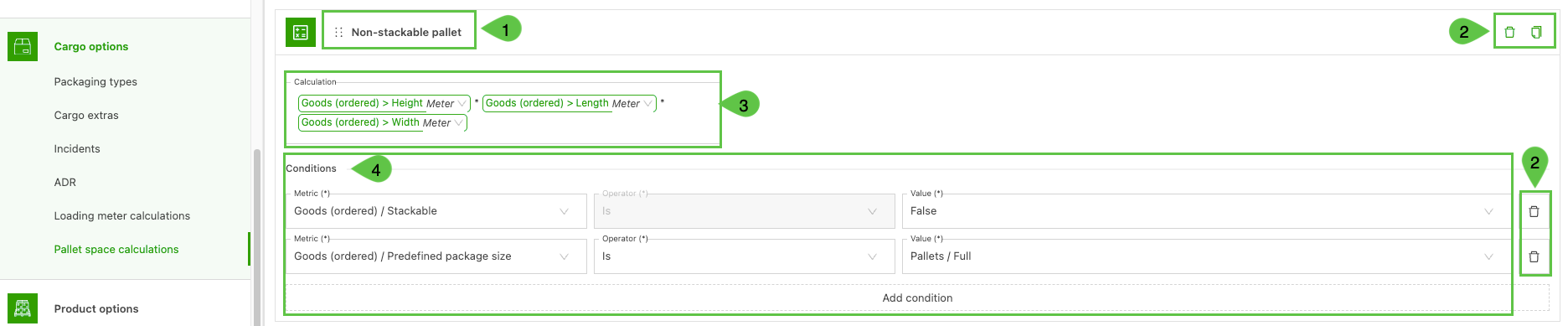
Name the calculation table. This is especially useful if multiple calculations will be used.
-
Copy/delete functions. Delete the whole calculation (top delete) or individual conditions.
- Copy the entire calculation to quickly add multiple tables, then edit them to adjust specific fields.
-
Calculation. Select the variables to include and create the calculation. (See Calculation syntax.)
-
Conditions. Add conditions to define the specific criteria required for the calculation to be used.
Using calculations in orders
-
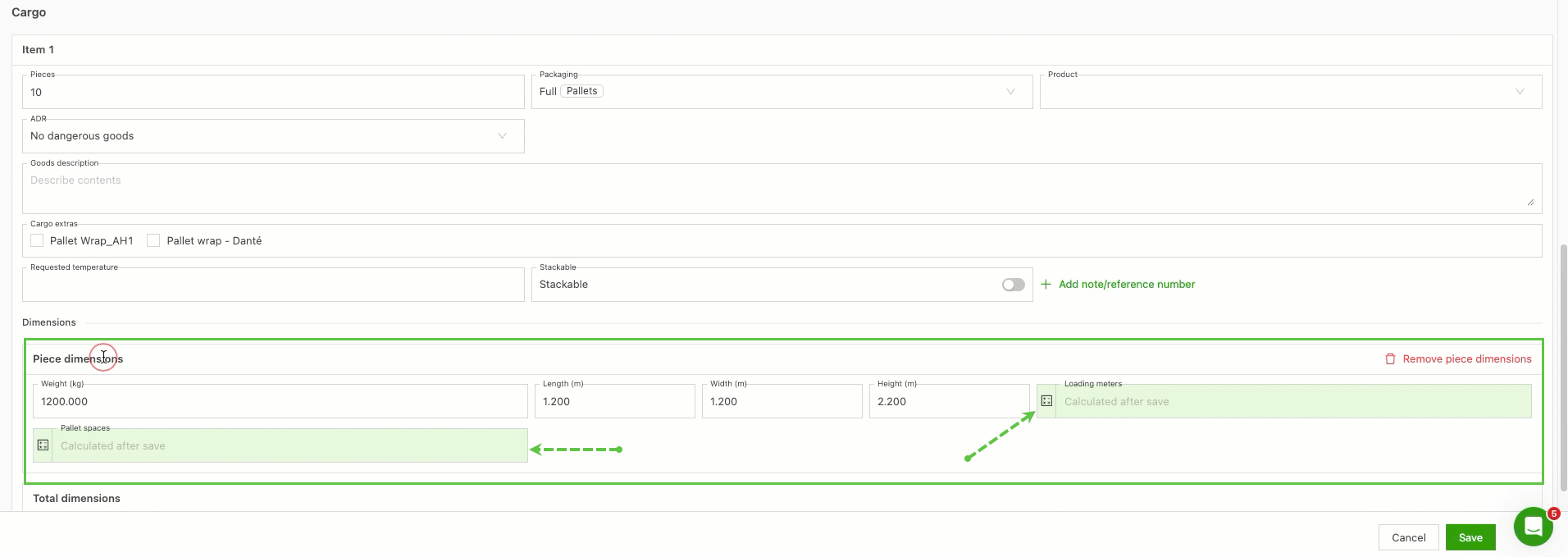
When building an order, click ‘Add piece dimensions’ when adding freight.
- If the dimensions are predefined under the package size, they are prefilled but can be updated if required.
-
Pallet spaces and loading meters show in green with a ‘Calculated after save’ note.
-
Loading meters and pallet spaces are calculated after the order is saved.
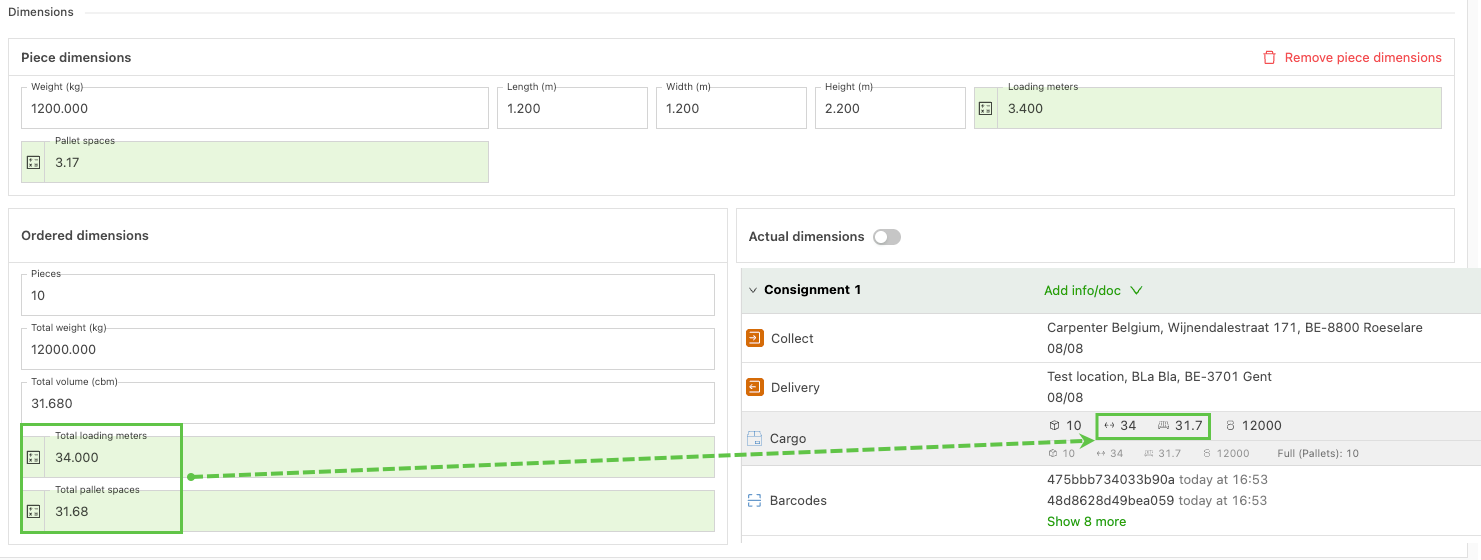
Note, however, that if the actual dimensions of freight pieces are entered after saving, manual updates may still be required so that pallet spaces reflect these changes accurately.
Troubleshooting
1.) Error warning in the order under the Shipment panel. This indicates that piece dimensions (l x h x w) are missing from the order, so the calculation could not be performed.
To ensure correct calculations, make sure the Quantity and Packaging type fields are completed. These fields are critical for determining the space the goods occupy.
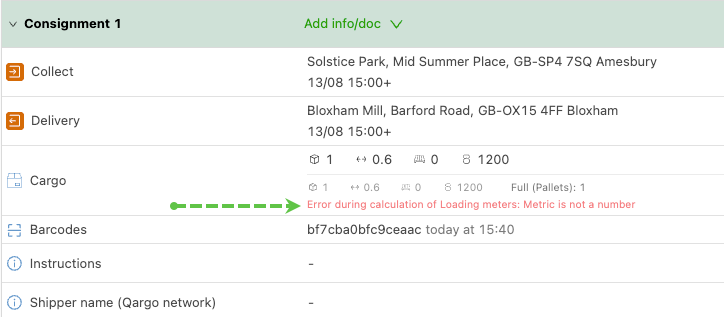
Resolution:
Edit the order to add the missing dimensions. Save the details again, and the calculation updates on the order.

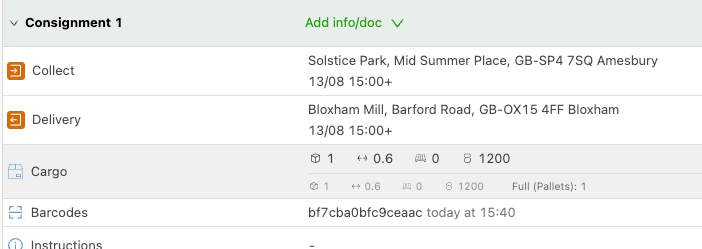
2. The icons showing loading meters or pallet spaces do not appear in the order.
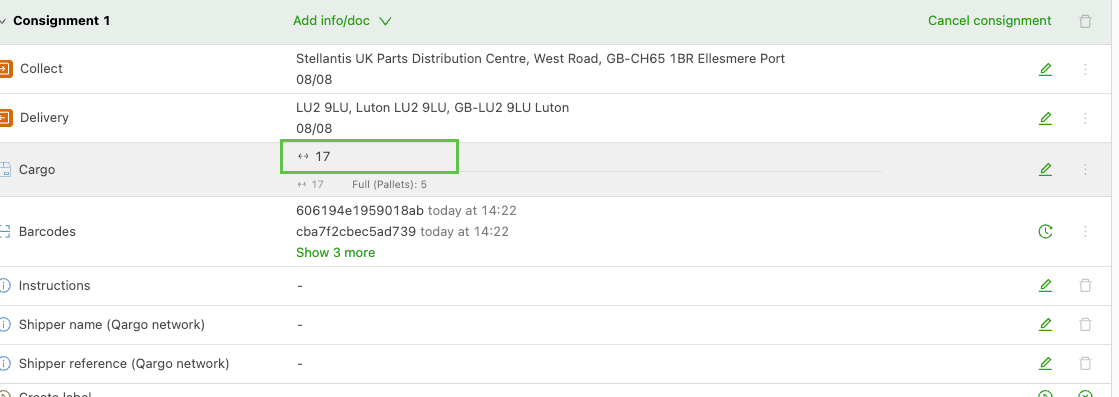
Resolution:
Use the ‘Edit columns’ button on the Orders list page to enable Quantity, loading meters, pallet spaces and other columns. If the issue persists, check that all required fields in the “Set a loading meter calculation” section are configured correctly.
In addition, the PDFs must be regenerated manually so that updates to freight dimensions are accurately reflected in shared documents.
- Loading meters not displayed: Make sure the Quantity and Packaging type fields are filled in to enable accurate loading meter calculations.
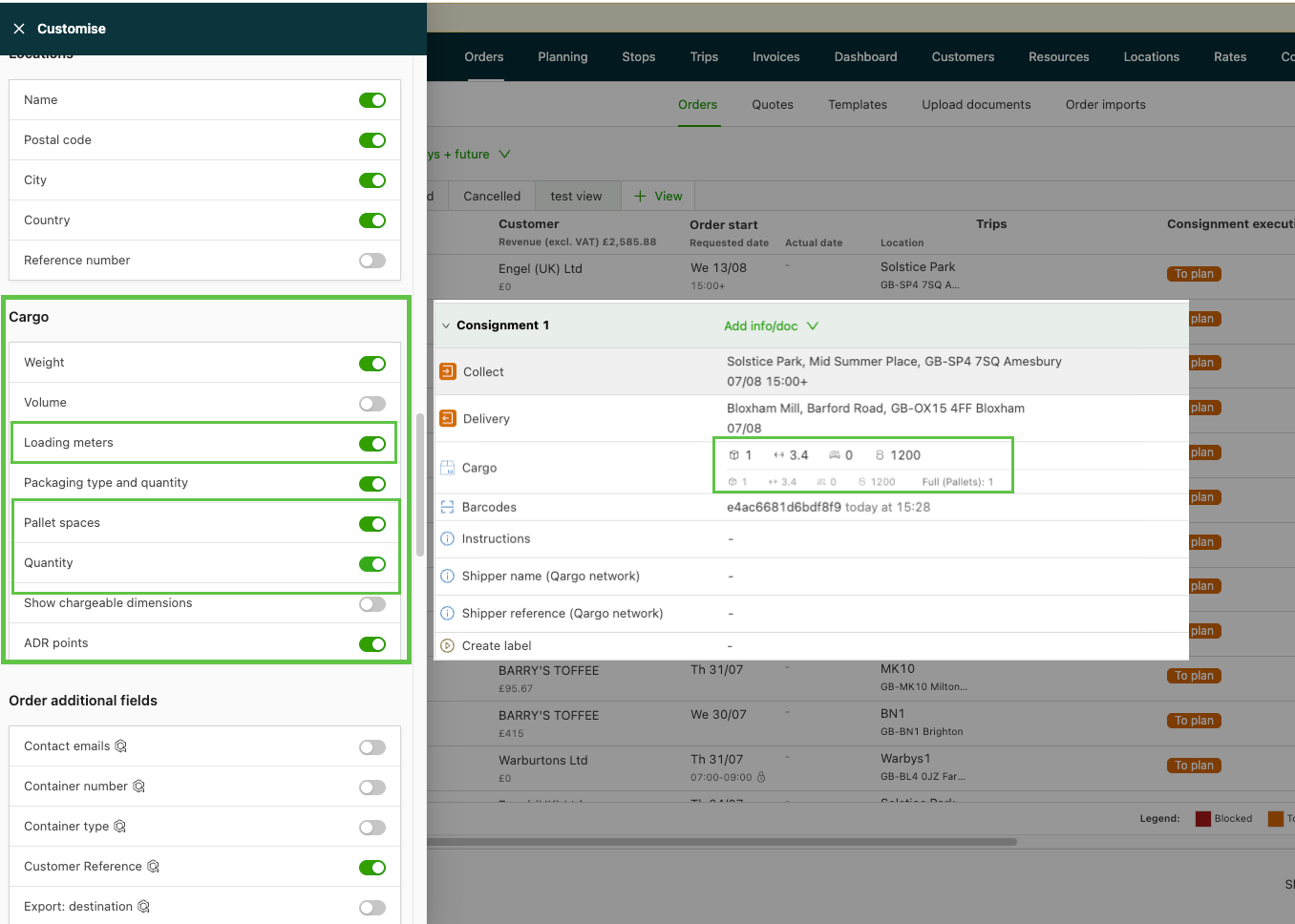
3.) Changes to freight dimensions do not appear in documents or PDFs. This happens because updates to dimensions in Qargo do not automatically adjust previously generated PDFs or shared files.
Resolution: Regenerate the PDF manually so that the changes appear in the document.