Rate card FAQ – Price list per distance – 2 calculations with conditions
Set rate cards using tiered rating based on mileage, then per-mile rates beyond. Configure via rate tables and formulas in rate cards.
Table of contents
Introduction.
Setting up rate cards for the variety of rating models can be quite a task. This article looks at one rating model that uses the total miles of an order as the basis for the transport charge calculation. Rating based on distance can also be set by country, which lets users set specific rates for each country included in the order.
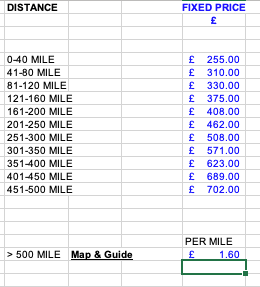
This example looks at standard order distance with fixed rates based on set mileage tiers, up to a threshold mileage limit (e.g., 500 miles). Once the threshold limit is reached, a per-mile rate is applied to the order instead.
Parameters:
-
Based on 2 mileage calculations.
- A tiered rate up to a threshold rate.
- A second rate after the threshold is reached, which calculates per mile.
Configuring the rate card
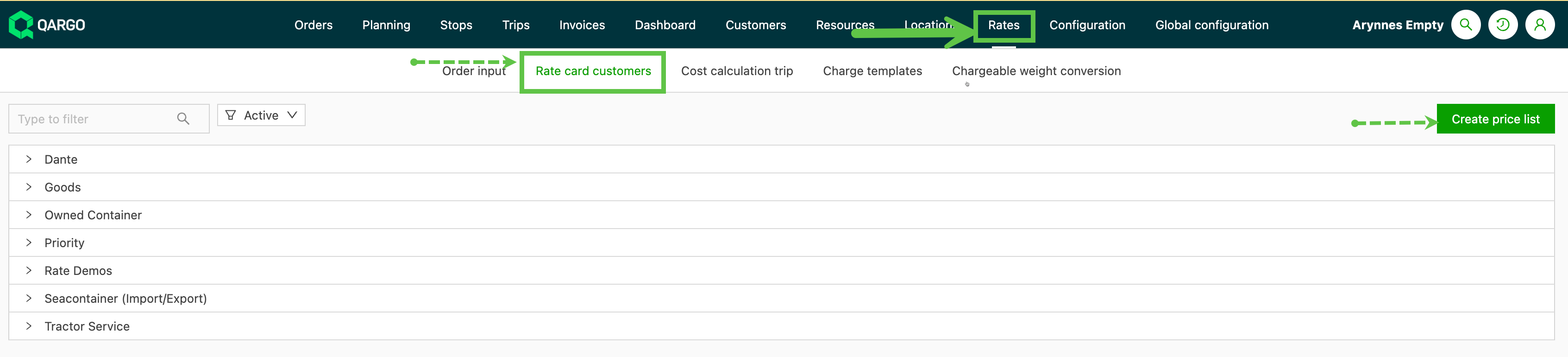
Navigate to Rate & Rate Card Customers.
Click ‘Create price list’. This opens a new screen.
Select the transportation service the new price list is associated with.
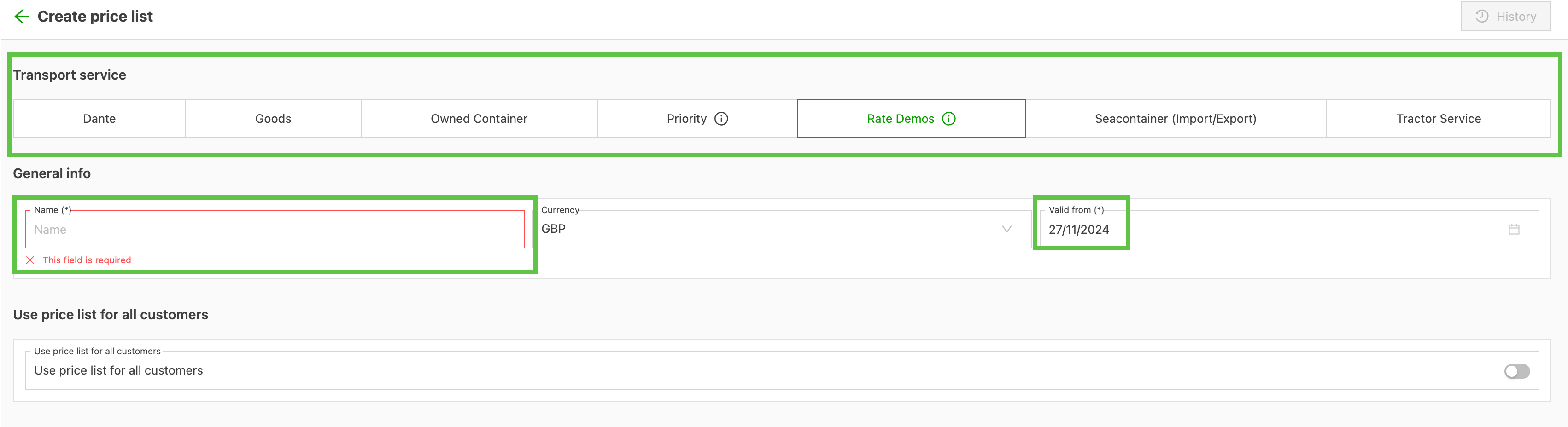
- Give the price list a name. Use something that makes it easy to identify.
- Set a valid from date. If no date is set, the default is the date the list was created.
- There is an option to set the price list as a default for all customers if required. Otherwise, the price list should be linked to specific customers.
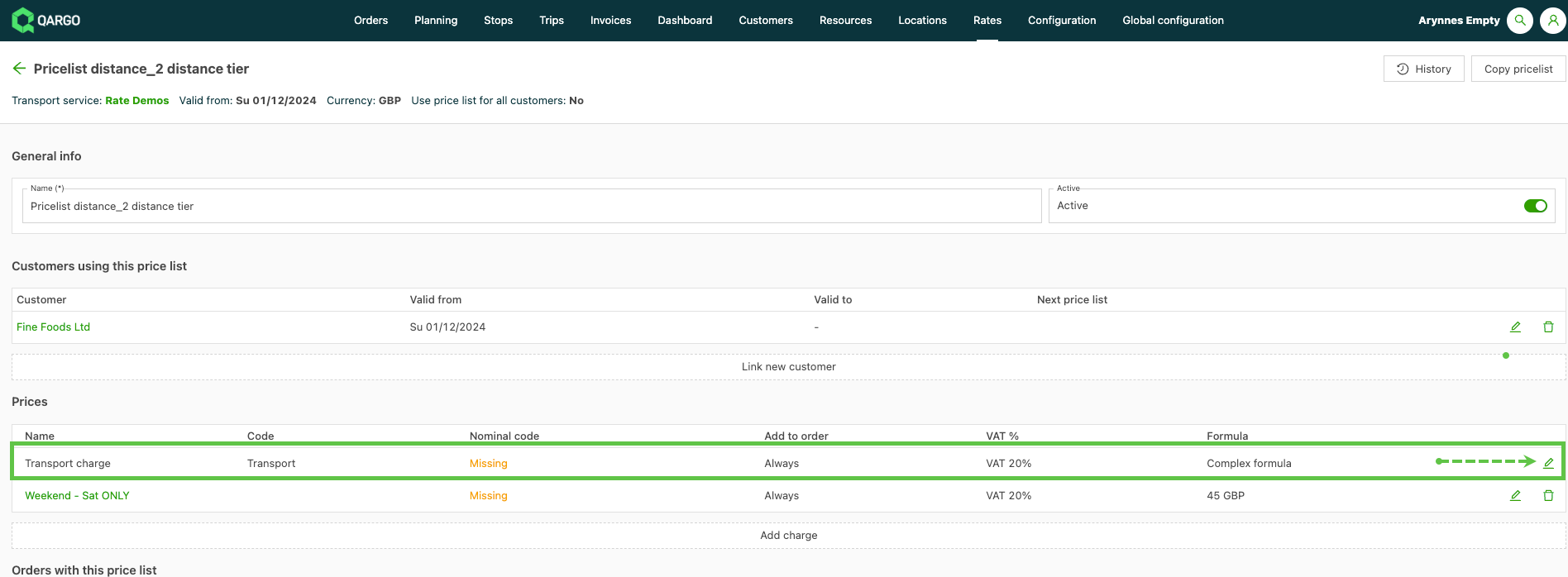
To add the specific charges, click the edit icon (pencil) on the transport charge line. This opens the ‘Edit Price’ screen.
This price list requires 2 calculations:
- Calculation 1: Fixed rates based on mileage tiers up to 500 miles
- Calculation 2: Per-mile (or per-kilometer) rate based on total miles on the order.
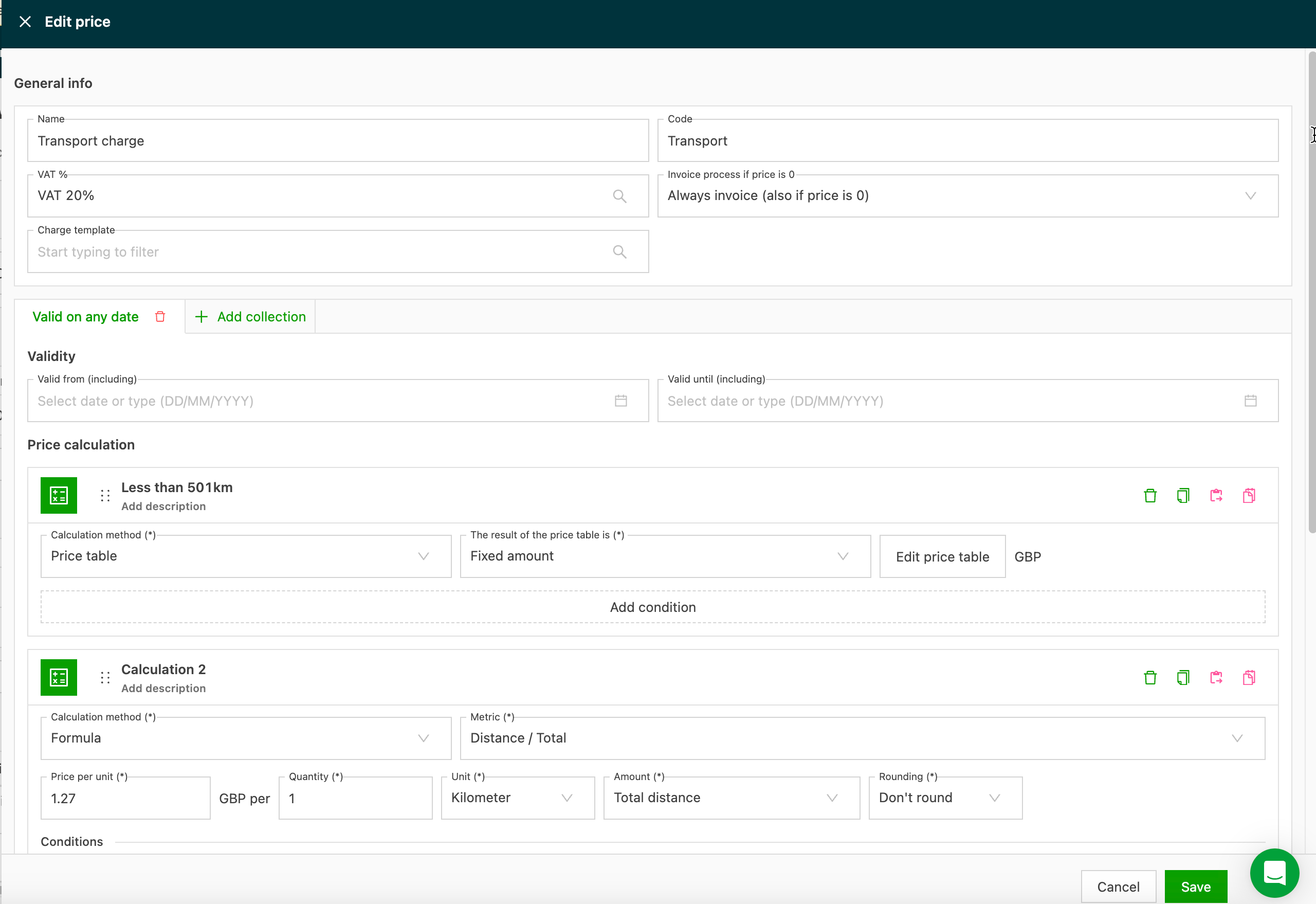
Calculation 1: Fixed rate / Tier mileage up to 500 miles.
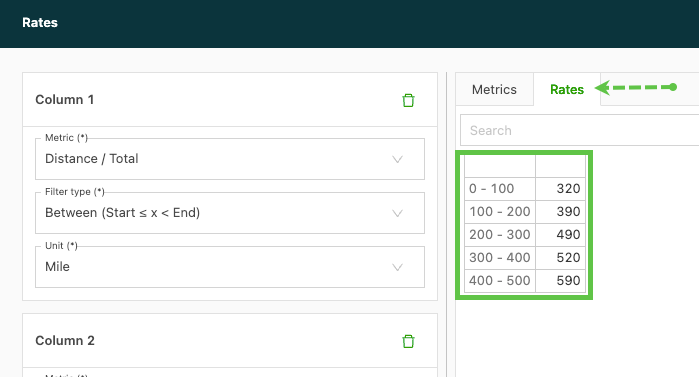
This requires a rate table format so the mileage tiers can be added. The output per tier is a fixed rate. For the rate table, only 1 metric is required: the total order distance. Using ‘Between’ as the filter type lets the user set up the mileage tiers. Finally, select the unit of measure, in this case miles:
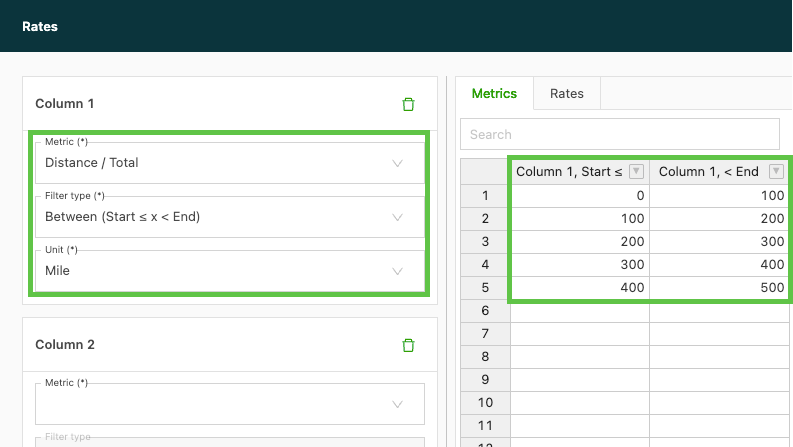
Enter the rates that apply to each mileage tier:
- Click OK on the rates page to save the table.
- Click Save on the price list to save the price list.
Calculation 2: Per-mile rate / Total order distance (500+ miles)
This price calculation is based on a specific formula rather than a rate table. In this calculation, the system considers the total distance on the order and then multiplies it by the rate per mile (or kilometer).

Mileage calculations can be based on ‘Total Miles’ or on additional options. Under the Amount drop-down, if any option other than ‘Total Miles’ is selected, additional fields are displayed:
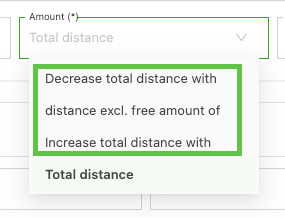
- Include a ‘free amount’ by using the Offset field. Enter the ‘free’ amount before the calculation begins.
- ‘Percent’ adjustment gives the option to increase or decrease by a percentage.
- ‘Rounding’ options are used to round the set metric (ft / km / m / mile).
Adding conditions
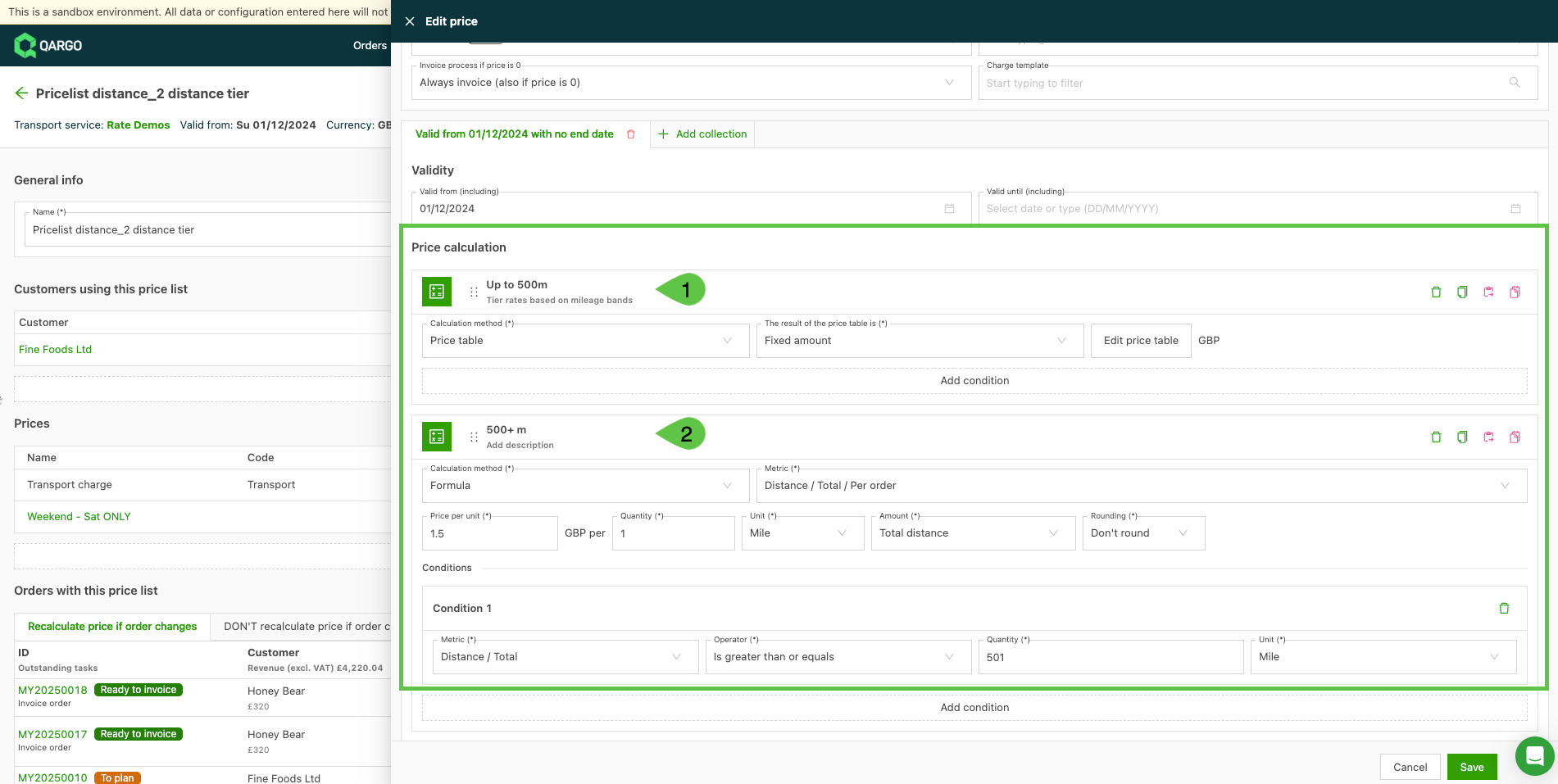
For Calculation 2, a condition must be added so the system knows when to apply the per-mile rate. In this case, the per-mile rate applies to orders greater than 500 miles.

The final price list now includes 2 calculations: Calculation 1, which applies a fixed rate based on tiered miles up to 500 miles, and Calculation 2, which applies a per-mile rate to orders with distances greater than 500 miles.
Additional distance rate option:
Rate per country:
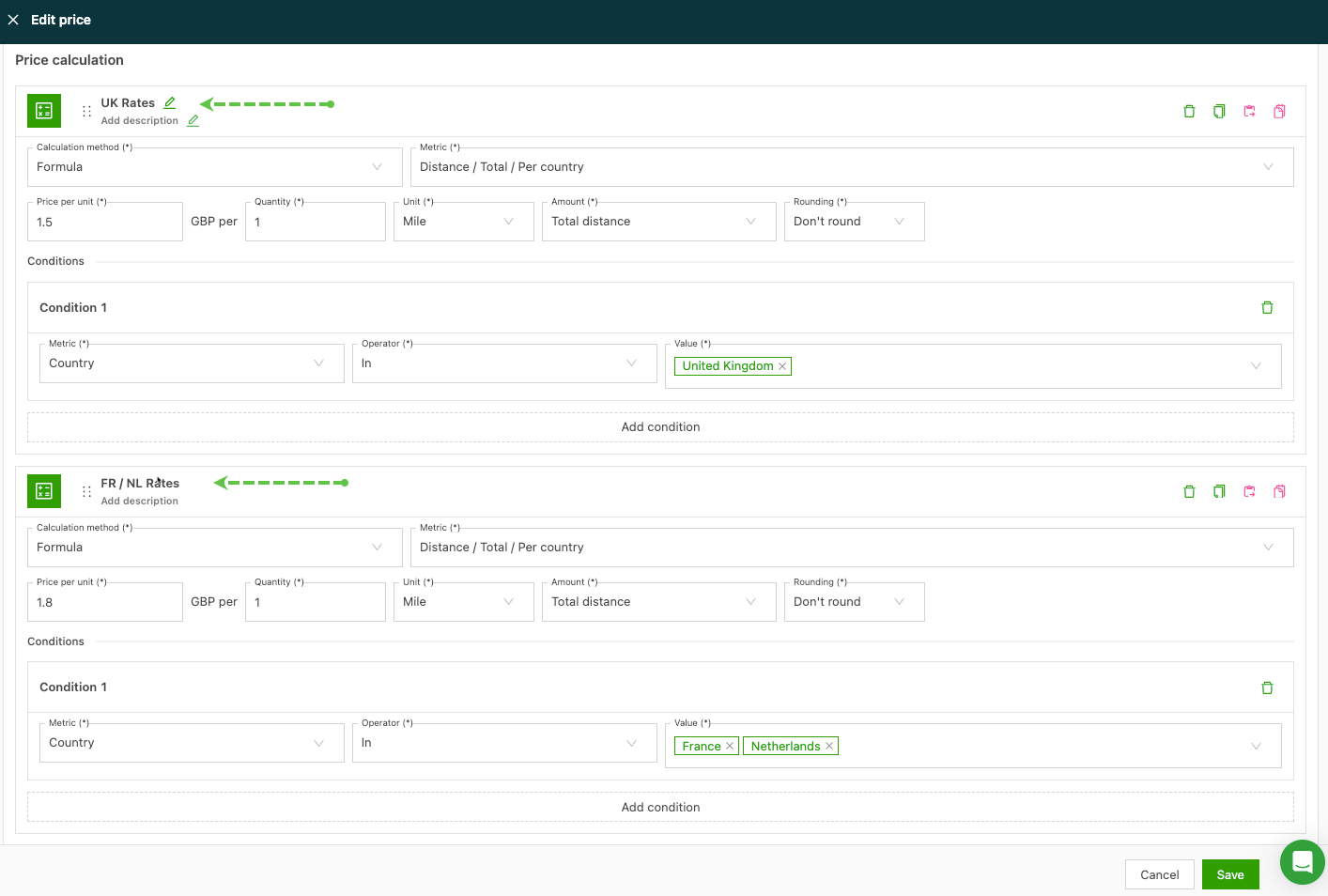
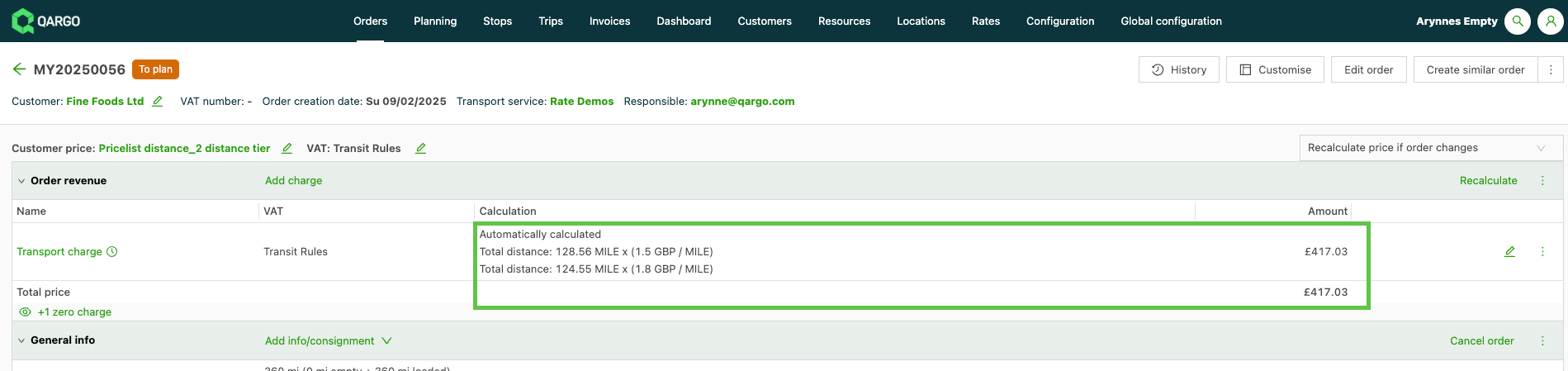
Instead of selecting the option for rate per order, select Per country. Conditions are included automatically, and the user selects the country. This allows rates to be set for different countries.