
PN - UPN: Self bill and billing comparison
How to import UPN self bills and cost invoices into Qargo for invoice comparison and matching, using the UPN shipment barcode as the reference key.
Table of contents
Introduction
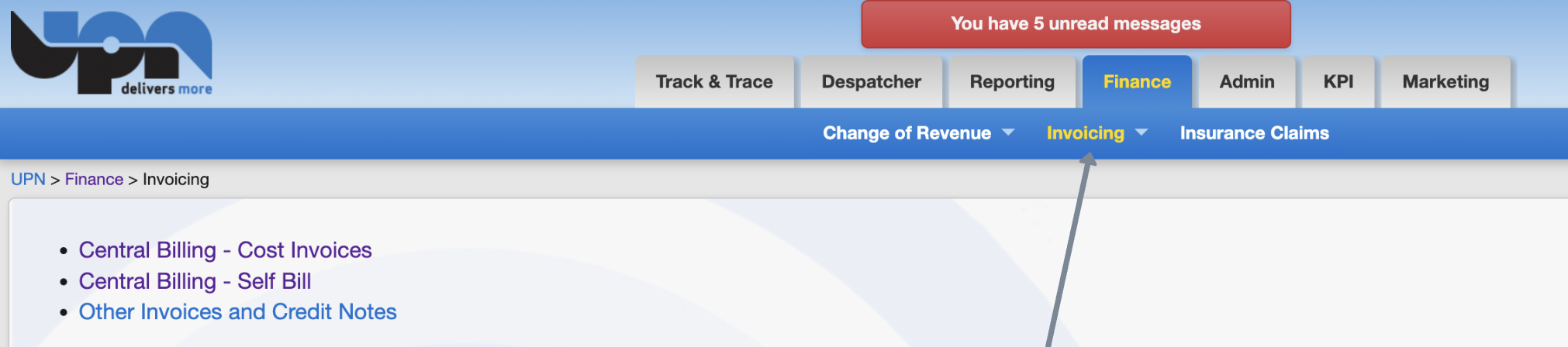
On UPN, both the self bills and the cost invoices can be downloaded:
Make sure to download the Excel files:
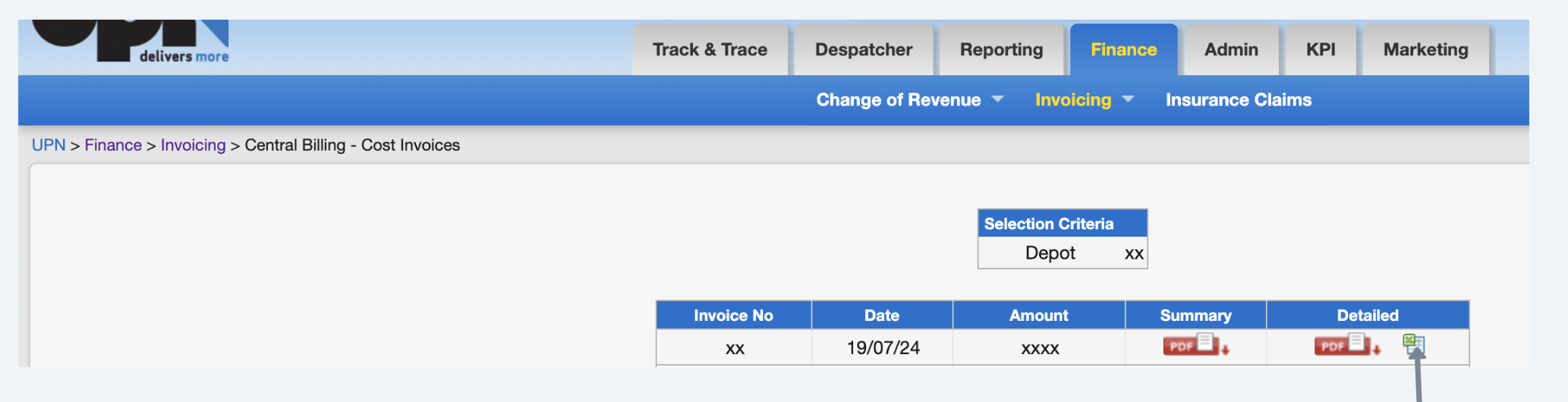
Self bill invoices
Downloading a self bill invoice produces an Excel file with the following information:

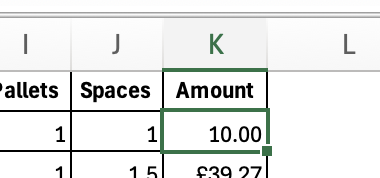
Make sure to set the amount column to the number format:
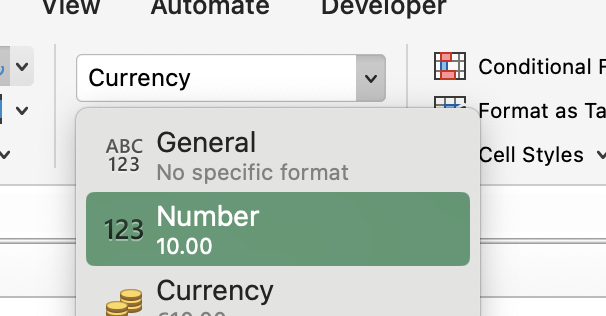
So that it appears as below:
Then go to Invoices and click Create invoice:

Then click Upload spreadsheet:

Copy and paste the data from the spreadsheet on the right side and then select:
- Customer: UPN
- Reference column: Con No.
- Charge amount: Amount
See the example below:
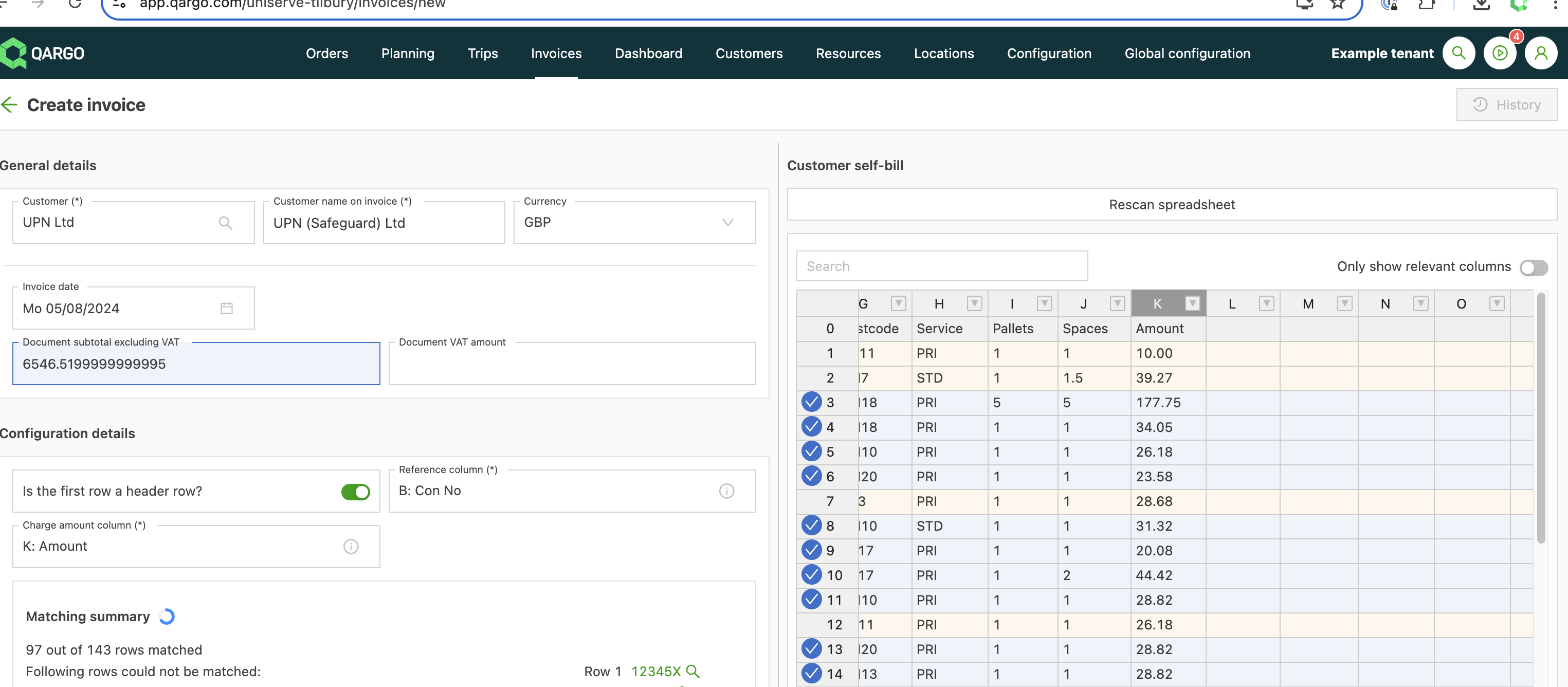
At the bottom left, an overview shows the references that were not found:

Click the search icon to search for this reference. Correct the reference in the order so that the matching can find it, and then click Rescan spreadsheet.
Then save the invoice. This creates the invoice that can be sent to UPN.
A functionality is also available to easily correct all the amounts in Qargo with the correct amounts from the CSV file.
Cost invoices
UPN cost invoices can be uploaded into Qargo and matched against shipments using the UPN shipment barcode as the matching reference.
To upload and match a UPN cost invoice:
1. Navigate to Invoices in Qargo and select Create invoice.
2. Select Upload spreadsheet and paste the data from the UPN cost invoice file.
3. Configure the matching fields:
- Customer: UPN
- Reference column: Con No. (the UPN shipment barcode column in the file)
- Charge amount: the relevant amount column
4. Review matched and unmatched lines. Any references not found appear at the bottom left. Use the search icon to locate the correct order and correct the reference if needed.
5. Save the invoice once all lines are matched.