
Complete load times
Table of contents
Complete load times on the load page
Complete load times from the planning board
Complete load times in bulk
Adjust the load times of a completed load with the “Complete load times” option
Complete load times on the load page
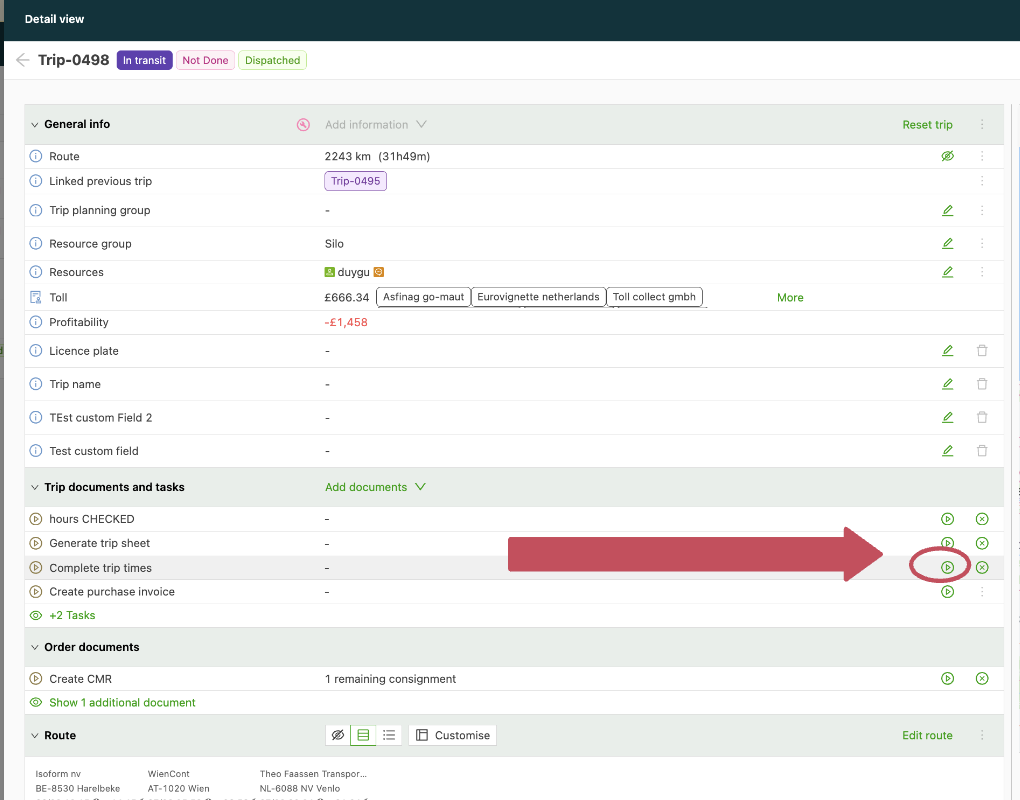
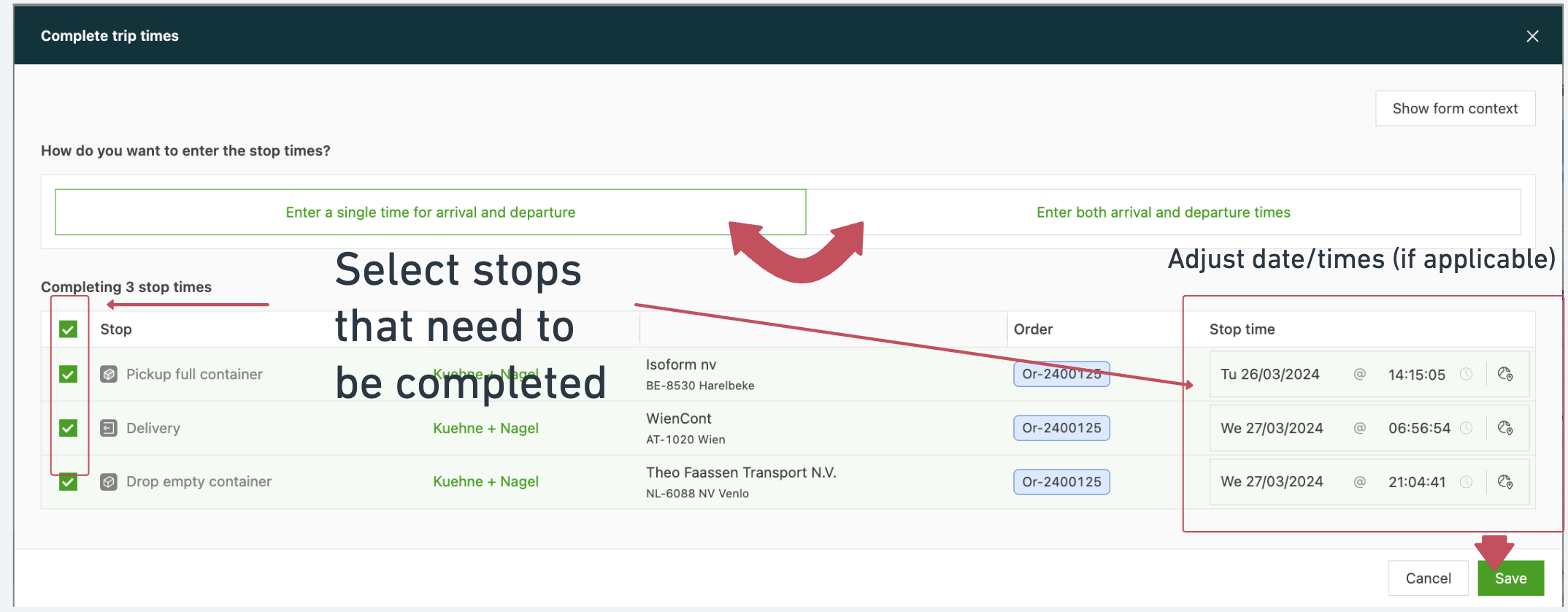
If the times of a load with the status “Planned” or “In transit” need to be completed manually, this can be done from the load page. Click the “Complete load times” option and set the correct dates and times for each stop that needs to be completed.
Complete load times from the planning board
Locate the load on the planning board and find the “Complete load times” task by hovering over the colored area
Set the correct dates and times for each stop that needs to be completed and save the changes:
Complete load times in bulk
Navigate to the Loads tab and locate the “Quick actions” button
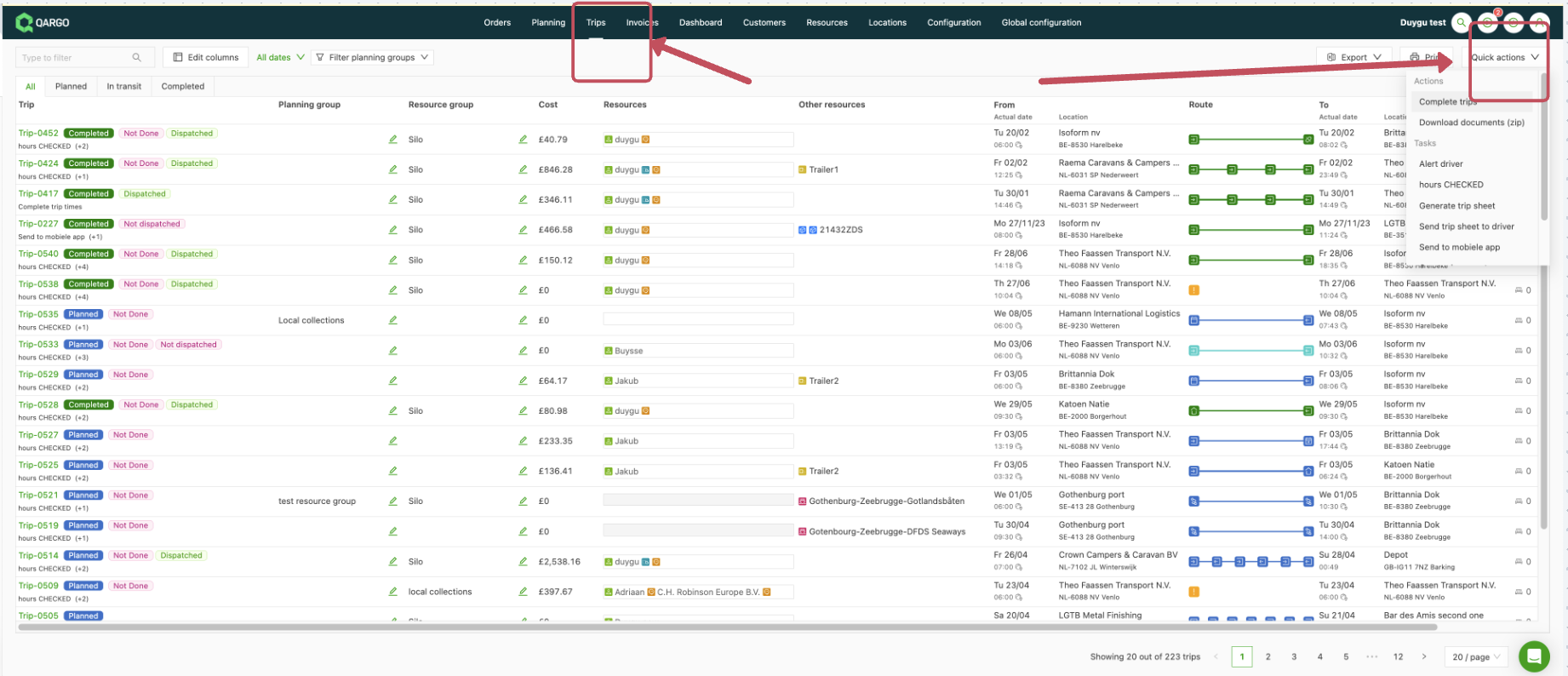
Click the “Complete load times” option and define the loads that need completion by applying filters or selecting loads:
After the selection, click the Complete button to set the status of the loads to “Completed”
Adjust the load times of a completed load with the “Complete load times” option
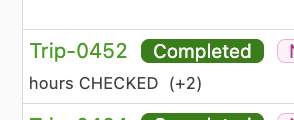
If a load has already been completed and the arrival and departure times need to be adjusted, this can be done by opening the load page and clicking the edit button on the “Complete load times” task:
Correcting mistakes:
Although there is no automatic reversal for completed jobs, users can manually update timestamps or reset specific stops to correct errors effectively.