
Customer Portal — News Feed: what, why & how.
Publish announcements and operational updates directly on the Customer Portal dashboard so all customer portal users stay informed in real time.
Table of contents
Summary
What is the News Feed?
- A channel for publishing announcements and operational updates directly on the Customer Portal dashboard
- Visible to all portal users the moment they log in or refresh the page
Why use the News Feed?
- Reduces reliance on separate emails or phone calls to communicate updates
- Ensures all portal users see the same information at the same time
- Published items can be edited or removed at any time, keeping content current
How does it work?
- News items are created and managed in Configuration > Documents > Customer portal documents > News feed
- Once published, a news item appears immediately on the Dashboard tab of the portal
- Items can be updated or deleted at any time from the same settings tab
Use cases
The News Feed is well suited to time-sensitive or broadly relevant operational updates, such as:
- Service disruption notices - alerting portal users to delays caused by adverse weather, road closures, or regional disruptions
- Fuel purchase price updates - sharing revised fuel rates that affect transportation costs
- Network or route changes - communicating changes to operating areas or delivery routes
- Public holiday operating hours - notifying users of reduced service windows or pickup cut-off times during public holidays
- General operational updates - any other information relevant to all active portal users
Terminology
| Term | Definition |
|---|---|
| Customer Portal | The self-service web interface where a transportation company’s customers can track shipments and view order information |
| News Feed | The section of the portal dashboard where published announcements from the transportation company are displayed |
| News item | A single announcement or update published to the News Feed, consisting of a title and rich-text content |
| Dashboard tab | The landing page of the Customer Portal, where the News Feed is displayed to portal users |
Publishing a news feed article
-
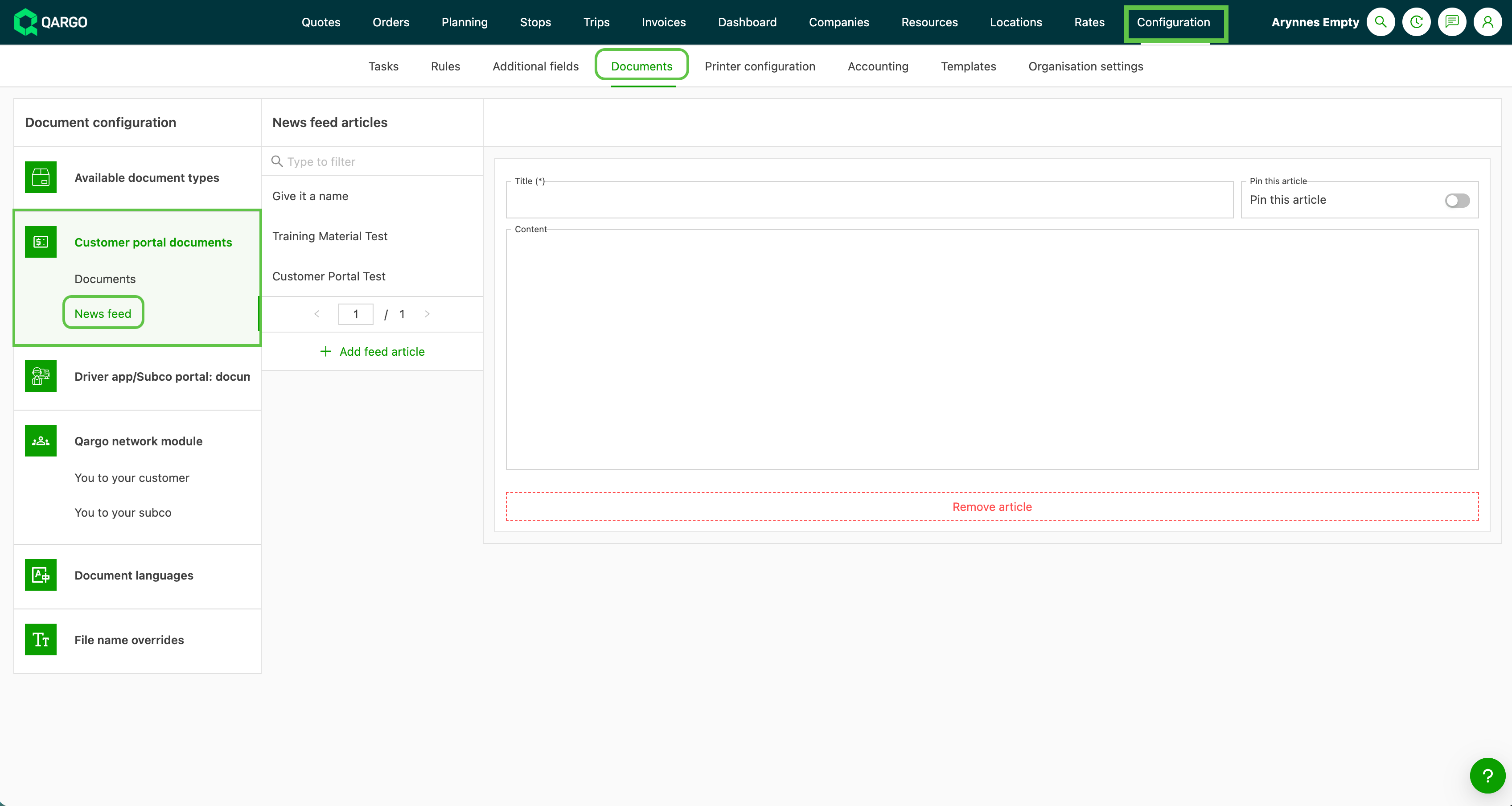
Navigate to Configuration > Documents > Customer portal documents > News feed
-
Select the News feed option
-
Click + Add feed article
-
Enter a title for the announcement in the Title field
-
Add the message in the Content field
- Text can be formatted, links can be added, and bullet points are supported
-
Toggle (optional) the Pin the article option. This will keep the article visible at the top of the dashboard.
- A maximum of 3 articles can be pinned at the same time.
-
Click Save
Editing and removing news feed articles
Published news items can be updated or removed at any time from the same News feed tab.
-
Navigate to Configuration > Documents > Customer portal documents > News feed
-
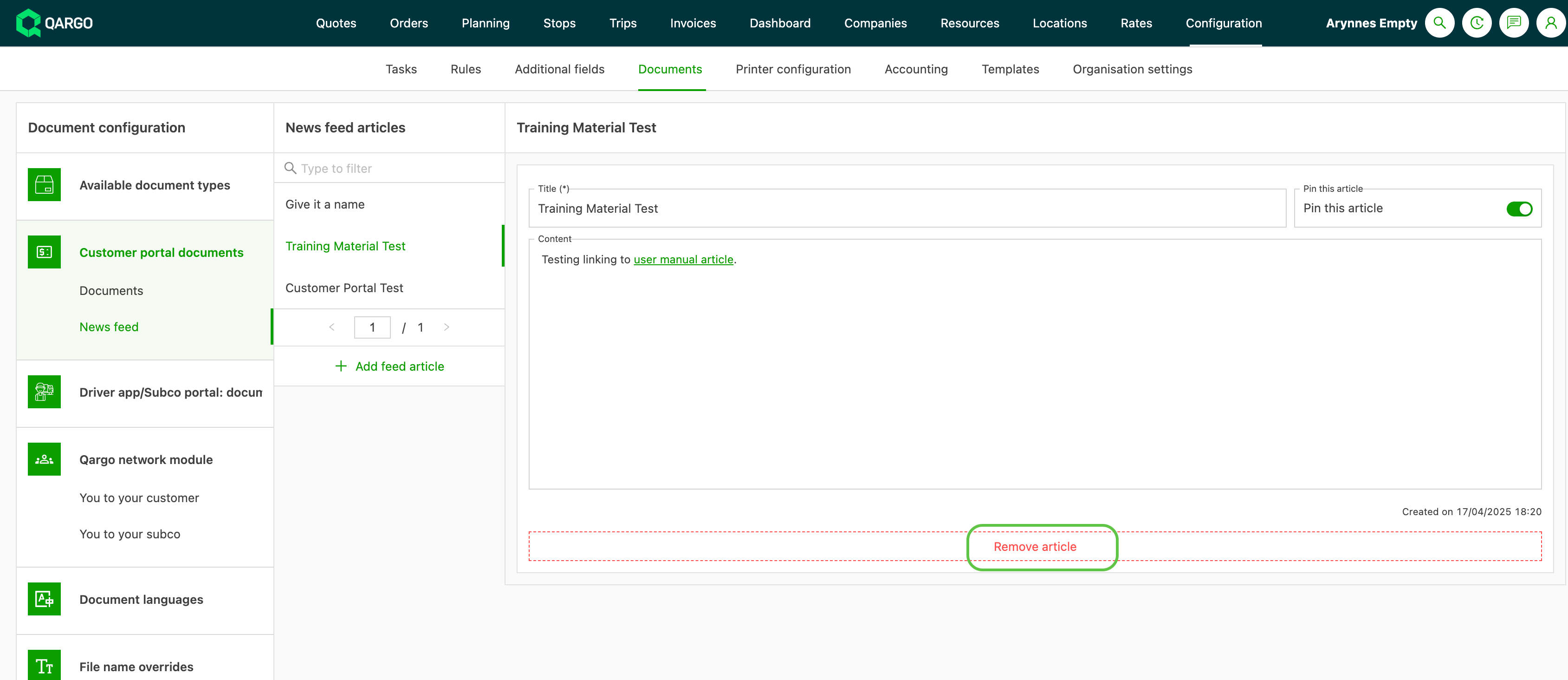
Locate the news item to be updated in the list
-
Click the article
-
To edit, add to or modify the existing content and click Save
-
To remove an article, click the Remove article option
-
-
Save changes
Limitations
Visible to all portal users There is no option to target a news item at specific customers or companies. All published items are visible to every user with access to the portal. For communications intended for a single customer, direct email or messaging should be used instead.
No scheduled publishing News items are published immediately when Publish is clicked. There is no option to schedule a news item for a future date or time.
No per-customer customization It is not possible to show different news content to different customer accounts or portal users.
Troubleshooting
| Issue | Resolution |
|---|---|
| The News feed tab is not visible in settings | Confirm that the Customer Portal is enabled for the account. Contact the Qargo account manager if access is needed. |
| A published news item is not appearing on the portal | Ask the portal user to log out and log back in, or refresh the page. Items appear on the first page load after publishing. |
| Rich-text formatting is not rendering correctly | Check that the content was entered using the in-app editor rather than pasted from an external source with incompatible formatting. |
| A news item needs to be removed urgently | Delete the item from Configuration > Documents > Customer portal documents > News feed; removal takes effect immediately. |