ZIP code zone groups
Group ZIP codes into zones for customer rate cards and apply rates based on default zones.
Table of contents
When the same rate cards apply to locations that share a ZIP code prefix or fall within the same range, ZIP code zone groups can be used.
Qargo supports robust ZIP code zone configuration for accurate mapping and compatibility with rate tables.
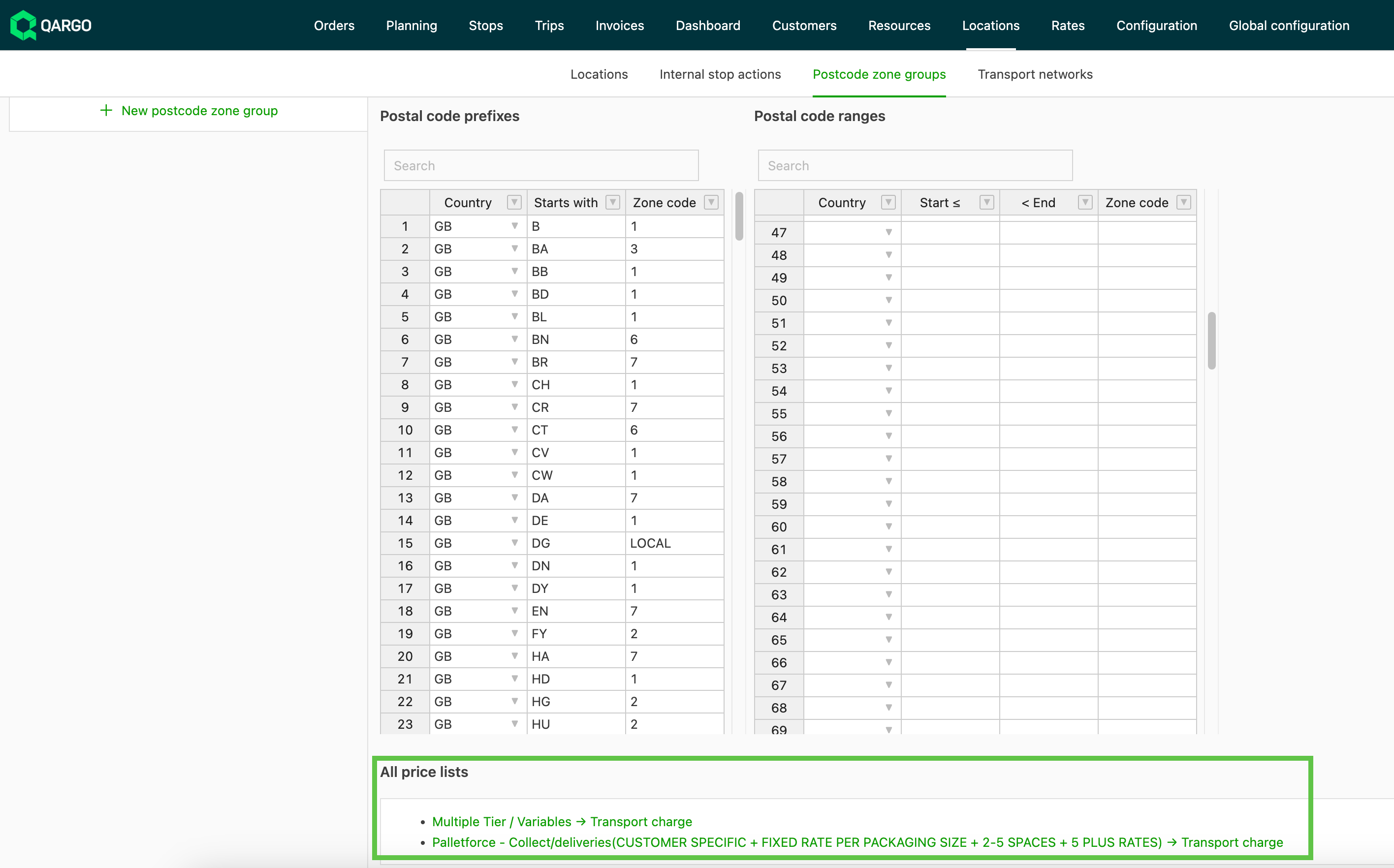
- Navigate to Locations
- Click ZIP code zone groups
- Click New ZIP code zone group on the left side
Complete the General info section to add a list of ZIP code zones or ZIP code ranges. This includes:
- Name of the ZIP code zone group
- Active toggle: defaults to Active when creating new groups
- A description: use this for any specific details that should be visible to users who select this group for rates.
ZIP code zones can be configured in 2 tables.
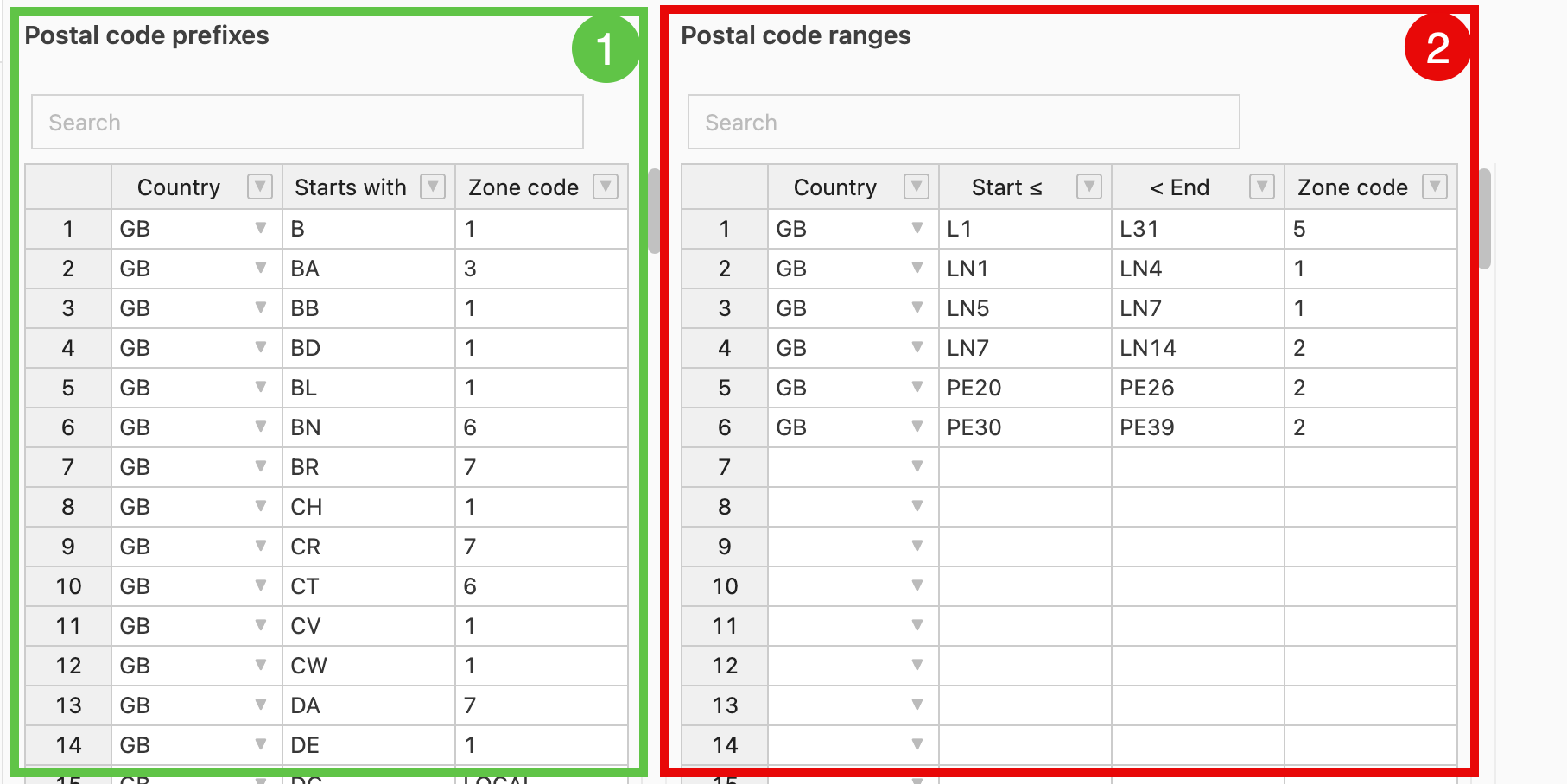
- ZIP code prefixes. These fields use only the first letters or numbers of the recognized ZIP code syntax of the corresponding country. For example, all UK ZIP codes begin with a letter, which can be one or 2 characters; this is the prefix. When setting ranges for countries that do not use this type of format, leave this table blank and set the ranges in the ranges table.
- ZIP code ranges. Ranges can combine both alphabetic and numeric data. When setting a range, the critical thing is to make sure the start and end points capture the entire range.
Including letters in ZIP code zones
ZIP code zone groups in Qargo also support alphanumeric formats, such as the Dutch “1000 AA” style. To define these zones, set a range with flexible criteria that includes both numeric and letter-based codes. For example:
- To include “1000 AA”: set the range from
Start = 1000toEnd = 1001. Incrementing the numeric part of theEndvalue makes sure alphanumeric zones are included. - Apply the same exclusive-end rule used for numeric ranges to keep the mapping of these alphanumeric ZIP codes accurate.
!!️ Qargo uses an inclusive start and an exclusive end rule to define ranges. This means the range includes the lower bound (start value) and excludes the upper bound (end value). Always set the end value one unit higher than the highest ZIP code to be covered.
To include only ZIP code 1000: Start = 1000, End = 1001. To include ZIP codes 1000 through 1300: Start = 1000, End = 1301. For example, ZIP code 1300 is included, while 1301 is excluded. Incorrectly configured range values can lead to rating errors. It is crucial to apply the inclusive start and exclusive end rule so that prices are applied as expected.
This flexibility also applies to alphanumeric ZIP codes, which keeps them compatible. For example, “1000 AA” can be configured by setting a range from Start = 1000 to End = 1001, which maps such alphanumeric codes accurately.
Using ZIP code zone overrides for route charge calculations.
Why use a ZIP code zone override?
-
ZIP code zone overrides let users apply a different ZIP code instead of the specific one assigned to the location.
- This is useful when a location is associated with multiple addresses, for example the Port of Antwerp.
Key ZIP codes associated with the port and surrounding areas:
- 2000: Antwerp city center (where the Port Authority’s old address was located).
- 2030: Directly associated with industrial and port grounds, including many terminal addresses and the current Port Authority address.
- 2040: Associated with the districts of Berendrecht-Zandvliet-Lillo, located in the far north of the port area.
- 2100: Home to the European Logistical Support Office (ELSO) facility, located within the wider Antwerp area.
In this example, each of these ZIP codes can be mapped to one specific ZIP code, which can then be used to generate a route-based cost calculation.
Create a ZIP code zone override
-
Navigate to Locations > ZIP code zone groups
-
Click + New ZIP code zone group
- Give the new zone a name that clearly identifies what it is used for.
- Add a description to help users understand what this zone is used for
-
Create the zone mapping (see the article link below for more details):
- ZIP code prefix: use only the beginning of the ZIP code.
- ZIP code range: use a start and end range of ZIP codes, allocating the range to a single ZIP code.
‼️ All ZIP codes that fall within the range are mapped to the specified zone
-
Enter the country code: all mapping must be within the same country
-
Enter the ZIP code prefix or range in the Starts with column, or the Start and End columns
-
Enter the override ZIP code in the Zone code column
- This is the ZIP code used in place of the original.
-
Add all overrides to the same table.
📚 Only 1 ZIP code zone group can be entered in the organization settings.
- Click Save
The next time a location with a ZIP code included in the override table is used, the ZIP code specified in the zone group is used instead of the actual ZIP code of the location.
Practical examples of ZIP code ranges
Four-digit ZIP code examples:
-
To include only a specific ZIP code, such as
1000:Start = 1000,End = 1001. -
To include multiple ZIP codes, such as
1000through1300:Start = 1000,End = 1301. -
To include an alphanumeric ZIP code such as “1000 AA”, define the range with
Start = 1000andEnd = 1001. This approach makes sure the numeric part matches while accommodating the alphanumeric elements.
Five-digit ZIP code examples (international use):
- To cover ZIP codes up to and including
99999, set the range as:Start = lowest desired value,End = 100000.
The principles of inclusive start and exclusive end apply universally across geographic regions and ZIP code formats. Prefixes and ranges can also be combined to cover the complete scope of the zones, which keeps the setup compatible with diverse logistics configurations.
Country-specific formats such as the Dutch alphanumeric “1000 AA” can easily be handled in the configuration without departing from the principles of inclusivity and exclusivity.
To complete the table, enter the country using the appropriate 2-letter code. Make sure ZIP codes are entered without typing errors, such as confusing the letter ‘O’ with the number ‘0’, to prevent mapping inaccuracies.
Enter the prefix and/or ranges.
Enter the zone code associated with the ZIP code. This can be a name, an ID number or an alphanumeric combination. Multiple prefixes or ranges can be assigned to the same zone code as needed.
Once added, the zone group can be added to the rate cards.
If switching to a different ZIP code zone group leaves columns empty, copy the zone entries before making the change and paste them back afterward to keep the mappings accurate.
If rates are missing for specific orders, make sure the delivery ZIP code is included in the rate card setup and update the zone configuration for the corresponding regions. Missing zones can be added manually, and charges can then be recalculated manually to resolve the issue.
When the group is added to a rate card, a link appears at the bottom of the ZIP code zone group for easy navigation to that rate card.
Troubleshooting incorrect zone mapping
First, check that the affected rate card includes all relevant ZIP code groups and tiers for the specific scenario, and make sure no prefixes or ranges are misconfigured.
Occasionally, mapped zones may not match what users expect. This is usually caused by conditions in the rate card:
- Verify vehicle type and zone conditions: Certain vehicle types can influence zone allocation. For example, if a job price is mapped to Zone B instead of the expected Zone A, check the vehicle type and the applicable conditions in the rate card that might redirect the zone rating.
- Check related calculation conditions: Confirm that all rating logic in the configuration supports the expected outcome. These checks resolve unexpected results and align rating with the intended zone mappings.3. Missed upper boundary: If the highest boundary is not included as expected, check that the
endvalue is set one unit higher than the desired value. - Cross-region configurations: When spanning multiple countries, make sure the configured ranges match each country’s ZIP code format and structure.
Handling gazetteer updates from external networks
Qargo also integrates with external networks such as TPN and Hazchem to manage ZIP code areas. Key points:
- Network versus Qargo responsibilities: Qargo does not manage the assignment of ZIP codes for TPN and Hazchem internally. Instead, changes to terminal assignments or ZIP code areas are governed by these networks’ own gazetteers.
- API updates: Updated assignments are automatically sent to Qargo through API payloads during import and export operations.
- Custom overrides: Owned ZIP codes can be configured or updated in Qargo to enforce specific terminal assignments for exports. Managing these updates effectively keeps Qargo settings in sync with external changes without additional manual intervention.