
Rate card FAQ – ZIP code-based route charge calculation
Table of contents
The ZIP code-based route charge calculation feature lets users calculate route charges for orders based on ZIP code areas rather than exact addresses. This is particularly useful where locations may cover wider areas and where predictable rating across those areas is more practical than varying charges.
Key features
-
Charges based on ZIP code distances: Calculate route costs using ZIP codes instead of exact locations.
-
ZIP code zone mapping overrides: Apply rating rules using custom ZIP code zones.
-
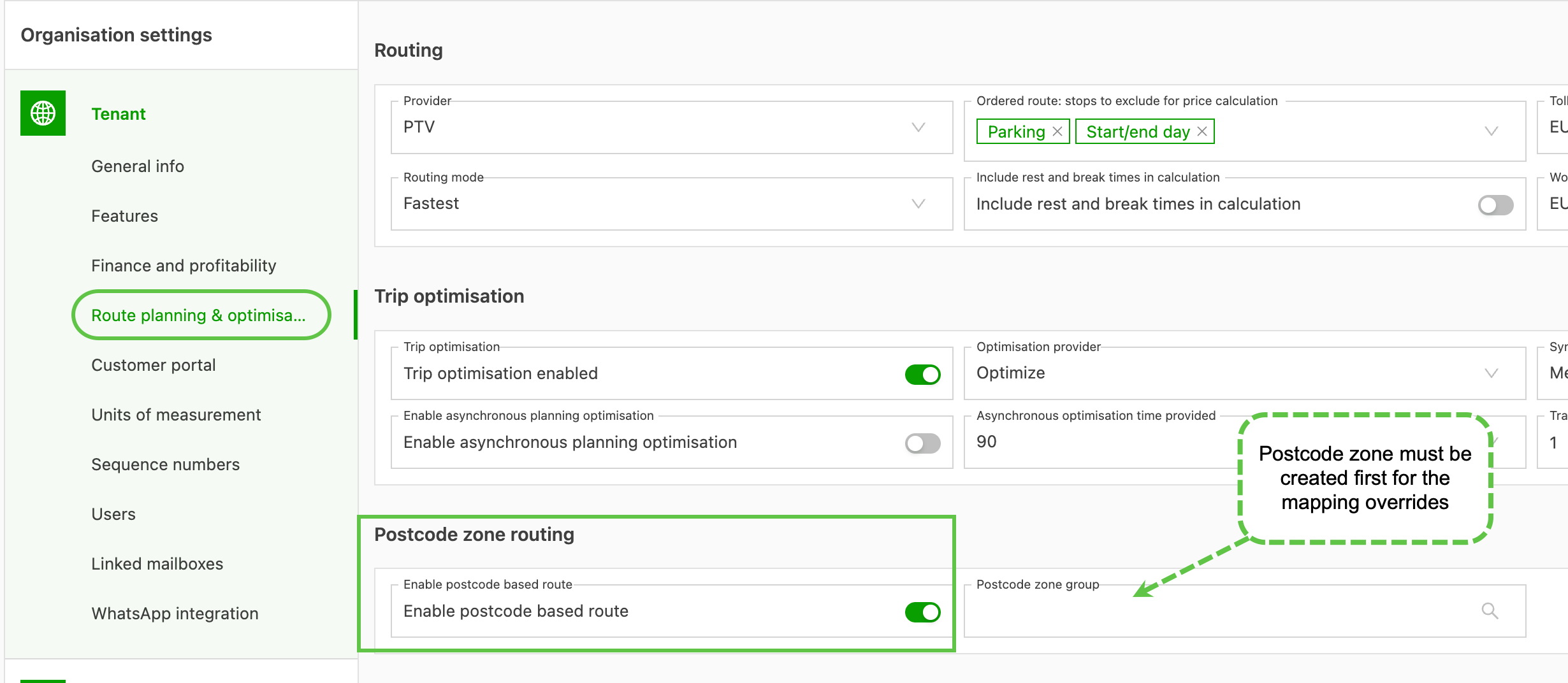
Configuration: Enable and configure under Configuration > Organization settings > Route planning & optimization.
How it works
-
Orders are assigned ZIP codes for pickup and delivery.
-
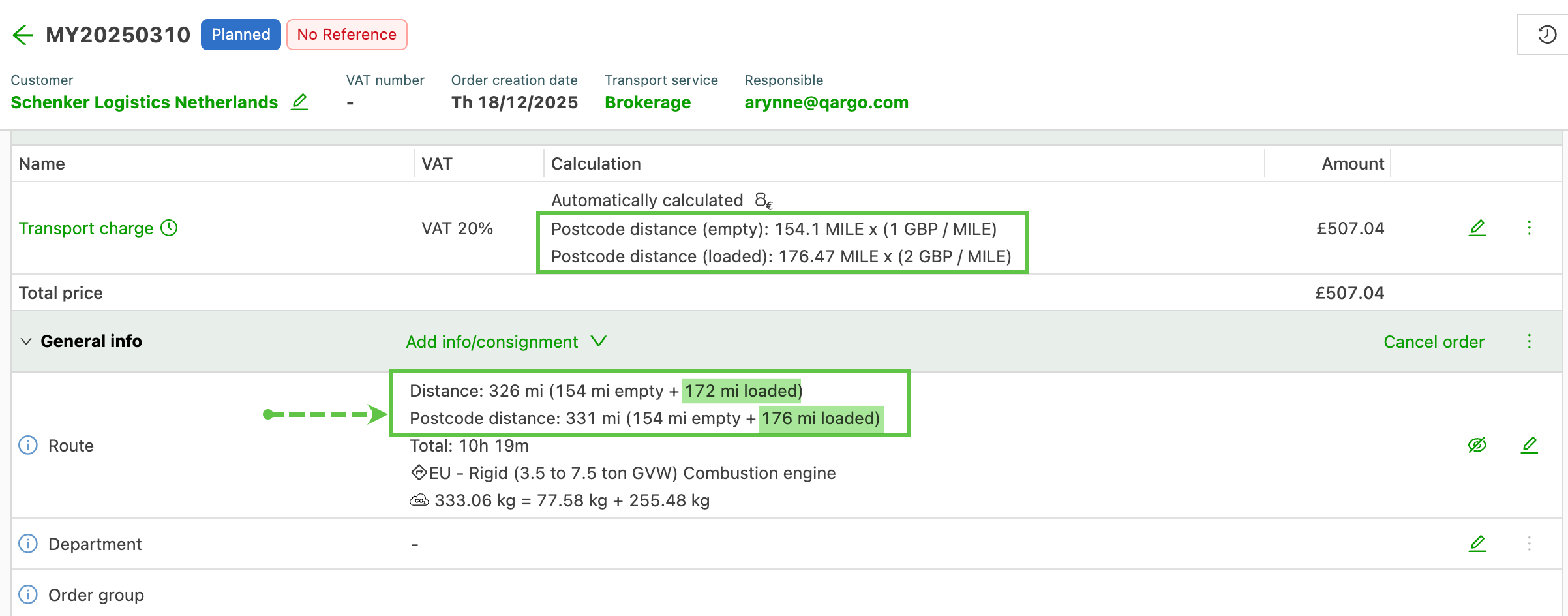
Route charges are calculated using the distance between these ZIP codes.
-
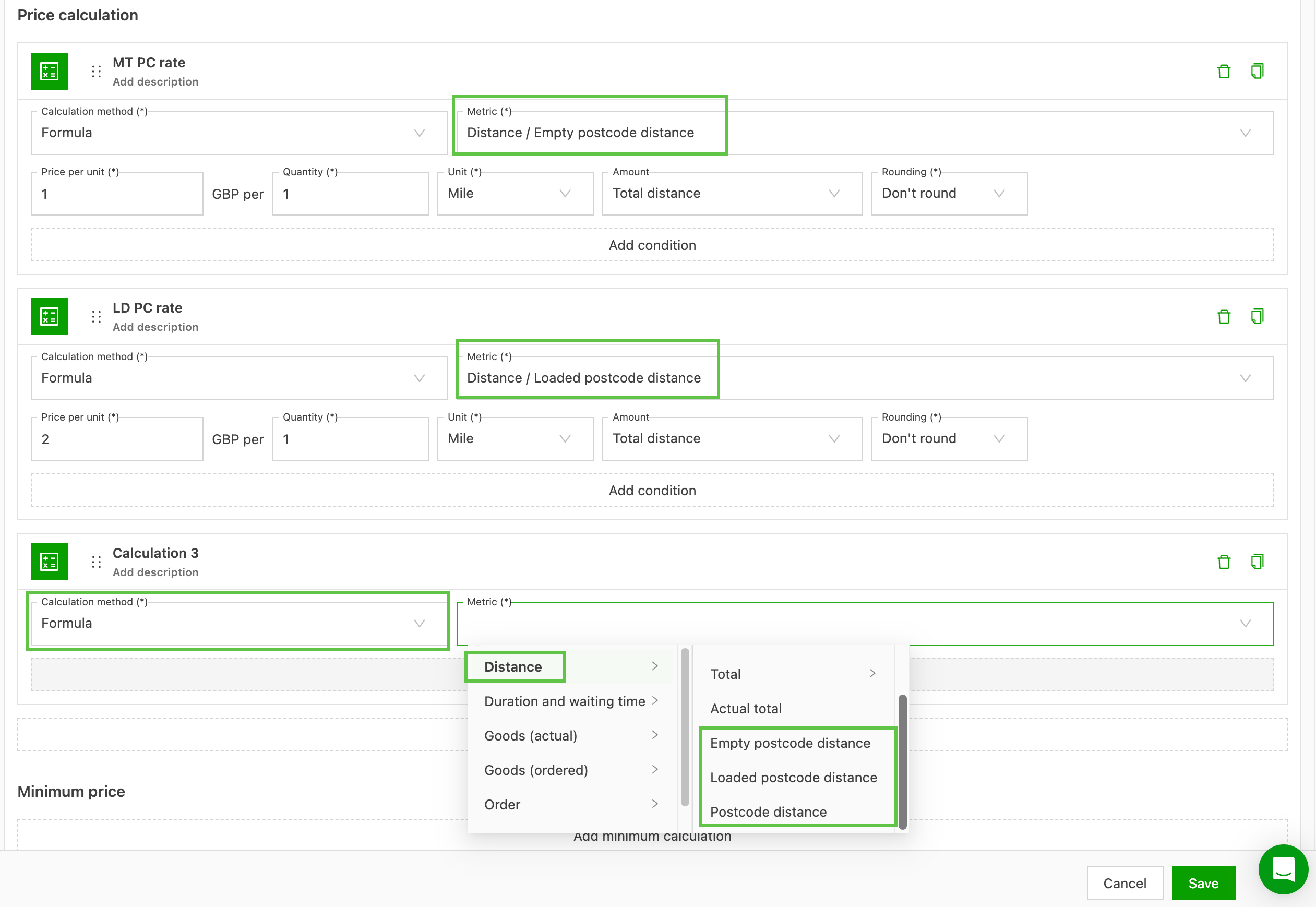
Calculations can be set by:
-
Total ZIP code distance
-
Empty ZIP code distance
-
Loaded ZIP code distance
-
-
Define ZIP code zone overrides to adjust charges for specific areas if needed
- ZIP code zones must be set up first and then added under Configuration > Organization settings > Route planning & optimization.
-
Multi-stop orders that revisit the same ZIP code are handled without inflating stop counts, making planning more flexible.
ZIP code zone overrides
Why use a ZIP code zone override?
-
ZIP code zone overrides allow users to use a different ZIP code instead of the specific one assigned to the location.
- This is useful when a location is associated with multiple addresses, for example the Port of Antwerp.
Key ZIP codes associated with the port and surrounding areas:
- 2000: Antwerp city center (where the Port Authority’s old address was located).
- 2030: Directly associated with industrial and port terrains, including many terminal addresses and the current Port Authority address.
- 2040: Associated with the districts of Berendrecht-Zandvliet-Lillo, which are located in the far north of the port area.
- 2100: Home to the European Logistical Support Office (ELSO) facility located within the broader Antwerp area.
In this example, each of these ZIP codes can be mapped to one specific ZIP code that can then be used for generating a route-based cost calculation.
Create a ZIP code zone override
-
Navigate to Locations > ZIP code zone groups
-
Click + New ZIP code zone group
- Give the new zone a name that clearly identifies what it is used for.
- Add a description to help users understand what this zone is used for
-
Create the zone mapping (see the article link below for more details):
- ZIP code prefix: use the beginning of the ZIP code only.
- ZIP code range: use a start and end range of ZIP codes, allocating the range to a single ZIP code.
-
Enter the country code. All mapping must be within the same country
-
Enter the ZIP code prefix or range in the Starts with / Start and End column
-
Enter the override ZIP code to use in the Zone code column
- This will be the ZIP code used in place of the original.
-
Add all overrides to the same table.
- Click Save
The next time a location is used that contains a ZIP code included in the override table, the ZIP code specified in the zone group will be used instead of the actual ZIP code in the location.
To learn more about how ZIP code zones work, click the link below 👇
The video below walks through setting up and using a ZIP code zone override.
Important considerations
- ZIP code zone mapping overrides only support valid ZIP codes.
- Overrides must be within the same country.
- Where an order covers multiple different ZIP codes (3 or more), ZIP code routing is not applied.
This method provides a simpler and more predictable cost model, especially useful for port-based container transportation.
Troubleshooting
Q: Why isn’t a ZIP code override working?
- Make sure the ZIP code is valid and exists within the country of the order.
- Check that the override is correctly configured in the ZIP code zone mapping section.
Q: A multi-stop route still seems limited. Why?
-
Only visits to different ZIP codes are counted as a new segment; segments that stay within the same ZIP code will be counted as 1.
-
What this means in practice:
- A route like
A → B → A → B → A → Bworks fine. - A route like
A → B → C → Aalso works, as long as any two of the locations share the same ZIP code.
- A route like
Q: Charges don’t match expectations.
- Verify that distances are being calculated correctly between the ZIP codes.
- Check whether any overrides are applied that could adjust the route charges.
Q: Can this be used for international orders?
- Overrides are currently limited to within the same country. For international routes, standard rate calculation applies.