
FAQ: Managing users and portal access in bulk
This article explains how to use new bulk actions for user removal and portal access management to save time on administrative cleanup.
Q: How can bulk actions save time when cleaning up a system after a large testing phase (like a go-live in a sandbox) or when offboarding multiple external users efficiently?
A: The bulk management features process many accounts at once, significantly cutting down on administrative cleanup time:
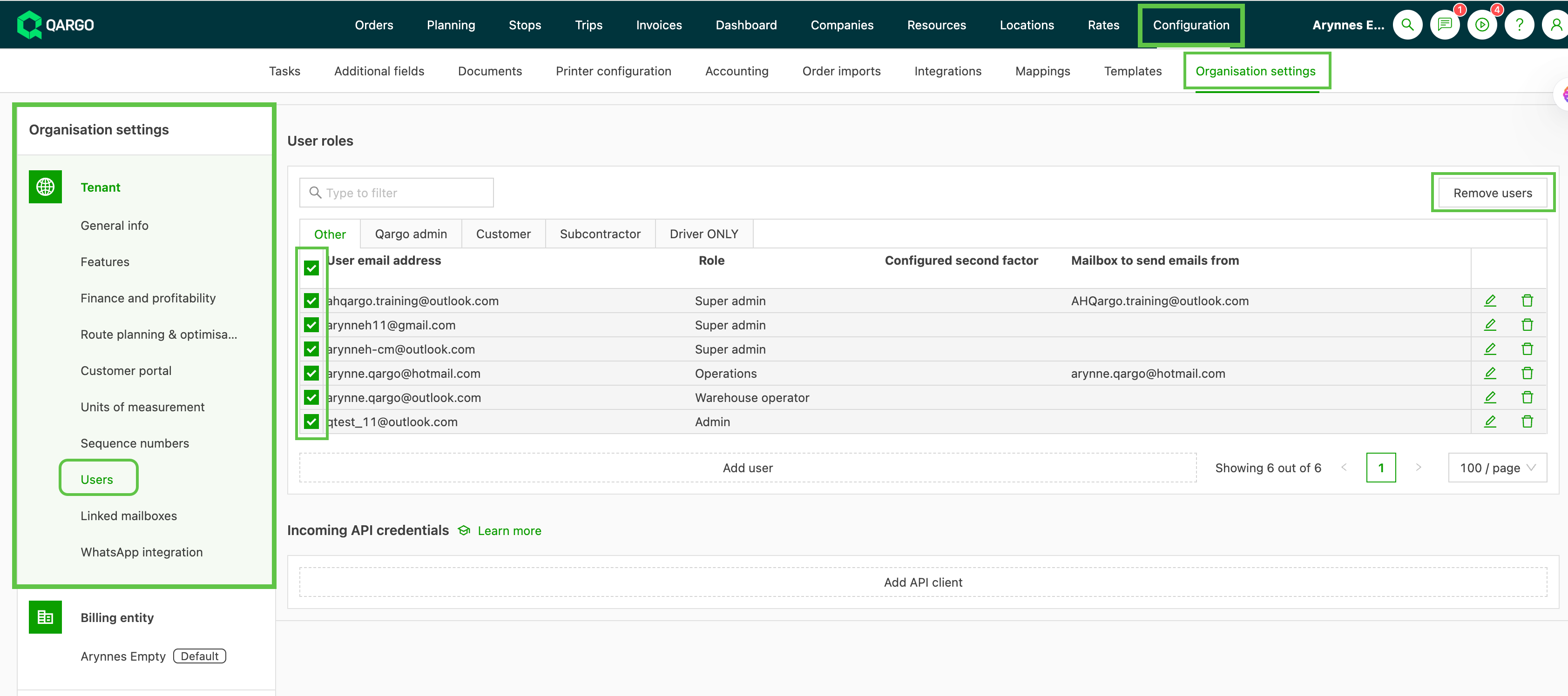
1. Bulk user removal (normal users and admins): Remove users from the tenant in bulk.
- Navigate to Configuration > Organization settings > Users.
- Select the users to remove
- Use the ‘Remove users’ button to delete them simultaneously.
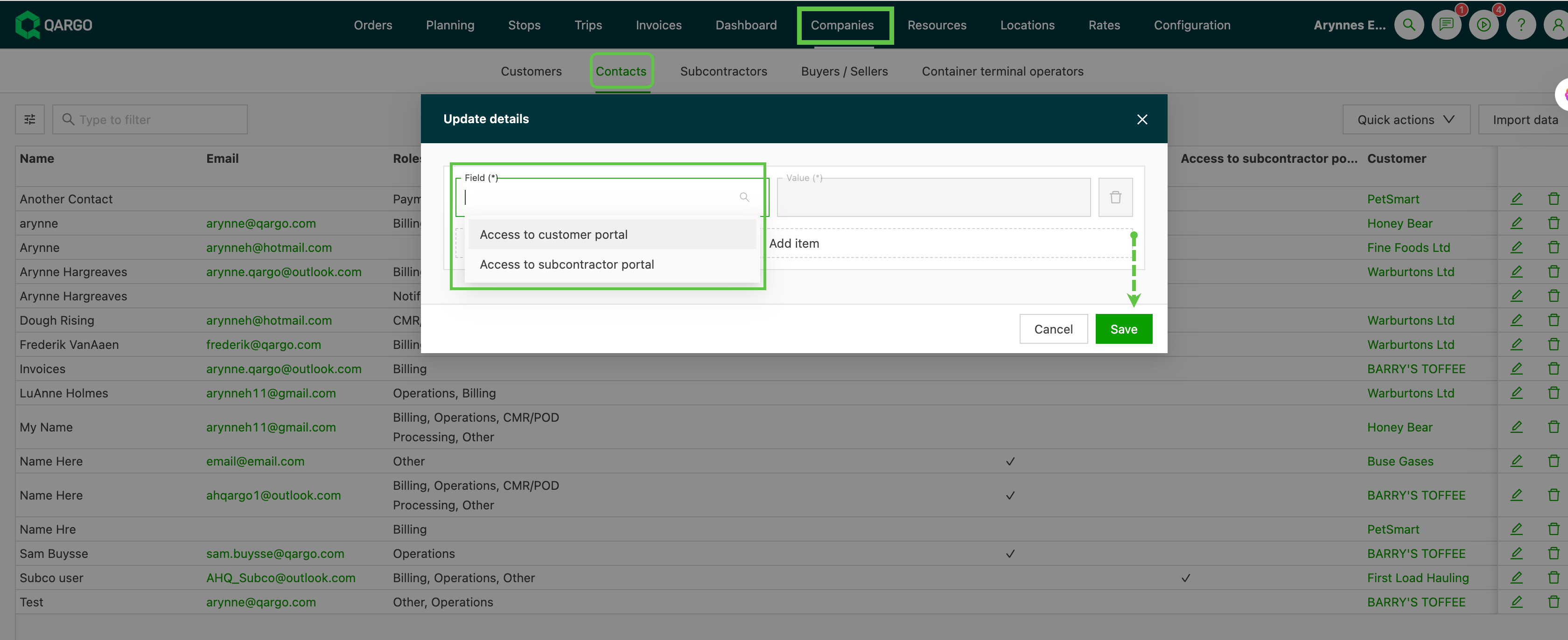
2. Bulk portal access removal (customer/contract carrier contacts): Revoke external access to the customer portal or carrier portal for multiple customer or contract carrier contacts.
- Navigate to the Companies > Contacts tab.
- Use the quick action to select the contacts
- and collectively remove their access to the Customer portal and/or the Carrier portal in one step.
These features eliminate the need for repetitive, one-by-one actions and keep user and access lists accurate and secure.