
Data import: importing validity data
A comprehensive guide to importing validity data. This process updates the expiration dates of documents and certificates for drivers and vehicles in bulk.
Table of contents
- 📖 Key terminology
- ✅ Critical import requirements for validity
- 🛠️ Step-by-step data import process
- Step 1: Download the template
- Step 2: Fill in the Excel template
- Step 3: Submit for upload
- 📝 Details of the validity import template
- 🔎 Troubleshooting common validity import errors
- ✨ Best practices for importing validity
- ➡️ What to do next
- 📈 Use cases for validity import
The validity data import updates the expiration dates of documents and certificates assigned to drivers and vehicles in bulk. This import is for updating existing records, not for creating new ones. It provides a quick and efficient way to keep all resource documentation up to date in the system, such as driver’s licenses and vehicle inspection certificates.
📖 Key terminology
The following terms are defined for clarity throughout this guide.
- Validity: The period during which a document or certificate is active and legally binding.
- Resource: A term used to describe a driver or a vehicle.
- Resource type: The specific type of document whose validity is being updated (e.g., driver’s license, HazMat certificate, vehicle inspection).
✅ Critical import requirements for validity
Before importing validity data, consider the following requirements and warnings to ensure data integrity.
- Resource prerequisite: The driver or vehicle record must already exist in the Qargo system. This import only updates existing resource documents. It cannot be used to create new resources.
- Resource type prerequisite: The Resource type must be predefined in the Qargo platform’s settings before the import is attempted.
- Mandatory fields: The Resource external ID, Document type, and Valid until date are mandatory fields for each record.
- Date format: The date format used in the template must be correct and consistent with the platform’s requirements.
🛠️ Step-by-step data import process
Step 1: Download the template
A specific spreadsheet template is available for uploading validity data. To edit and upload data, download a copy of the template:
- Click the link: Validity data import template
- Once the template opens, go to File and select Download
- Save the template (in .xlsx or .csv format) to the computer and begin entering the company data.
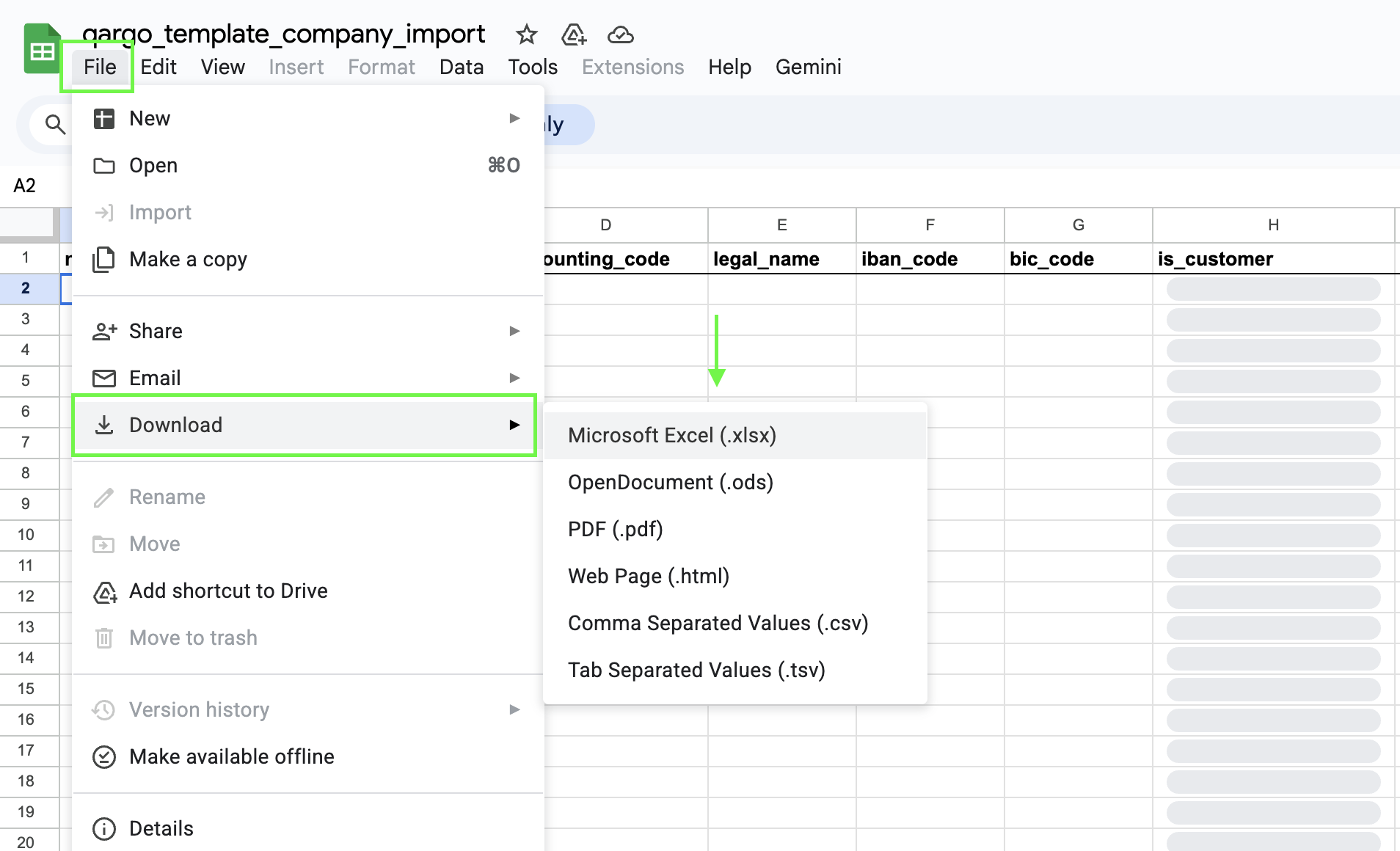
Step 2: Fill in the Excel template
Open the template and populate it with the required data. The template contains column headers that correspond to the fields in Qargo.
- Required fields: Fill out all the required fields (a comprehensive list of required fields is in the next section of this article). An import fails if these fields are left blank.
- Formatting: Pay close attention to the specified data format (e.g., dates, numbers, text).
Step 3: Submit for upload
- During onboarding: Work directly with the onboarding manager to upload the initial business data. The onboarding manager guides the process and ensures a successful import.
- After onboarding: For all future data updates and imports, contact the account manager, who assists with the upload process and provides ongoing support.
📝 Details of the validity import template
The following table provides a detailed, field-by-field explanation of the Excel template for the validity import, including data formats, required fields, and best practices for populating each column.
| Column name | Required/optional | Remarks | Example |
|---|---|---|---|
| resource_name | Required | Driver’s name | |
| resource_type | Required | Driver, contract carrier, vehicle type, container, etc. | |
| description | |||
| category | Required | Document or unavailability | |
| subcategory | Required | Specific type of document | Driver_Driving_License |
| start_timestamp | Required | Year/Month/Day | 2016/09/20 |
| end_timestamp | Required | Year/Month/Day | 2026/09/20 |
| legal_end_timestamp | Required | Year/Month/Day | 2026/09/20 |
🔎 Troubleshooting common validity import errors
This section covers specific errors that may occur during the import of validity data.
- Resource not found: This is the most common error. It occurs when the Resource in the template does not exactly match an existing driver or vehicle in Qargo.
- Resource type not found: The import fails if the Resource type specified in the template has not been predefined in the Qargo platform settings.
- Sheet name: The sheet in the Excel template file must be named exactly ‘Import’. Any other name causes an error when uploading the file.
- Invalid date format: This can cause the import to fail. Make sure the Valid until date is entered in a correct and consistent format (Year/Month/Day).
- Case-sensitive column headers: Column headers must be entered with the correct casing (e.g.,
vat_number, notVAT_number). Incorrect casing causes the data in that column to be silently ignored and not imported, because the system does not recognize the header. - Leading apostrophe errors: Data in a cell cannot begin with an apostrophe (’). If an apostrophe is used, the system does not recognize the value, and an error may occur. This rule is waived only if the article explicitly states that an apostrophe should be used for a specific field.
✨ Best practices for importing validity
To ensure a smooth and accurate import, consider the following best practices.
- Complete prerequisites first: Make sure all drivers and vehicles have been successfully imported into the system before updating their validity data.
- Maintain data consistency: Pay close attention to the spelling and capitalization of Resource and Resource type.
➡️ What to do next
Once validity data has been successfully imported, the expiration dates of documents and certificates are updated in the system. The Qargo dashboard and resource profiles then provide a clear overview of upcoming expiration dates, allowing for proactive document management.
📈 Use cases for validity import
Importing validity data is an invaluable tool for several key business processes.
- Annual renewals: The primary use case is bulk-updating a large number of documents that expire on a regular basis, such as vehicle inspection certificates or road licenses.
- Driver’s license updates: This provides a streamlined way to update the validity periods for all drivers whose licenses have been renewed.