
Export customer paperwork from Qargo
How to export customer paperwork uploaded by customers when another terminal handles the delivery
Table of contents
A customer may require delivery paperwork to be included with their deliveries. This can be a physical copy sent with the product, or an electronic scan sent in advance and received by the delivery company.
Operational flow
Follow these steps to download customer paperwork from Qargo:
-
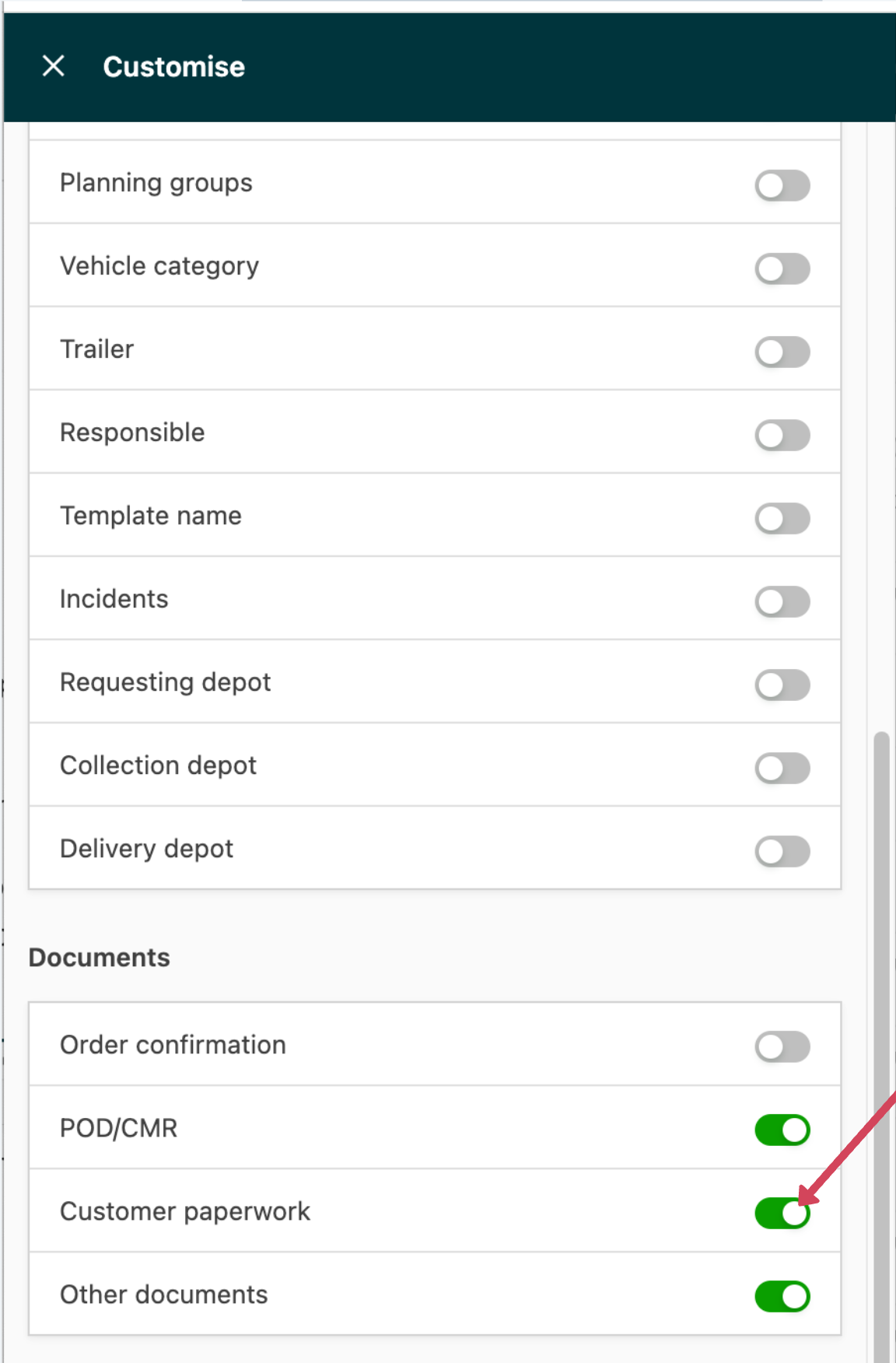
Make sure the customer paperwork column is active by clicking Edit columns and turning on the customer paperwork toggle
-
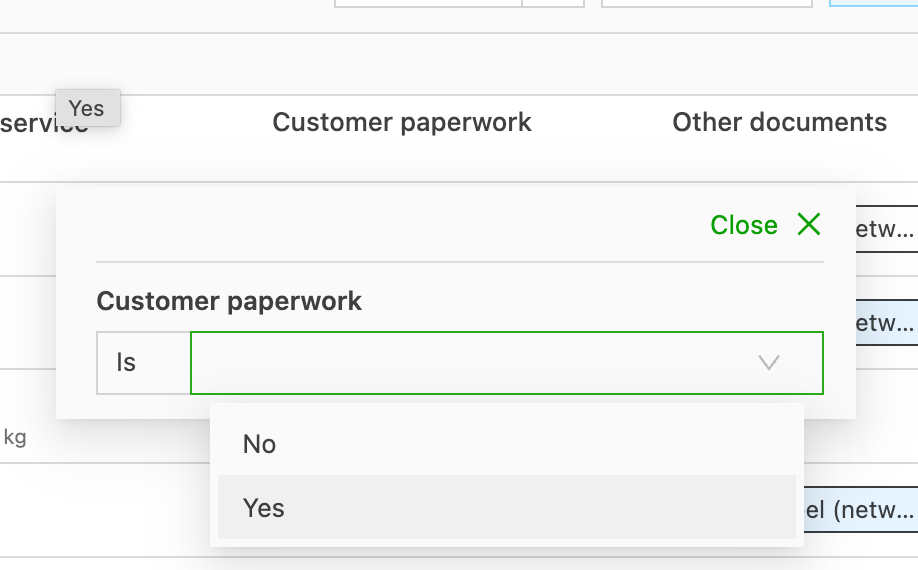
Filter the order list on all orders that have customer paperwork
-
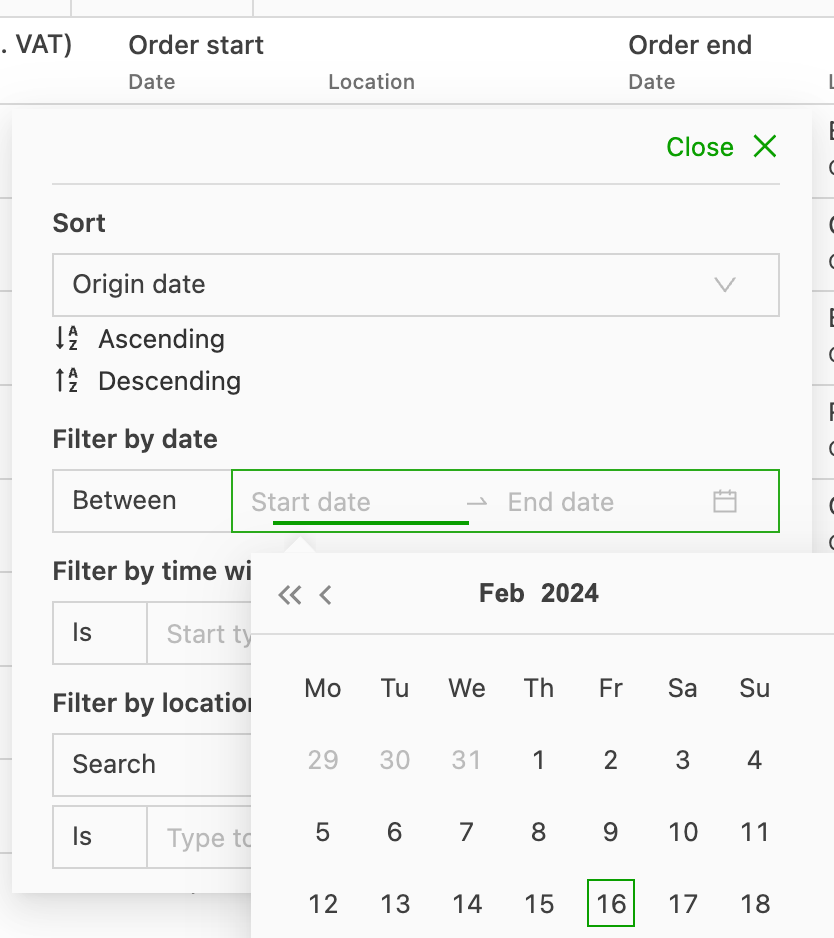
Make sure today’s pickup date is selected
-
This gives a list of all the customer paperwork for orders with today’s manifest date that still needs to be exported.
-
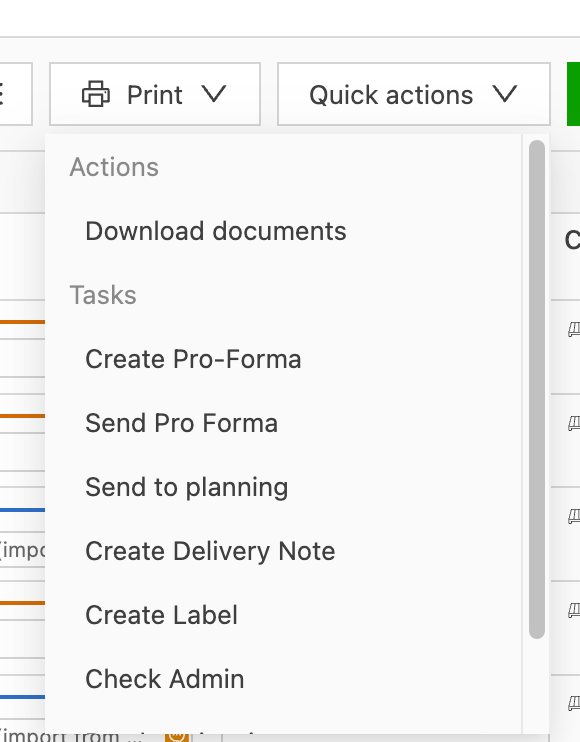
Select the quick actions on the order overview:

Then click Download documents:
-
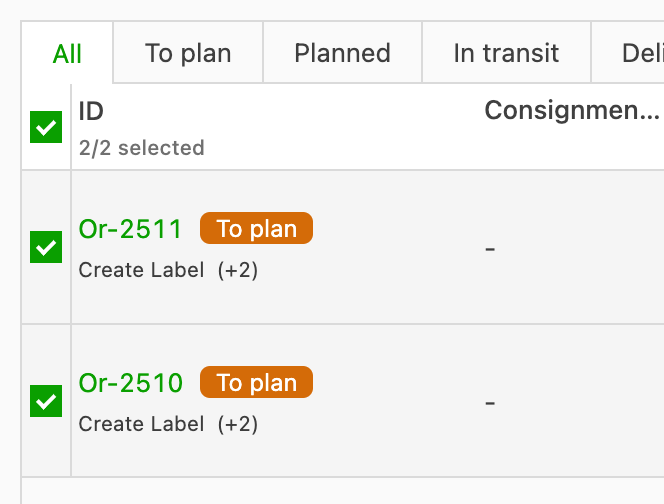
Select all the orders to export by clicking the checkboxes on the left:
-
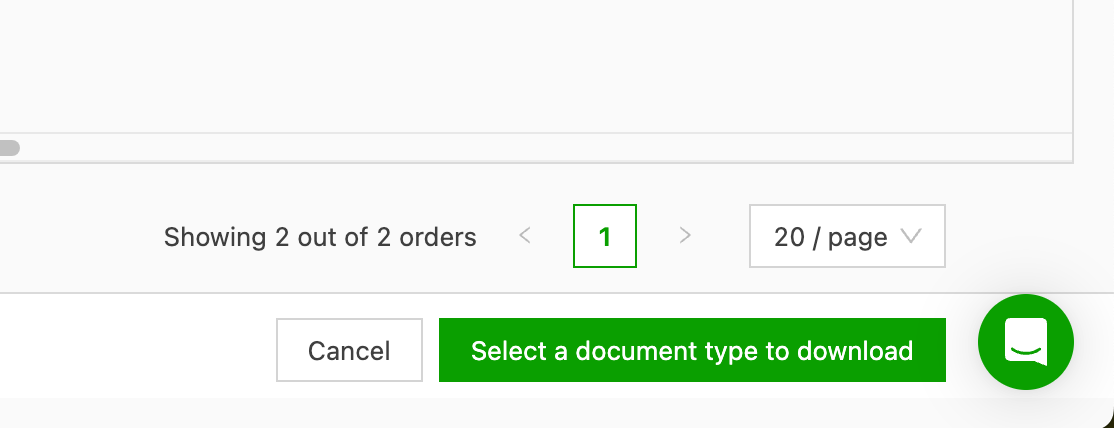
Then click Select a document type in the bottom right:
-
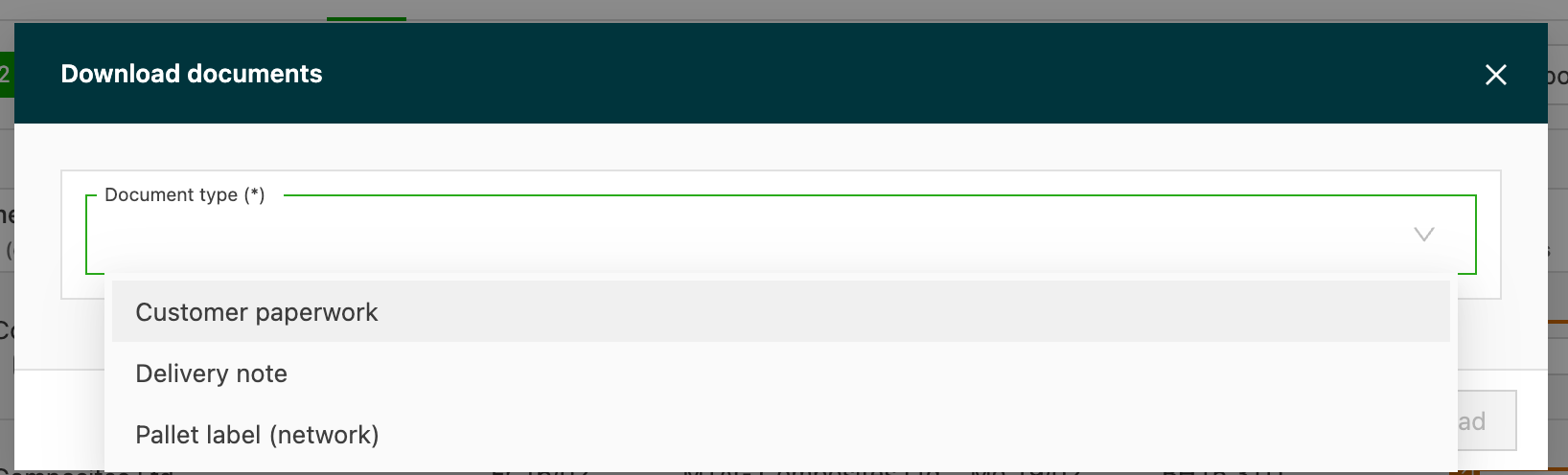
Select Customer paperwork
-
This downloads a zip file with all the customer paperwork. The files are automatically renamed to the correct format for upload (See Configuration)
-
Then upload the files into the appropriate pallet network system, for example Contrado.
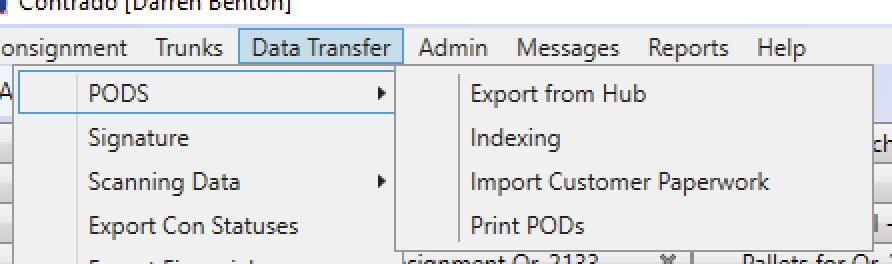
Supported networks:
Palletline: Can be uploaded to the order before the first ARRH (Arrive Hub) status / Uploads can be done individually or in bulk by the user.
Palletforce: Can be sent / received via integration. Pickup terminal can upload COP documents for delivery. Pickup terminal can download filled-in COP documents. Delivery terminal can download COP documents to be filled in on delivery. Documents can be uploaded when completed.
Configuration
Go to Configuration > Documents > File name overrides
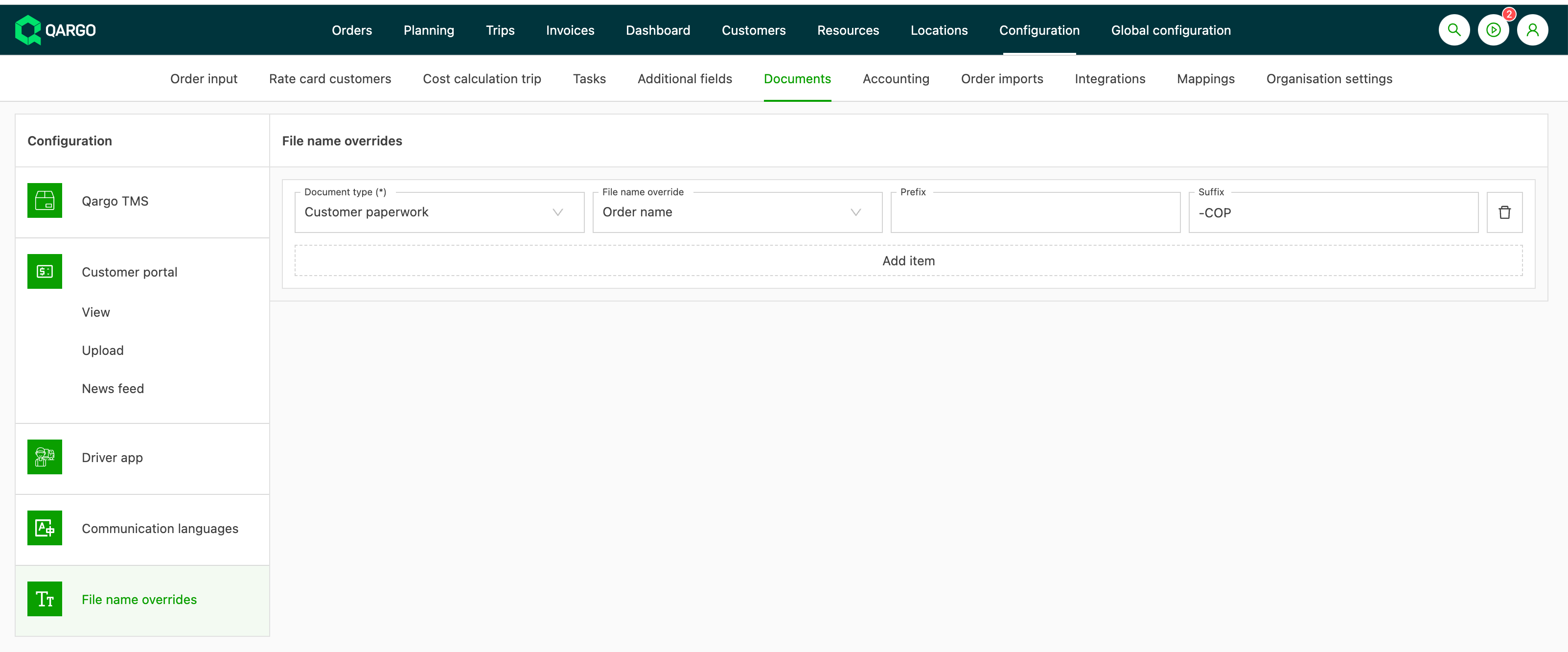
Then select Add item and configure the approved naming convention for the pallet network.
Pallet network:
- Document type = Customer paperwork
- File name override = Order name
- Prefix = empty
- Suffix = -COP
This makes sure that all uploaded customer paperwork gets the correct name.